How a Second Vibe-Coded App Recognises Your Paying Customers

How does the second app know who has paid?
I’ve built an idea validation tool called IdeaGrit on Floot. It pressure tests your idea before you commit your time, money and energy. IdeaGrit serves both individual users (B2C) and organisations such as accelerator hubs (B2B), with different pricing for each account type. Visitors and personal users see a $30 price for a 30-credit pack, while logged-in organisations see $21, a 30% organisation discount.
Now I’m adding a separate swag store selling stickers, mugs and T-shirts. I want people who already pay for IdeaGrit to get 20% off, whether they have a personal or organisation account.
But the swag store has never seen these customers before. Matching email addresses alone doesn’t prove that someone owns an IdeaGrit account or has paid. The store needs to verify both before offering the member price.
I’d also like the rewards to work both ways. For every $10 a customer spends in the swag store, they would receive $1 off a future IdeaGrit purchase. That means the two apps need to work together, both to recognise paying customers and to create coupons IdeaGrit can honour.
What I’d have to build without Connected apps
Without Connected apps, my small swag store would become a much bigger job. A login page and matching email addresses would only be the start. I’d still need to verify the customer’s IdeaGrit identity and paid status before offering the member price.
Copying the feature into the store wouldn’t solve this either. A copied feature gets a copy of the data, so the store never learns who paid for IdeaGrit yesterday. I’d have to keep that copied customer list updated whenever someone became a paying customer. I’d also need to handle failed checks and carry the correct price from the product cards through to checkout.
For coupons, I’d need a way to create a record in IdeaGrit and return its code to the store. Retrying the same order would have to return the same coupon.
Discovering Connected apps
This is where Floot’s Connected apps comes in. It lets apps you own work together through features you approve. One app can reuse another app’s features and data directly, while the logic and data stay in the app that owns them.
You tell your AI assistant what you need, review the requested access, approve the connection and publish the apps. Floot handles the connection without API keys or custom code connecting the two apps. Access is limited to the features you approved.
To see your connections, open Services → Apps in the project editor’s right panel. It contains Apps this app uses, Apps that use this app and What this app exports.
Here’s what Connected apps looks like in the Floot editor.
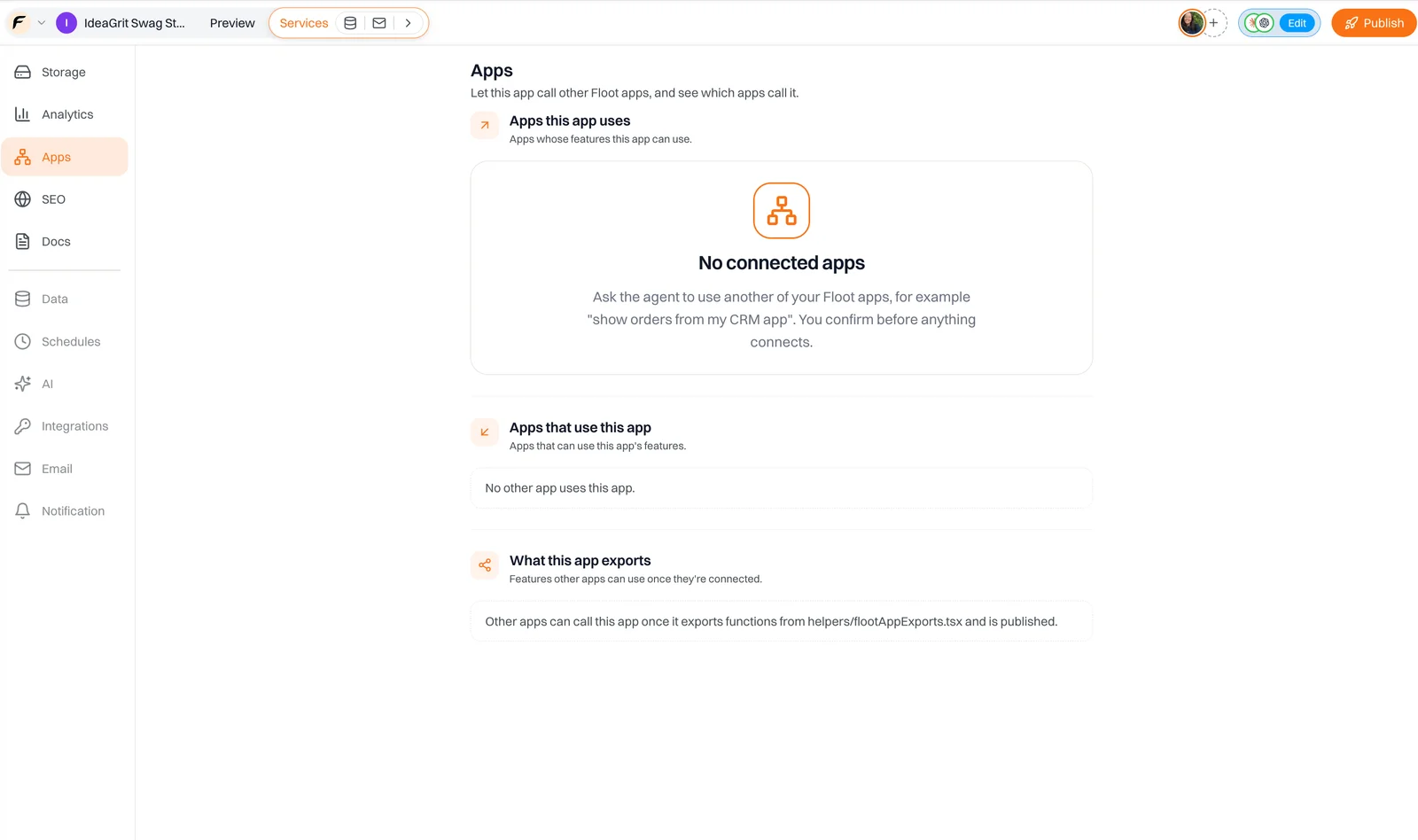
The store starts with no connected app under Apps this app uses.
Building the store and asking for the connection
I start with the swag store storefront. To follow along, open the new store project and ask your AI assistant:
Build a swag store for my IdeaGrit demo SaaS product, selling stickers, mugs and T-shirts. Add a shopping bag and a login page. Visitors should see regular prices. Keep checkout in demo mode with no real payment or shipment.
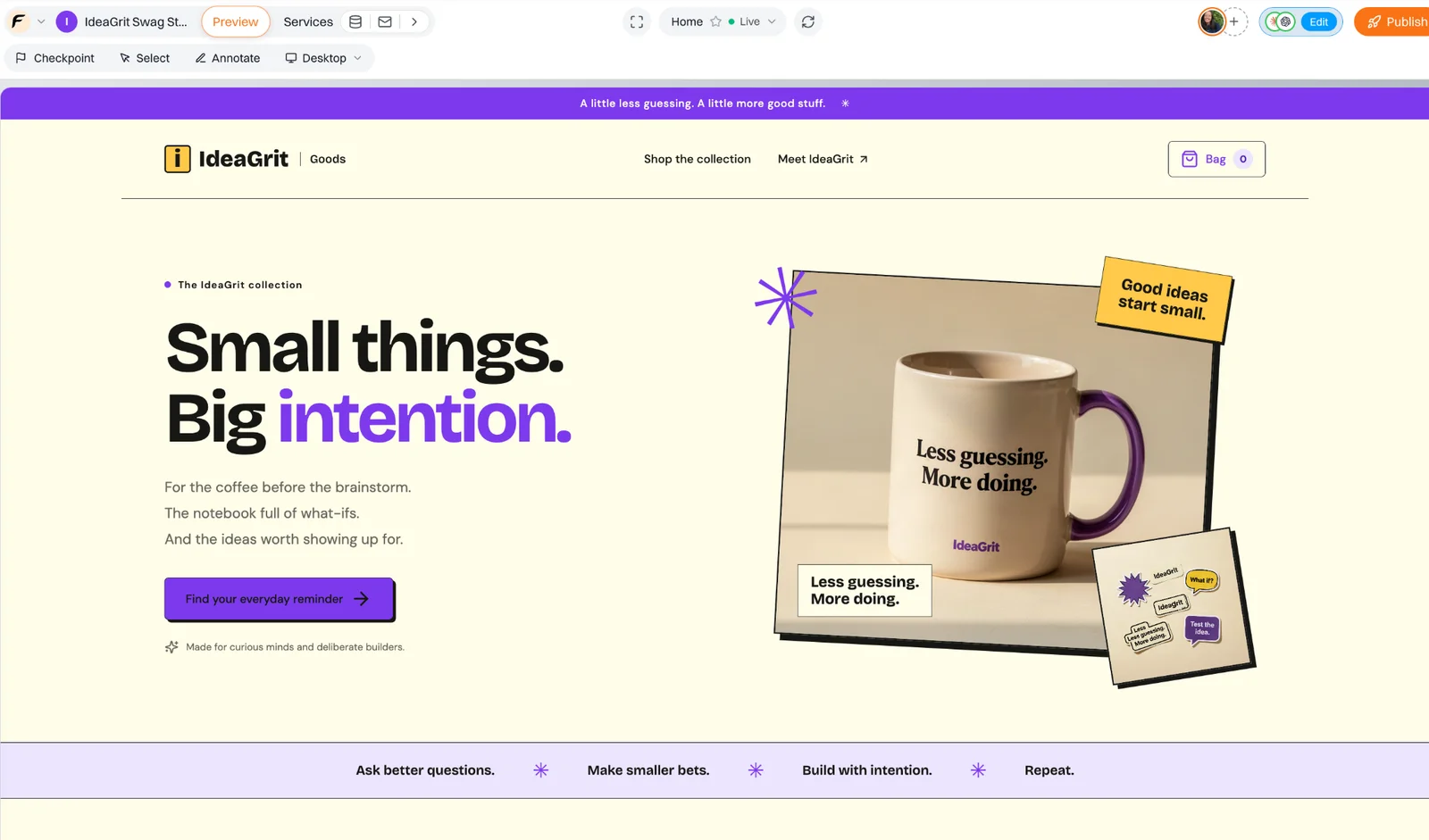
The swag store has its own products and shopping bag.
The regular prices in my swag store are $10 for stickers, $18 for a mug and $28 for a T-shirt. These are the prices a visitor sees before any member benefit is applied.
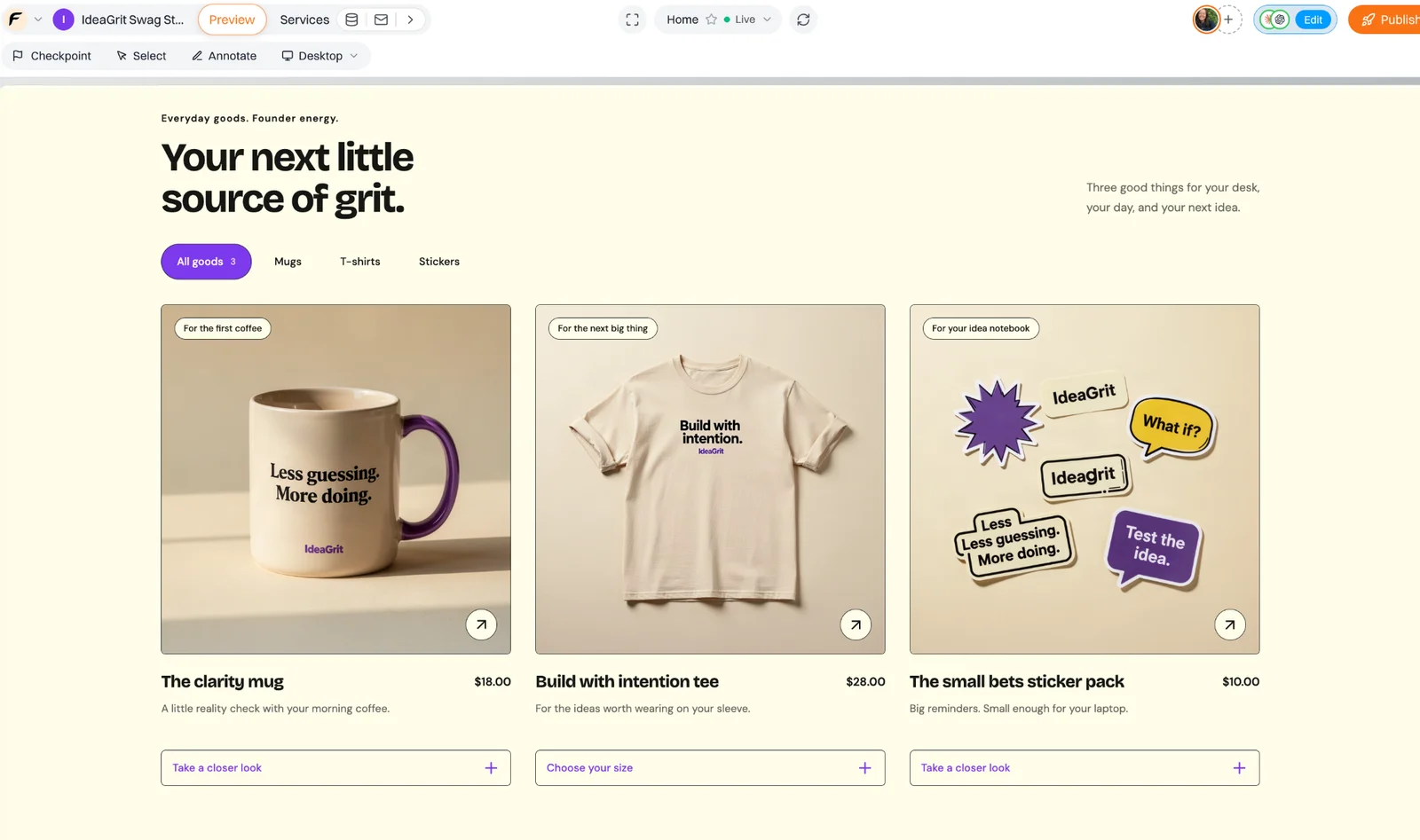
A visitor sees the regular product prices.
Now let’s connect the swag store to IdeaGrit.
Ask your agent:
Connect this swag store to my IdeaGrit app using Connected apps. Use IdeaGrit as the source of truth for customer identity and paid status.
Use IdeaGrit’s approved authentication and paid-status lookup features to verify the customer’s IdeaGrit account when they sign in.
Calculate prices in the swag store. Give verified paying IdeaGrit customers 20% off regular product prices, whether they have a personal or organisation account. Visitors and free users should see regular prices. Apply the correct prices consistently across product cards, the shopping bag and checkout.
Keep checkout in demo mode with no real payment or shipment.
I’m asking my assistant to verify customers through IdeaGrit’s approved authentication and paid-status features. The swag store then uses the result to apply its own 20% discount. Paying customers qualify whether they have a personal or organisation account. Visitors and free users see regular prices.
Reviewing and approving shared features
The assistant opens a dialog: “Let IdeaGrit Swag Store use IdeaGrit?”
It shows who asked, why they asked, the exact features being shared and any warnings. In this first request, the store needs customer authentication, paid-status lookup and session logout.
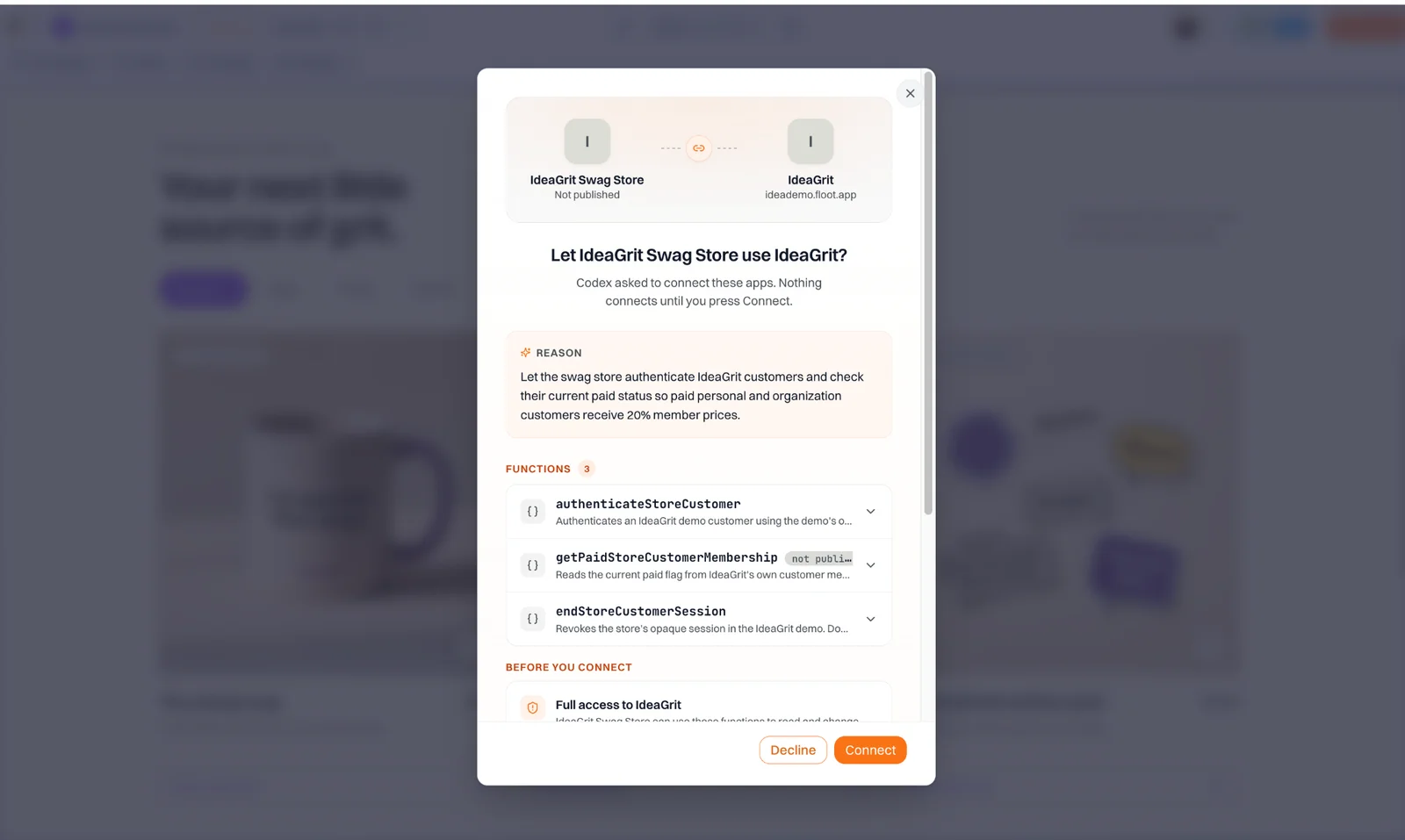
The Connect dialog lists the requested features. The new paid-status lookup is not yet published.
I review those features before clicking Connect. If the request does not match what I intend, I can choose Decline. Nothing connects until I click Connect.
This is what replaces copying the customer list. I am approving a feature that answers a specific question about an authenticated customer. I am not giving the store access to IdeaGrit’s whole database. Each app shares only the features I approve.
The same review matters when an app is private. Connected apps works with privately published apps, and Floot warns before connecting a private app to a public one. Anything the public app shows from the private app can be seen by anyone using that public app.
After approval, in the swag store, IdeaGrit appears under Apps this app uses in the store.
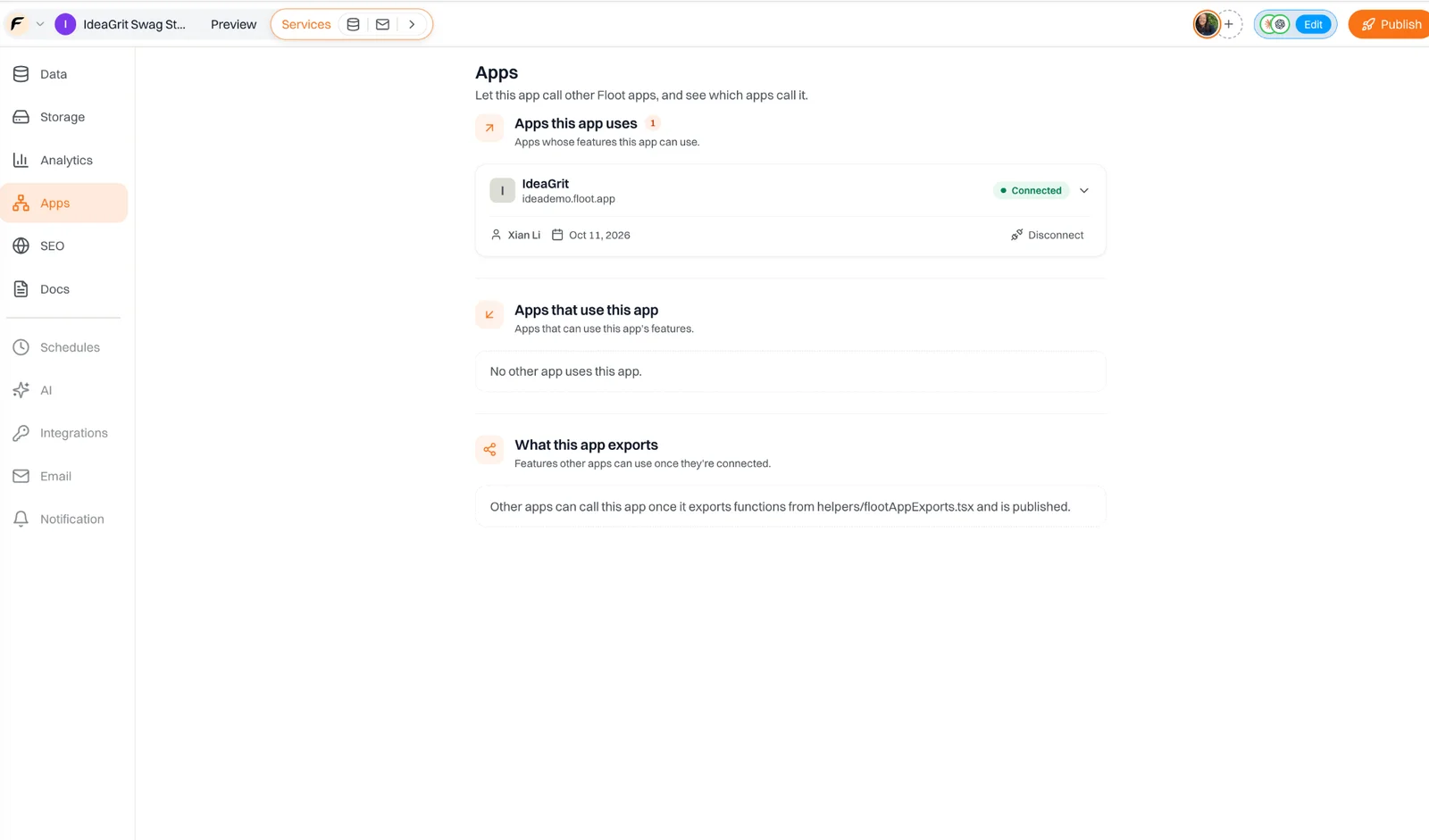
The store now lists IdeaGrit under Apps this app uses.
The swag store also appears under Apps that use this app in IdeaGrit.
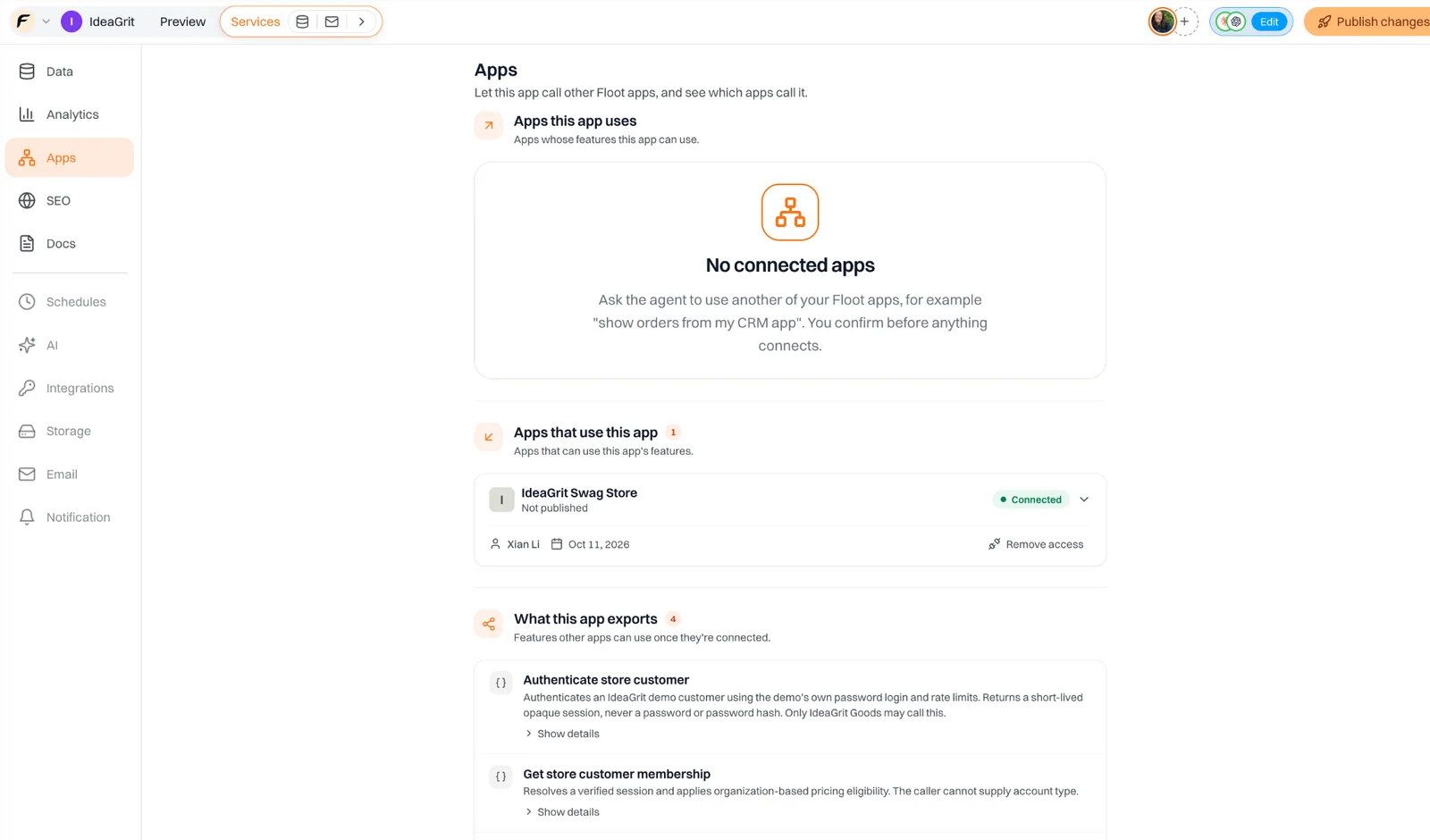
IdeaGrit shows the store as an app with approved access.
If I want to stop the connection later, I can use Disconnect in the store or Remove access in IdeaGrit from Services → Apps. It takes effect immediately. Deleting a project disconnects it from every app.
Trade-off
Before testing, I need to publish IdeaGrit so the store’s preview can use it. The store itself only needs publishing when I want it to go live. The store always calls IdeaGrit’s published version, even from preview. If the assistant adds or changes a shared feature, IdeaGrit must be published again before the store can use that version.
The connection is free on every plan, but the work runs in the app being used and counts toward its hosting. A customer check from the store runs on IdeaGrit, like another request it handles. The store depends on IdeaGrit being available and having the necessary features published.
What data is shared
As you can see, the store receives the information it needs through the features I approved. Here, it can verify a customer’s identity and check their paid status to decide which price to show. The connection does not give the store access to IdeaGrit’s whole database. The information it receives depends on what those approved features return.
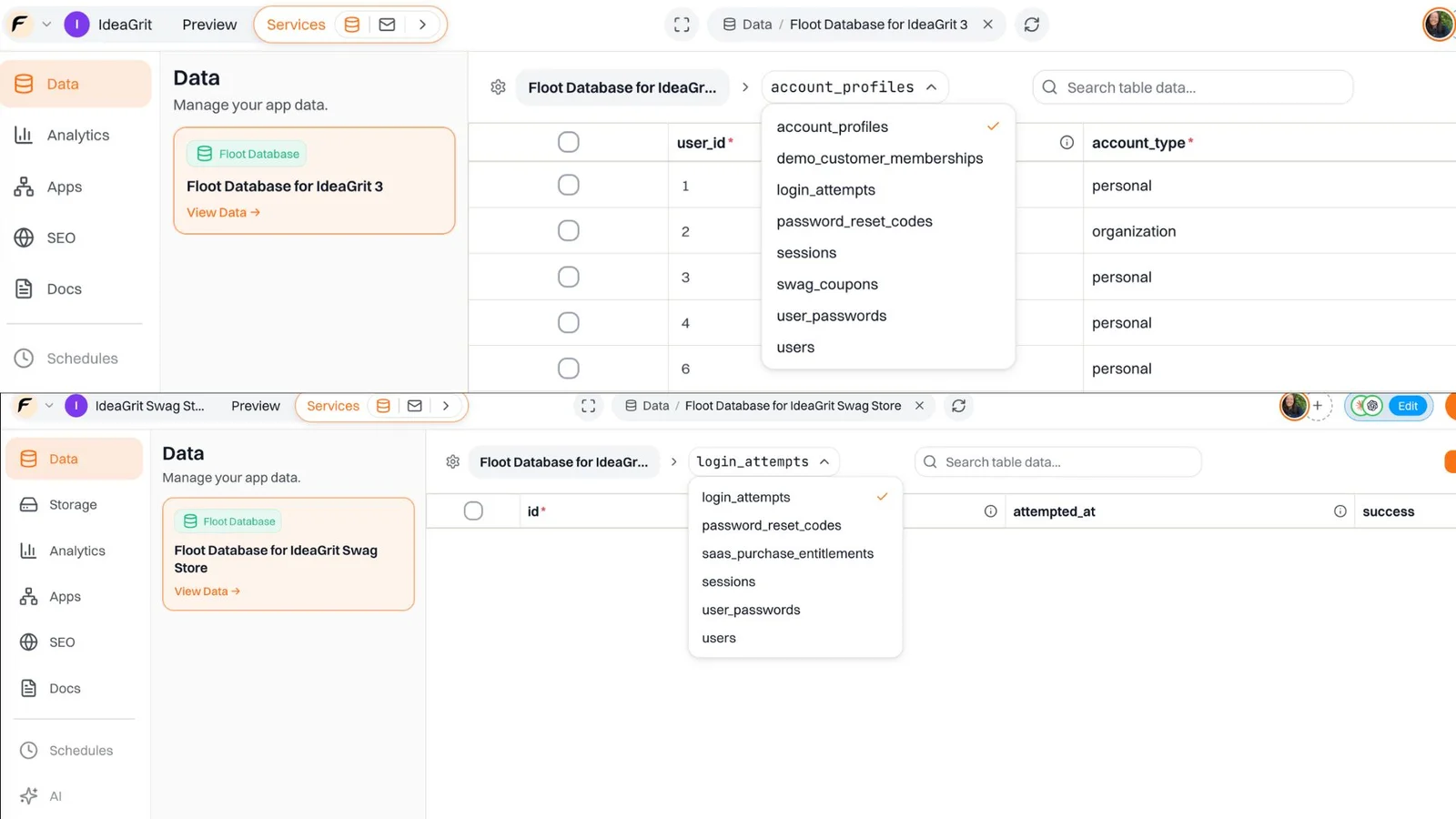
IdeaGrit (top) and the swag store (bottom) each keep their own database and share data only through approved features.
Recognising a paid customer after sign in
Now, an IdeaGrit customer enters their IdeaGrit email and password in the swag store. The store calls IdeaGrit’s approved authentication feature, which verifies those credentials. The resulting temporary session reference lets the store request the paid status of that authenticated IdeaGrit account.
This establishes account ownership through the existing IdeaGrit login. Connected apps itself does not automatically verify email addresses, share sign-in sessions or turn a matching email into paid status.
A caveat if you copy this pattern: the store takes the customer’s IdeaGrit password and passes it to IdeaGrit. That’s fine here because I own both apps. The store passes the password straight through and never stores it, and IdeaGrit’s own login limits still apply.
In IdeaGrit, there’s a 30% price difference between personal and organisational users. In the swag store, I can simply ask my agent to offer eligible customers 20% off, based on my preference. The discount is the store’s own rule. IdeaGrit only answers whether this person has paid.
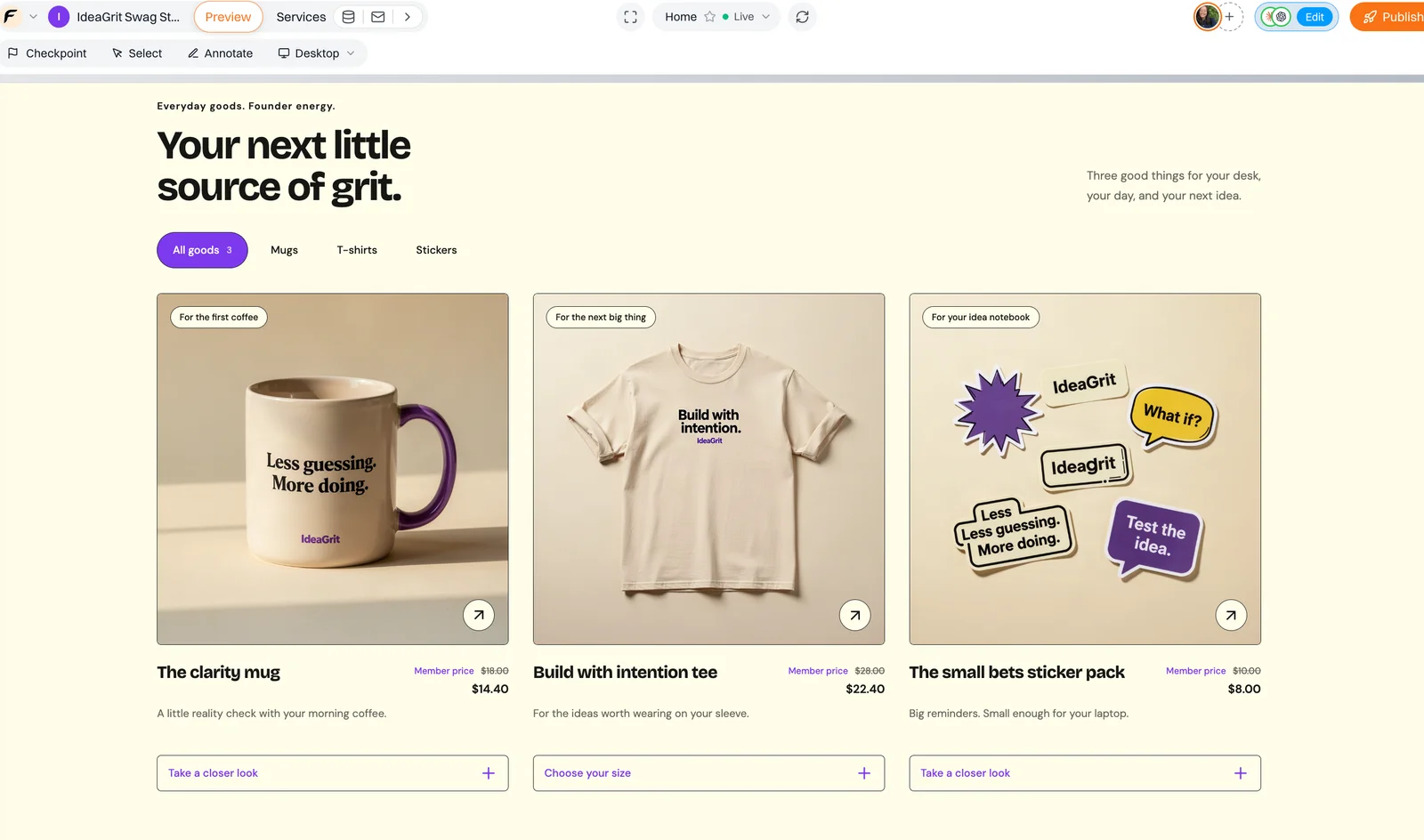
A verified paid customer sees 20% member prices.
Already built an app on Floot that has paying customers? Give them member prices in your second app. Recognise paying customers →
Creating a coupon that IdeaGrit can recognise
With member prices working, I also want to reward customers who shop at the swag store. For every $10 they spend there, I’d like them to earn $1 off a future IdeaGrit purchase.
Ask your agent:
After a completed mock order, let the swag store call an approved IdeaGrit feature to issue one coupon with a unique eight-digit code.
Set the coupon’s value to $1 for every complete $10 spent, based on the order total after member discounts. For example, a $16 order earns a $1 coupon, and a $25 order earns a $2 coupon. Orders below $10 earn no coupon.
Create the coupon record in IdeaGrit and return its code and value to display on the swag store’s receipt. Retrying the same order must return the existing coupon without creating another.
Keep checkout in demo mode with no real payment or shipment.
I’m asking my agent to issue a coupon through an approved IdeaGrit feature after a mock order. Its value is $1 for every complete $10 spent, calculated after member discounts. The store shows the coupon’s eight-digit code and value on the receipt. Retrying the same order returns the same coupon, and no real payment is taken.
The assistant opens another Connect dialog. Coupon issuance is new access, so I need to approve it. The earlier connection did not approve every feature IdeaGrit might export later.
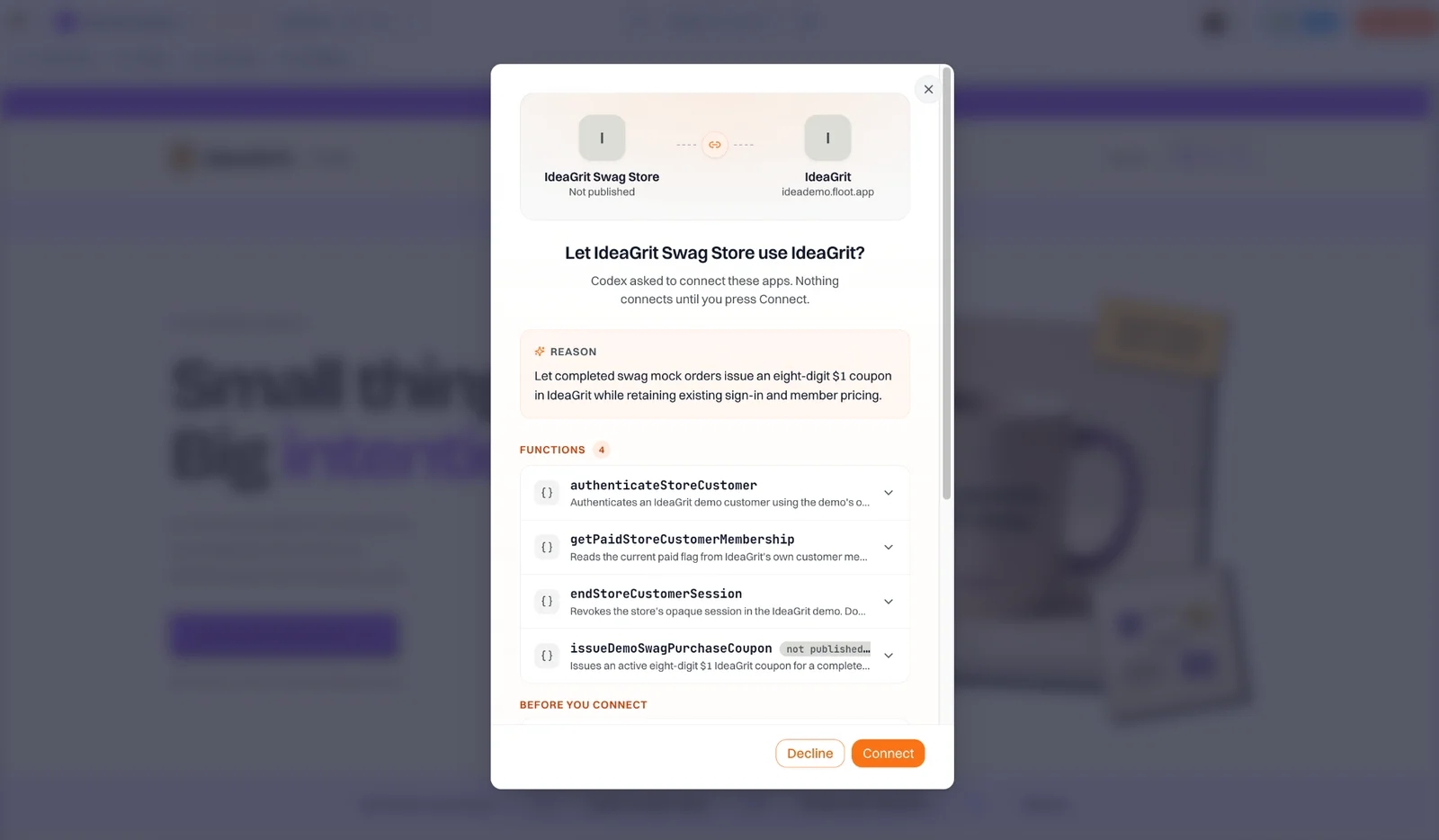
The second Connect dialog adds the IdeaGrit coupon-issuance feature.
I review it, click Connect, and publish IdeaGrit again. A coupon feature saved only in the editor will not be available to the connected store.
Then I complete a mock order. The receipt in this example shows a $16 order and coupon 30712582, worth $1 off IdeaGrit.
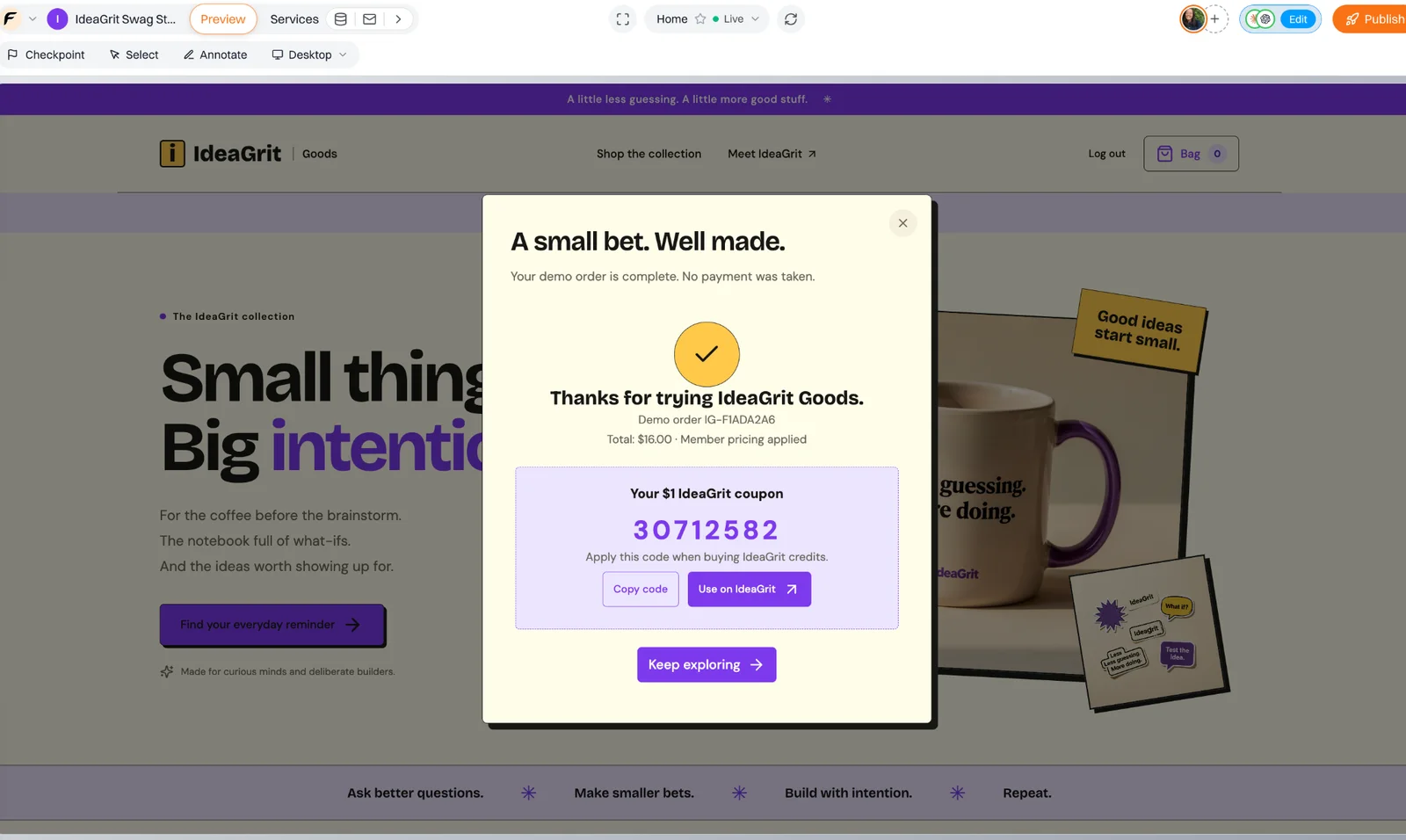
A $16 mock order returns an eight-digit $1 coupon on the receipt.
How can IdeaGrit recognise it later? The store sends its order ID and total to the approved IdeaGrit feature. IdeaGrit creates the coupon in its own database and returns the code and value. If the store retries the same order, the feature returns the existing coupon.
That removes the need to copy a coupon list back from the store. The record is already in IdeaGrit when the customer returns.
I click Copy code, choose Use on IdeaGrit, enter the code and click Apply.
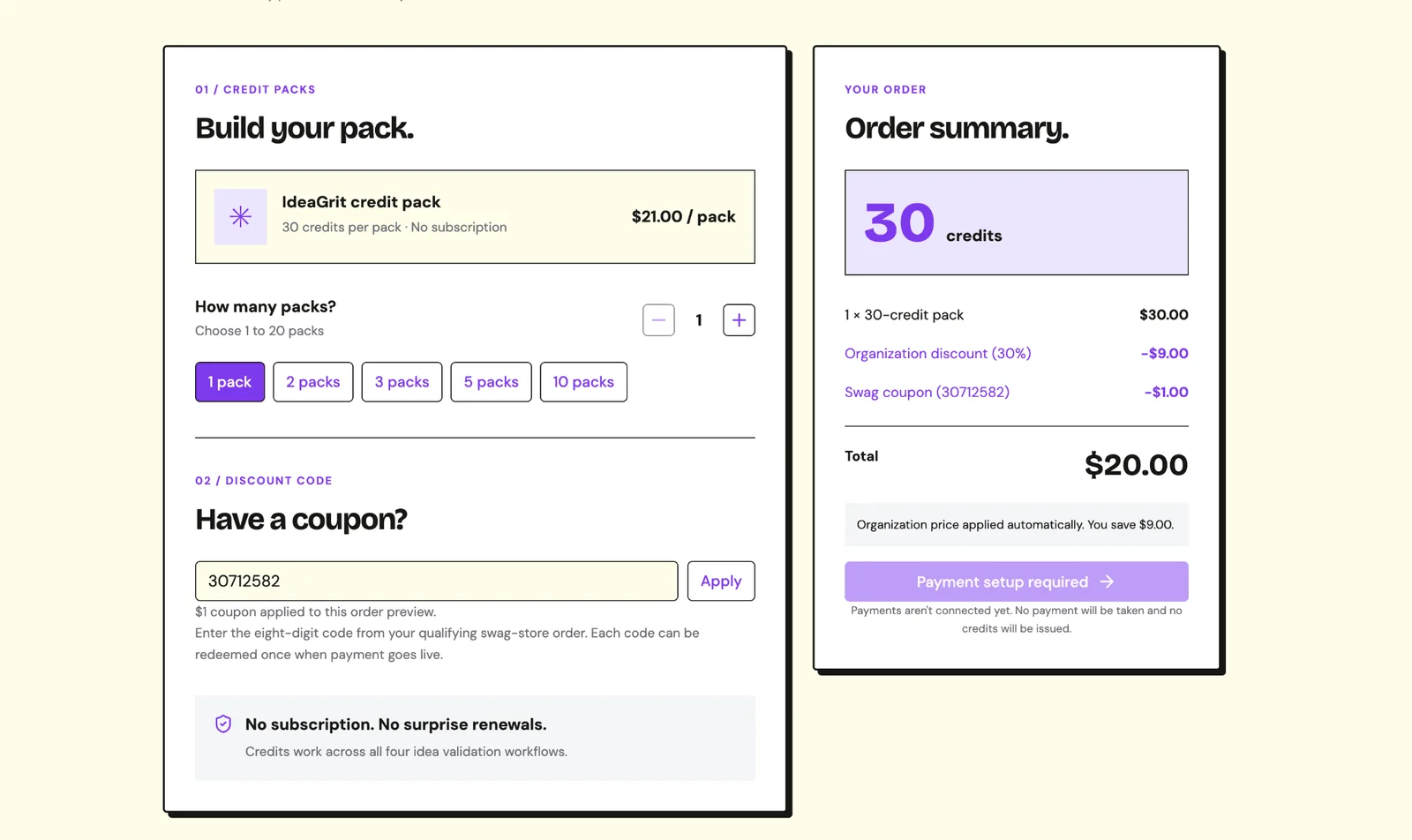
IdeaGrit validates the coupon and previews the organisation credit-pack price falling from $21 to $20.
IdeaGrit checks that the coupon exists, is active and has not expired, then applies its value to the order preview.
The payment button is disabled. This shows coupon validation and the discounted preview, without charging the customer, issuing credits or completing a final redemption that marks the coupon used.
Data can flow both ways
In the pricing example, IdeaGrit returns the customer’s paid status to the store. In the coupon example, the store sends the order ID and total back to IdeaGrit, which creates the coupon and returns its code and value.
These approved features let me build a workflow across both apps, with each app handling its own logic and records.
Looking at what actually crosses between the apps
The data diagram makes the exchanges visible.
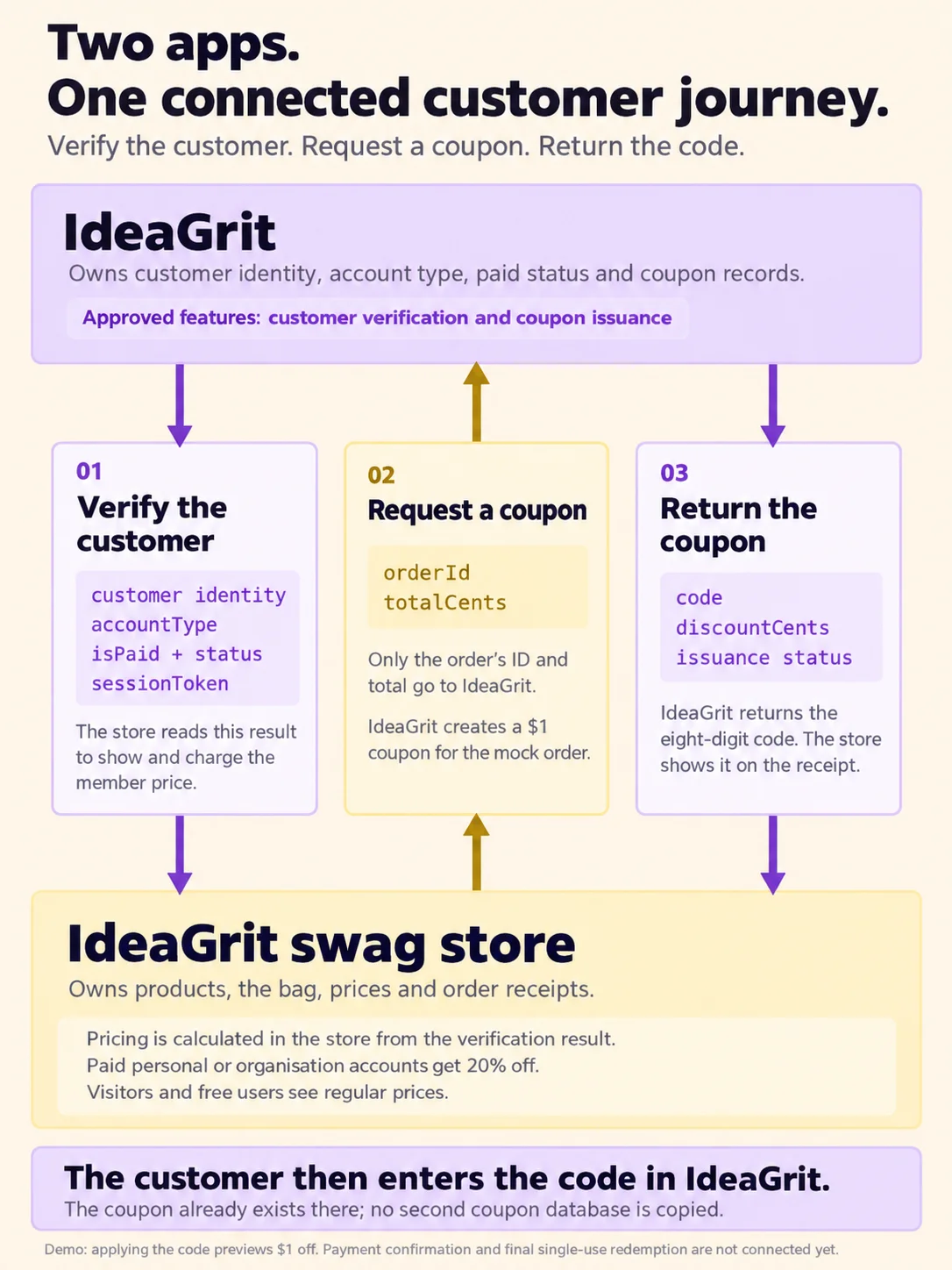
Customer verification and coupon creation between the two apps.
Connected apps lets me reuse approved features for this workflow and adapt how the store uses them.
My small swag store can stay focused on selling stickers, mugs and T-shirts, while IdeaGrit handles customer verification and coupon records. And the next time I build an app, I have existing work I can build on again.
Pick one feature from an app you’ve already built on Floot, such as customer verification or coupon creation. Open a new project and ask your AI assistant to connect them, using the prompts in this walkthrough as your starting point.
Xian Li
Xian Li is a first-time founder building in public and the writer of In Silico, In Soul, a newsletter about the mistakes, lessons and breakthroughs that come with creating a product from scratch.