How to Add Payments in Floot

When you build an app, sooner or later you might want to charge for it. For an e-commerce store, the journey looks familiar. A customer adds something to a cart and checks out. But SaaS pricing can be more complicated. A customer might choose an annual plan, five team members, three paid editors and an extra feature. I wanted to see whether adding payments had to be equally complicated.
So I built two examples with Floot: Aurelia, a small jewellery store, and Tandem, a fictional team-workspace SaaS with flexible pricing. I tested both in the preview test environment. For the store, I went one step further and made a $1.00 live purchase. For the SaaS app, I stayed in test mode, so you can see what each stage looks like.
Before we start: test payments and real payments are different
Payments are built into Floot. You can simply ask your agent to add payments. Your agent is whatever you build with: Floot's own chat, or ChatGPT or Claude connected to Floot. Some of the screenshots below are from ChatGPT.
In Floot preview, Stripe Checkout works in test mode without a Stripe account or a paid Floot plan. It creates simulated transactions, so no money moves. You do not have to publish the app to try this.
For real payments, you need to connect your own Stripe account, complete any required Stripe onboarding, and publish the app. You can start from the Publish screen or from the Payments tab under Services in the editor. Publishing an app that accepts live payments requires Floot Pro or Power. On Pro, Floot keeps 1% of each payment. On Power, Floot keeps nothing. Stripe's own processing fees apply on either plan. The published app processes real transactions. That is the difference to remember throughout both walkthroughs.
The table below shows how payments work in preview and in a published app.
| Feature | Preview | Published app |
|---|---|---|
| Payment environment | Test mode | Live mode |
| Stripe account | Floot-managed | Your connected Stripe account |
| Test card (4242 4242 4242 4242) | Yes | No |
| Real money collected | No | Yes |
| Floot's fee | None, no money moves | 1% on Pro, 0% on Power |
| Payment records | Ask your agent | Your Stripe Dashboard |
Example 1: adding payments to a small e-commerce store
I started with Aurelia, a jewellery store with six products. Customers could browse the collection and see the prices, but I wanted to let them purchase several items in one order.
My first prompt was simply:
Add payments to my store.
I then followed up:
Add a shopping cart so customers can add multiple products, adjust quantities and check out securely. Show a payment confirmation when the charge succeeds.
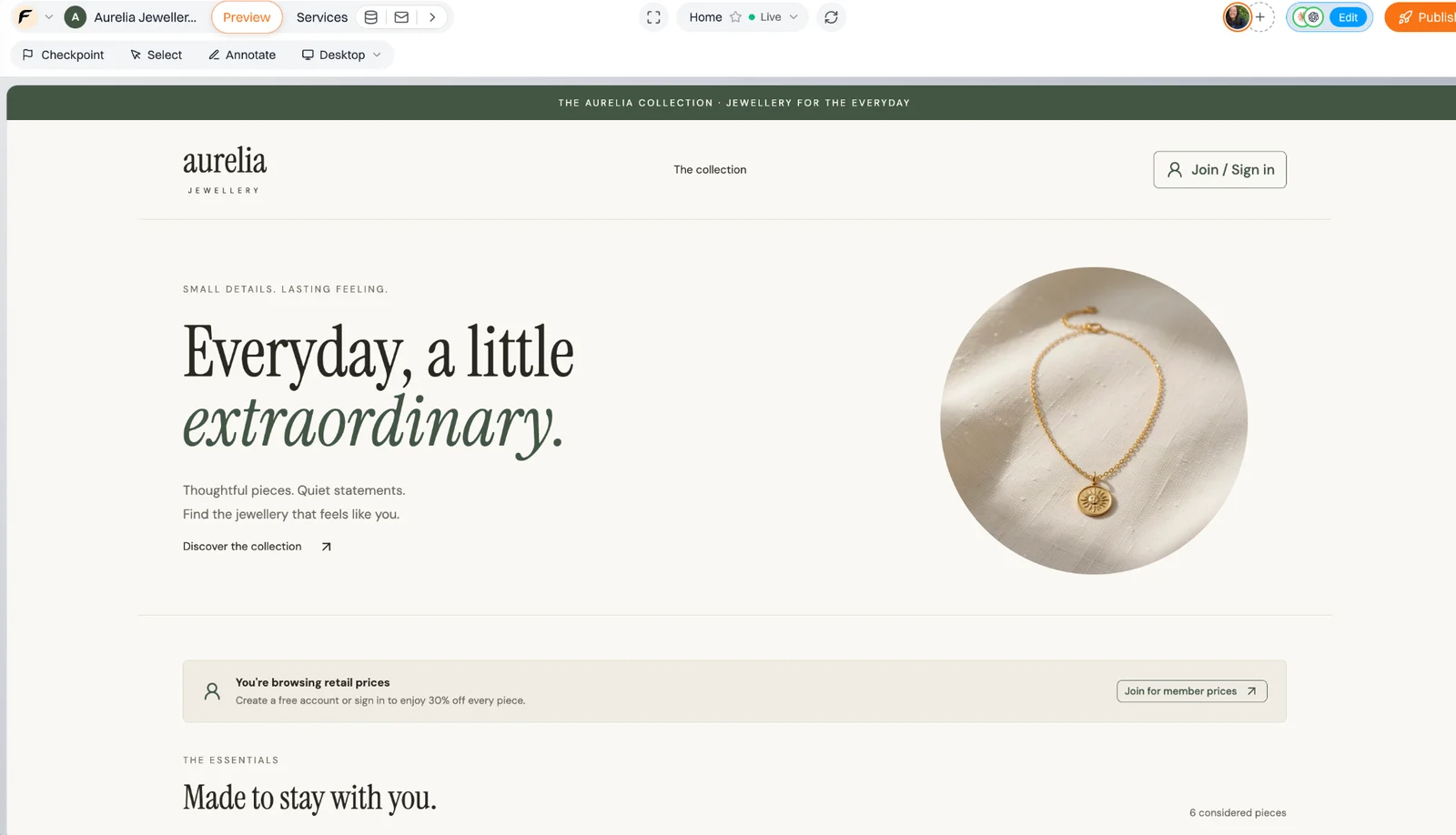
Aurelia, the original jewellery storefront.
The cart allowed customers to add different products and adjust quantities, while the subtotal updated.
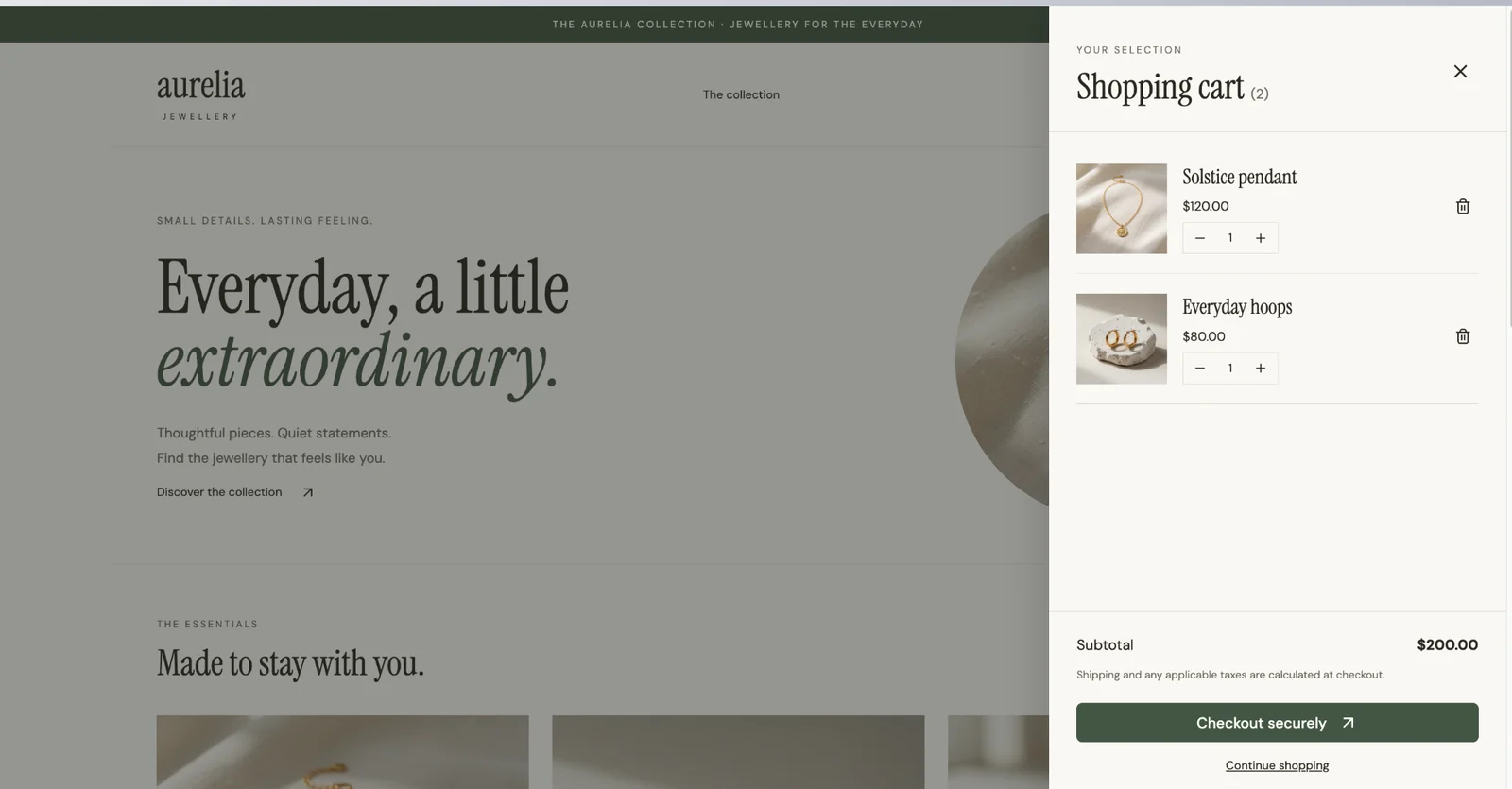
Multiple products in the shopping cart.
This is what checkout looks like in the test environment. You can use the standard Stripe test card number 4242 4242 4242 4242, any future expiry date, and any three-digit CVC to complete a simulated payment. No real money is charged.
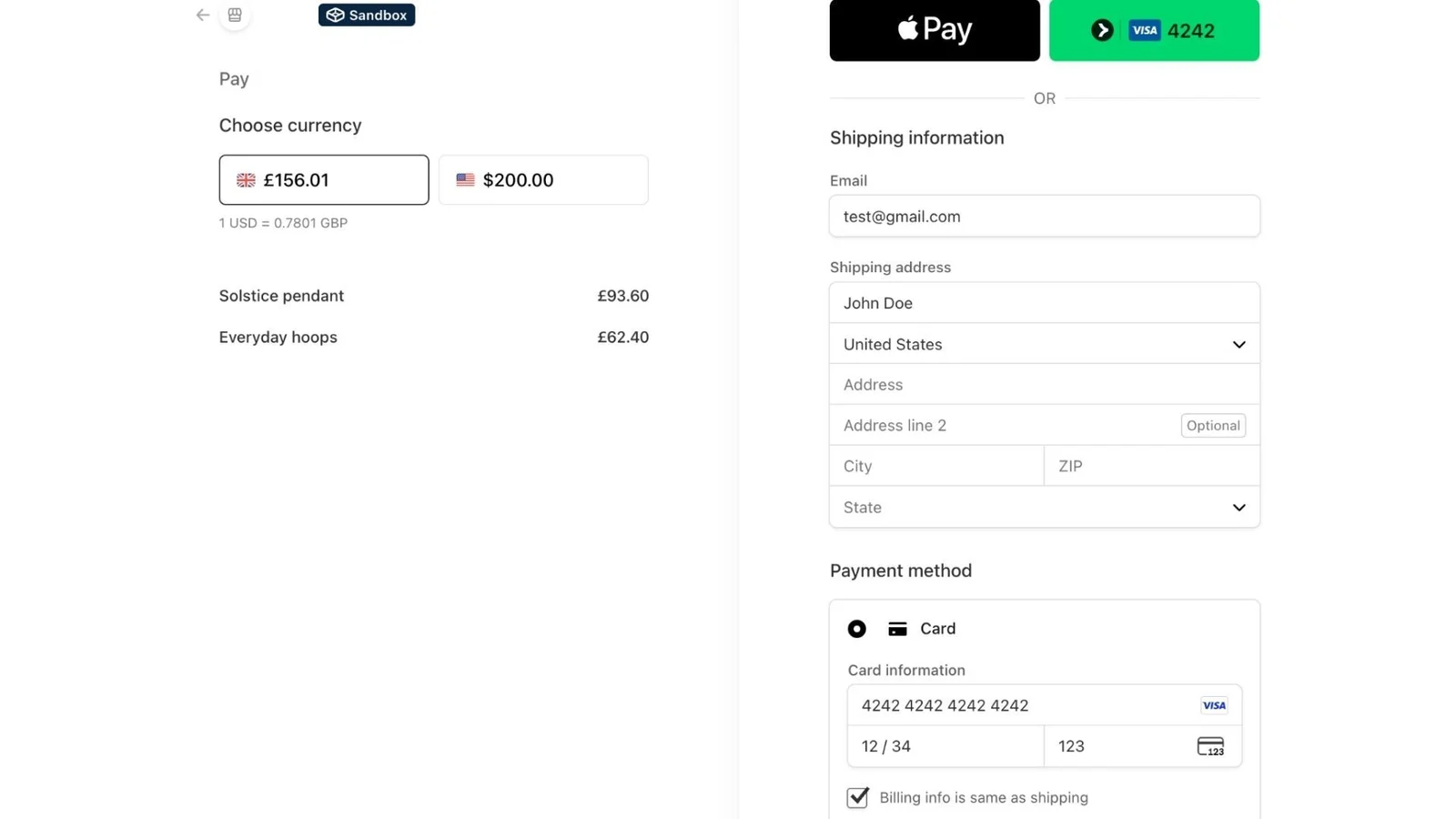
Stripe Checkout in Floot's test environment.
After a successful test payment, I wanted to see what information the store owner could access.
Ask your agent:
Show me all successful test payments for this store.
My agent retrieved the test transaction records from Floot, including amounts and payment statuses.
Floot-managed preview payments do not appear in your personal Stripe Dashboard. So you have to ask your agent to retrieve the records for you.
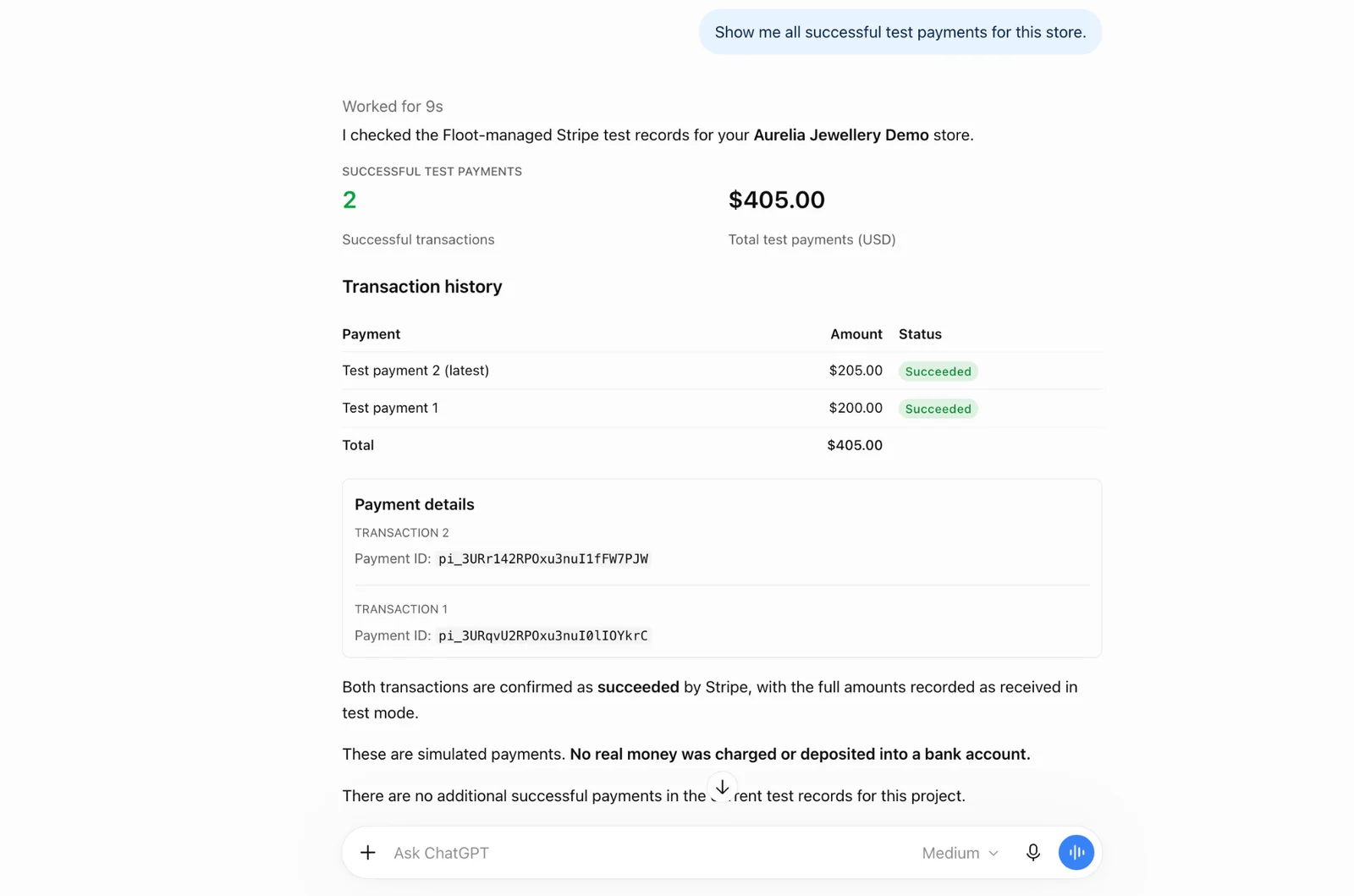
Test transactions retrieved for the store, here in ChatGPT.
When I was ready for a live test, I opened the Publish screen. Floot prompted me to finish Stripe setup. I needed to create a new Stripe account or connect my existing one. After connecting it, I published Aurelia on an eligible Floot plan.
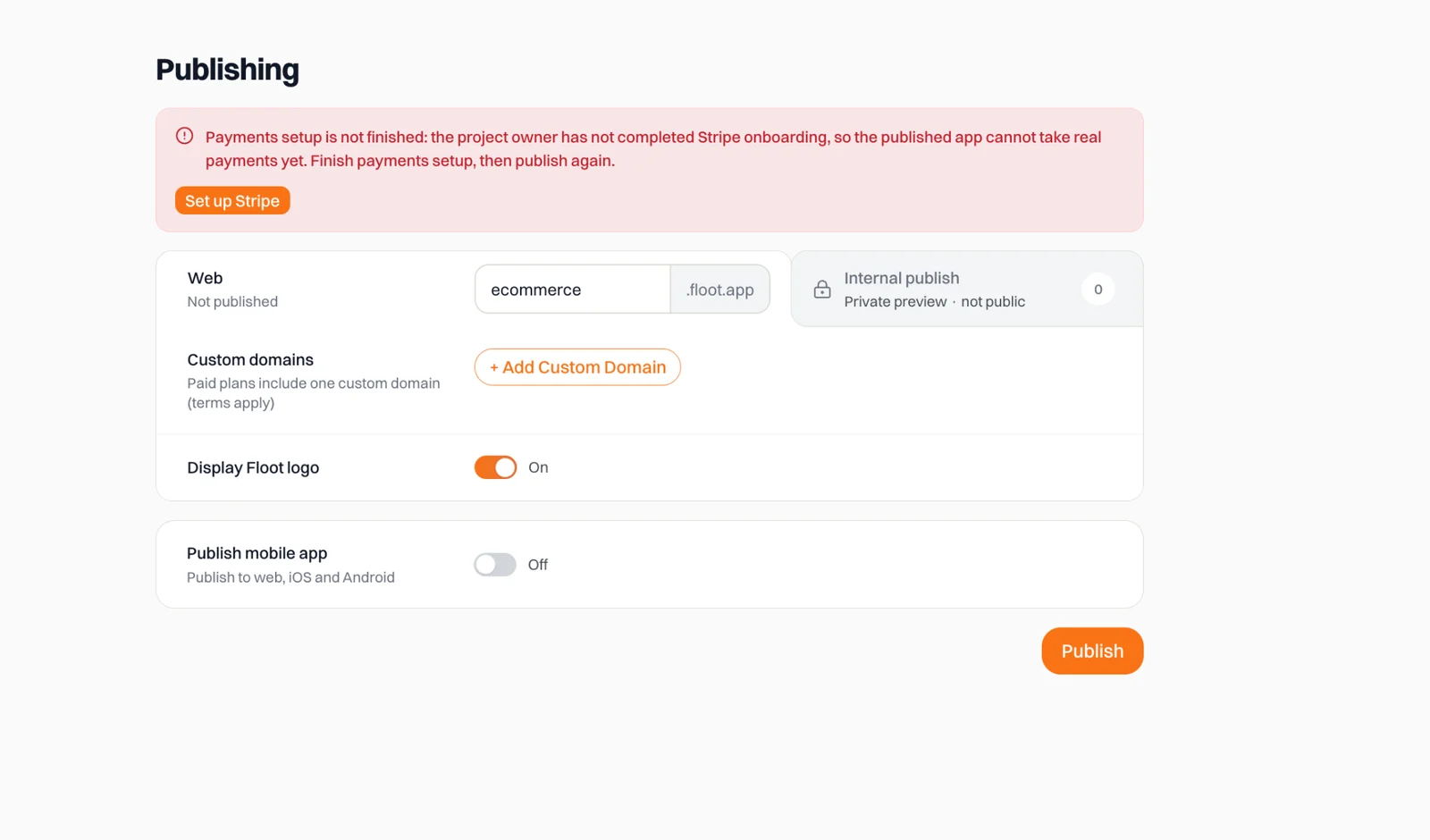
Publishing asks for Stripe onboarding before accepting real payments.
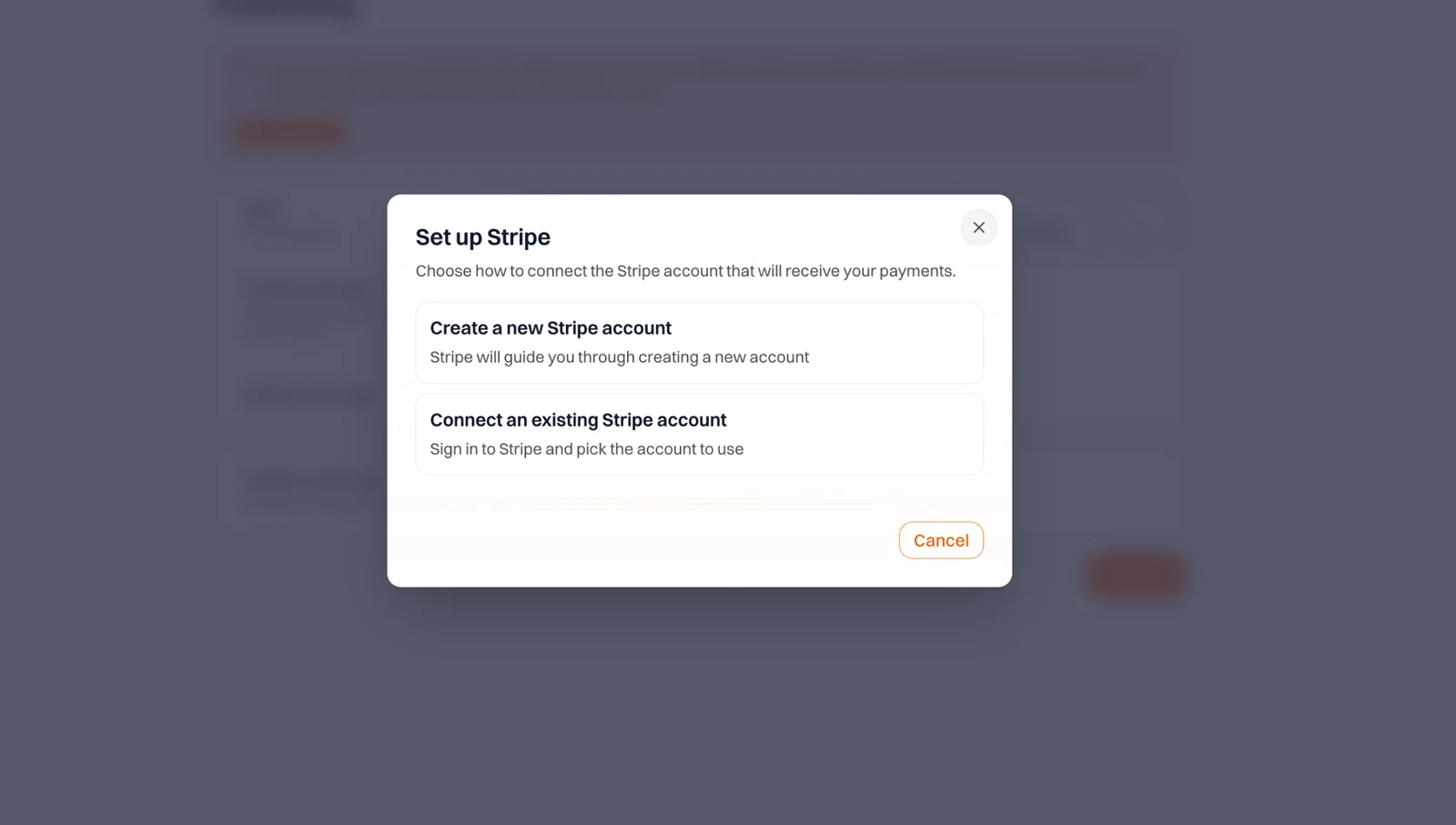
Connect an existing Stripe account or create a new one.
To test a real payment, I added a $1.00 product to my jewellery store. On the published store, I added it to the shopping cart and completed the checkout using my real card.
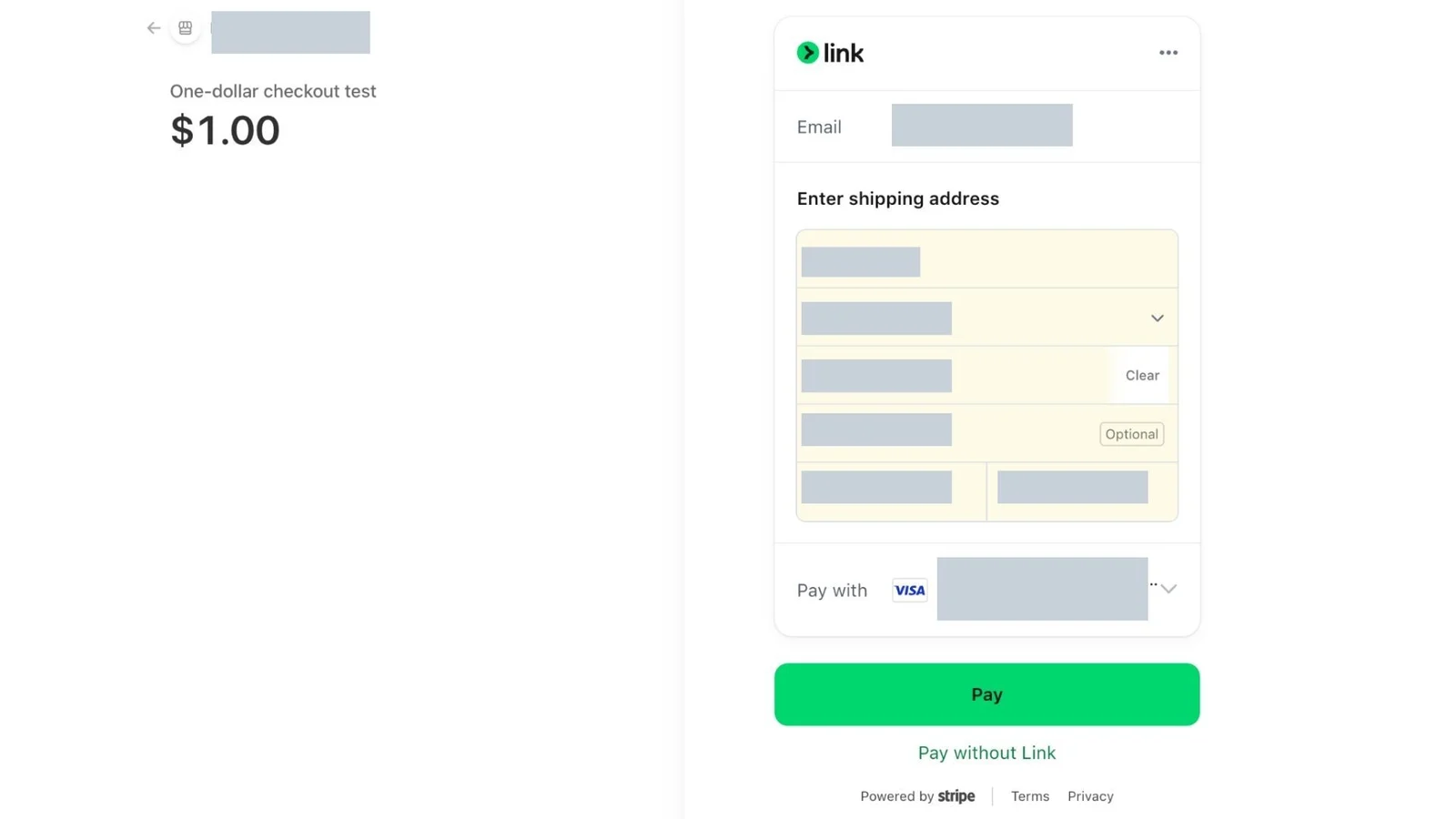
The published store's checkout page, showing the order summary and Stripe payment option.
After the payment went through, I saw the payment success screen in the store. I also checked my live Stripe records and confirmed that the transaction was marked as "Succeeded."
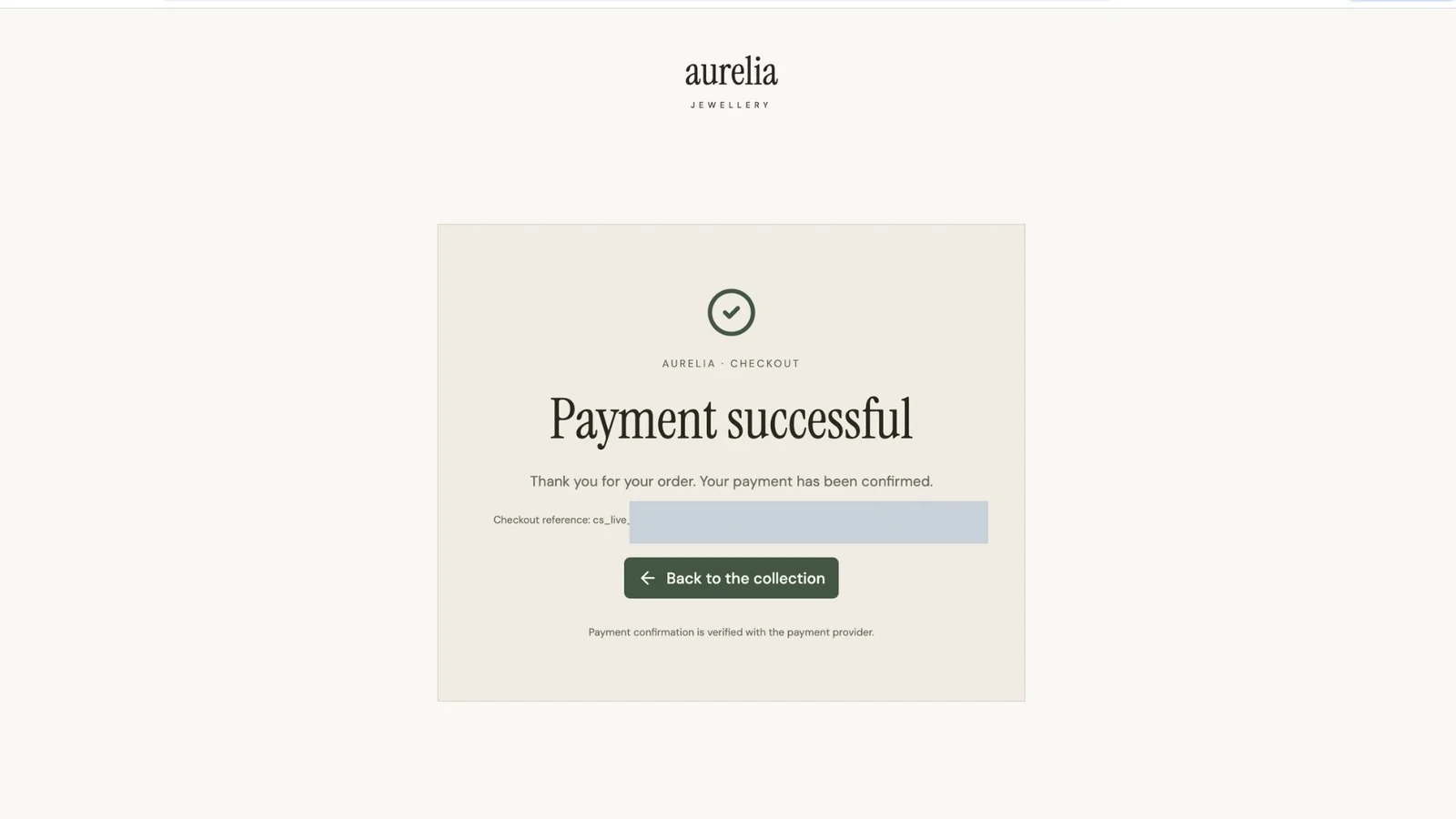
Aurelia's confirmation screen after a live payment.

The $1.00 transaction confirmed in Stripe's live payment records.
This helped me verify the entire payment process, from a customer placing an order to the store owner receiving confirmation of the payment.
Example 2: what about complicated SaaS pricing?
An online store is one thing. I wanted the second example to be more demanding. So I created Tandem, a fictional collaborative workspace with Starter, Growth and Scale plans. Each card offers monthly, yearly or one-time billing. Customers can change the number of team members and paid editor seats, choose an optional priority support add-on, and see the total update immediately.
Ask your agent:
Create a compact SaaS pricing page with three cards side by side: Starter, Growth, and Scale plans.
Give each main plan its own Monthly/Yearly/Once tabs, team-member and paid-editor counters, and an optional add-on checkbox. Calculate each total from the base fee, member fees, editor surcharges, and add-on cost. Place the total and checkout button above the feature list.
In this prompt, I am asking my agent to create a SaaS pricing page where users can choose monthly, yearly, or one-time payments, adjust their team size, and select optional add-ons. The total updates automatically as they change their selections.
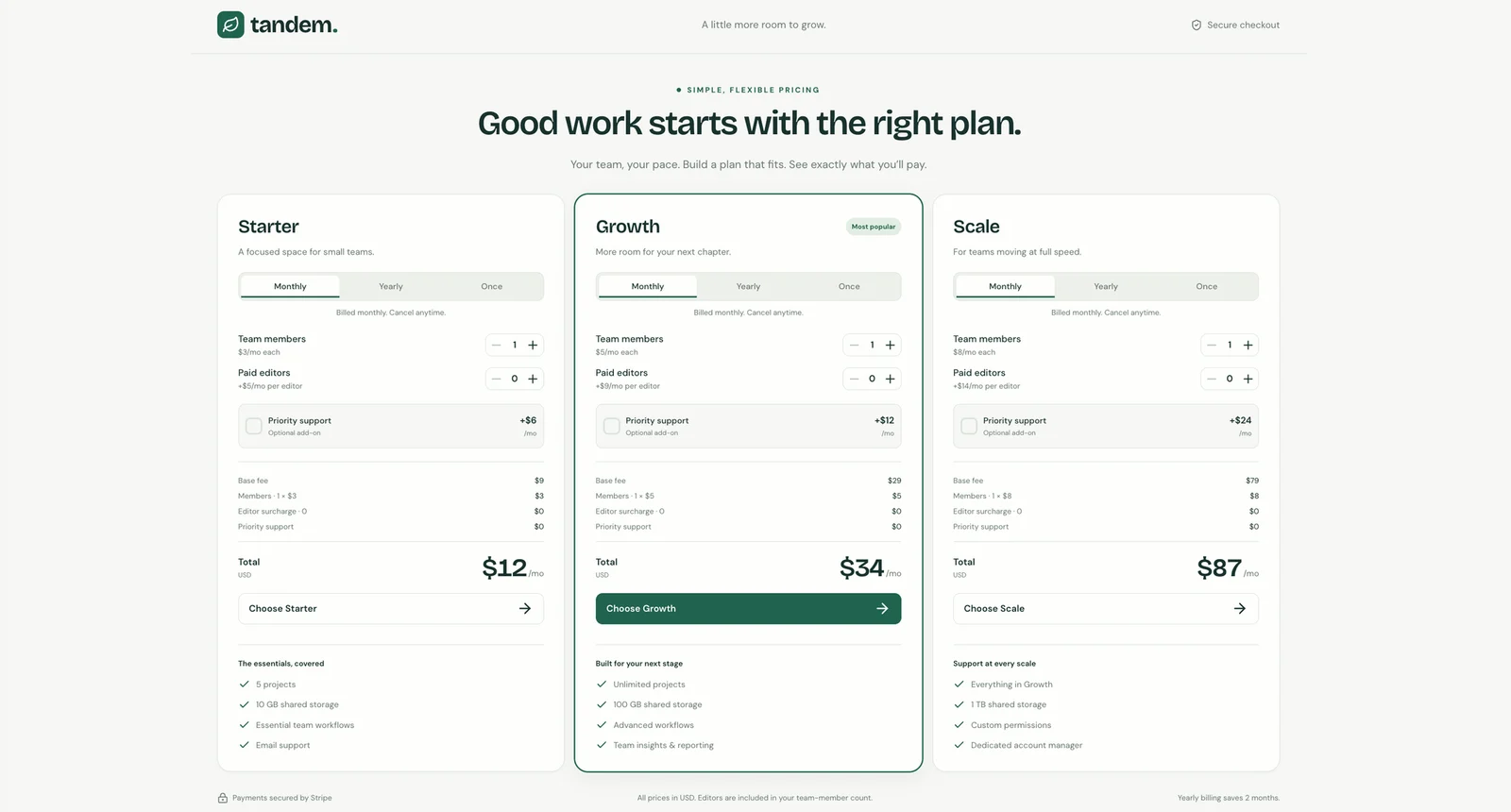
Tandem's plan-level billing, seats, roles and add-ons.
This time, I selected the Growth plan with six team members, two paid editors and priority support, and tested the payment in the test environment.
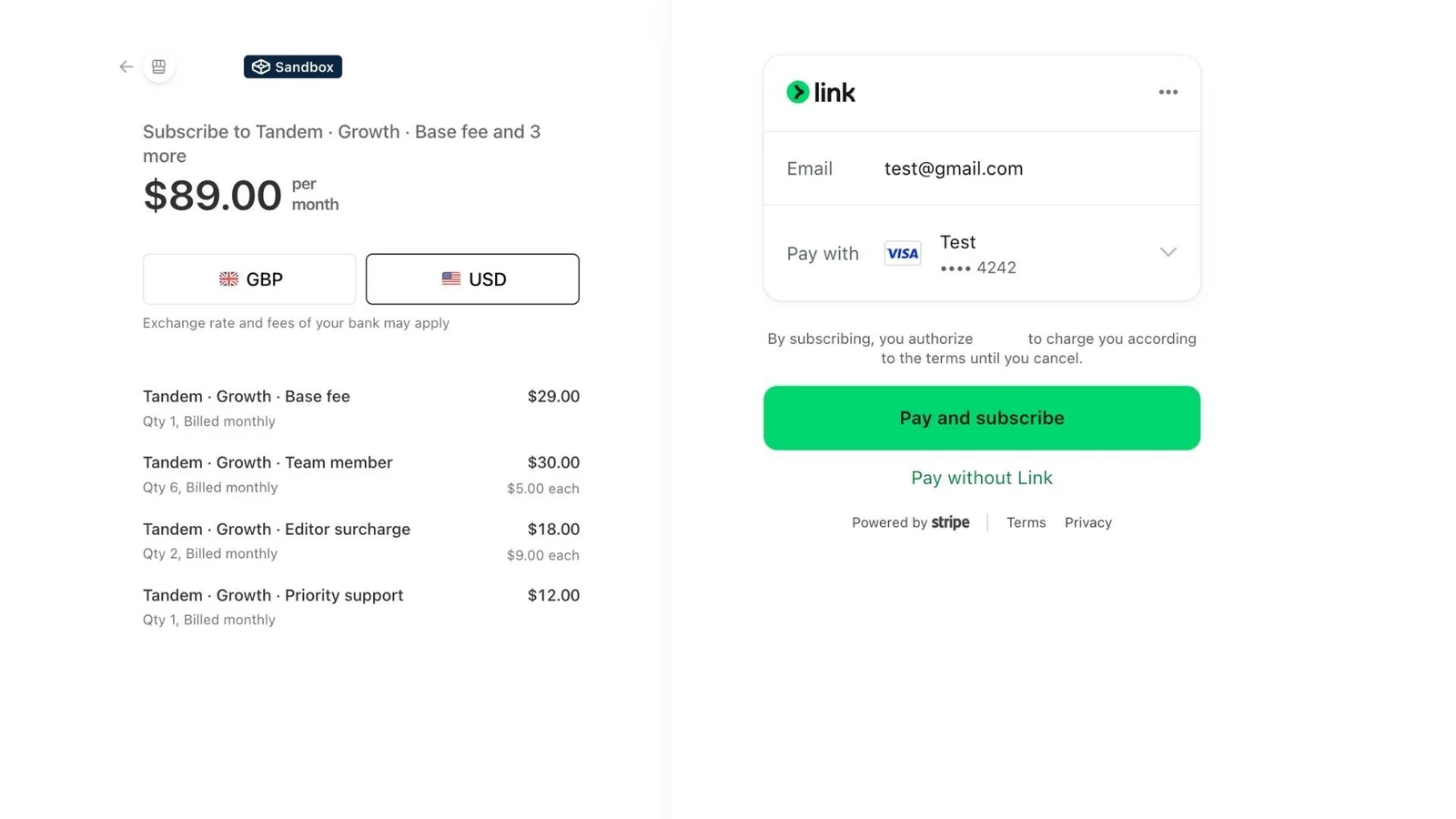
The Growth plan checkout in Stripe's test environment, showing the $89 monthly total and cost breakdown.
Even with all these options, the checkout shows each part of the price on its own line, and the confirmation page shows what was bought.
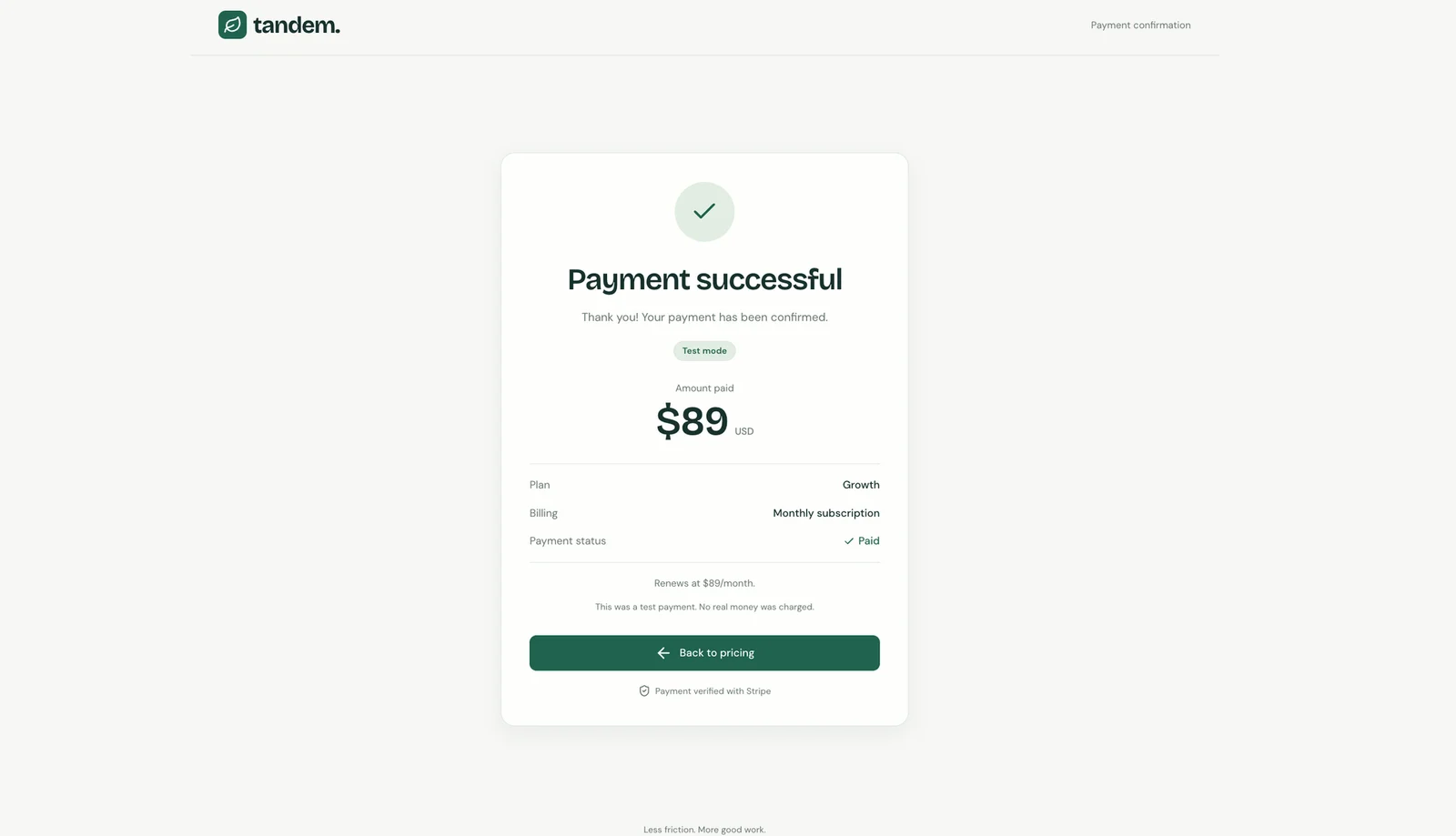
The payment confirmation page showing a successful test payment for the $89 monthly Growth plan subscription.
Then ask your agent:
Show me all successful test payments for this SaaS app.
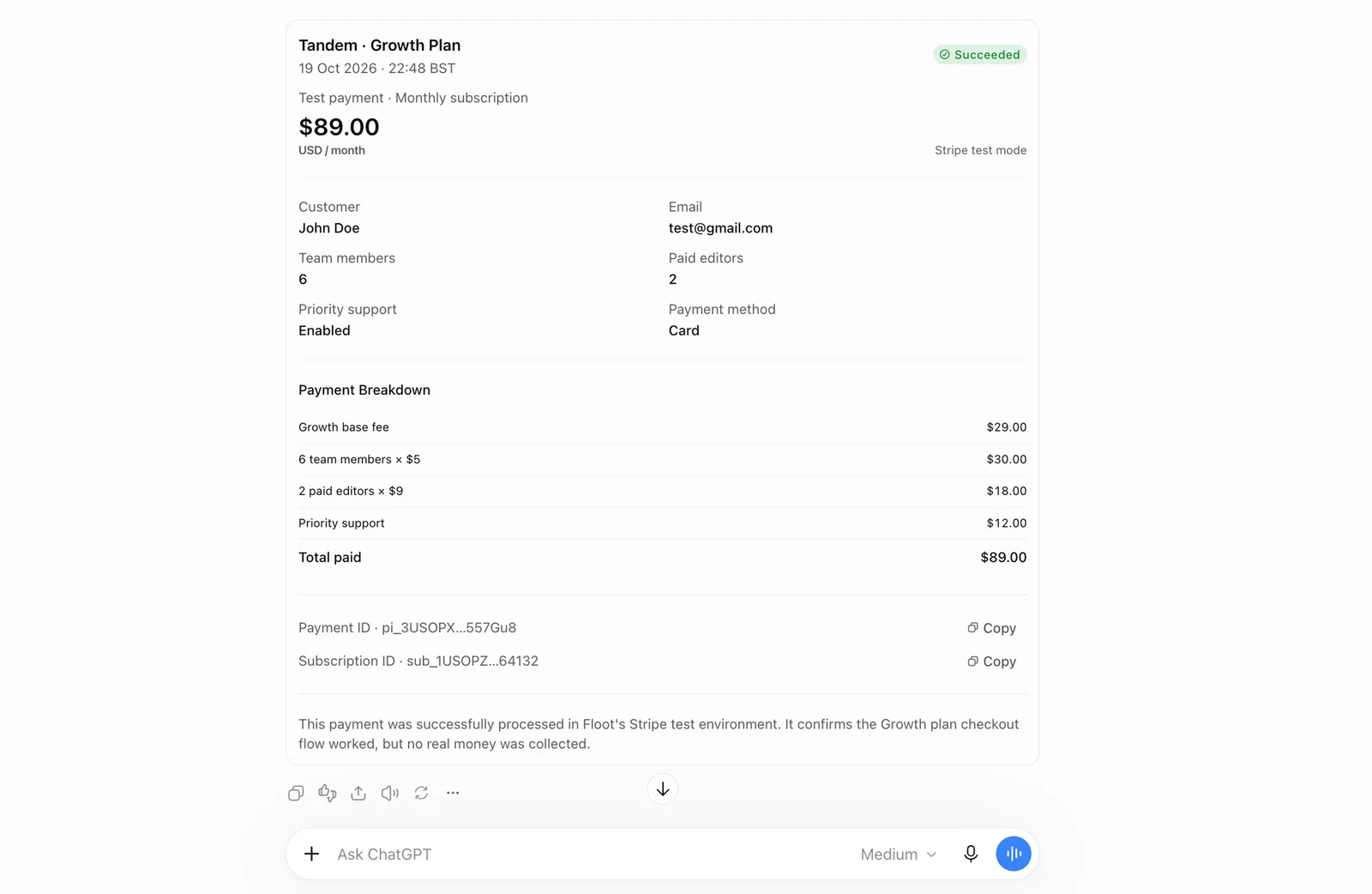
The successful $89 Growth plan test payment shown in ChatGPT, including customer details and a full cost breakdown.
I kept Tandem in test mode on purpose. When you are ready to go live, the steps are the same as for the store. Connect your Stripe account and publish on Floot Pro or Power. From then on, customers are charged for real, and each payment appears in your own Stripe Dashboard.
Five more scenarios where you might need payments but haven't considered yet
1. Selling digital books or downloadable resources.
If you have written an ebook, created a Notion template, or put together a useful guide, you can turn it into a digital product. Instead of collecting payments and emailing files yourself, customers can pay and receive access automatically.
Add a $9 payment for my ebook. After a successful payment, give customers access to download the file.
2. Selling tickets for a workshop.
If you are organising an online workshop or a small in-person event, you need to collect payments and track registrations. You might also want to limit the number of tickets so you do not sell more seats than you have.
Add a $25 ticket payment for my workshop. Limit registrations to 30 people and send a confirmation email after successful payment.
To email your buyers, connect your own email domain in Floot first. Until a domain is verified, Floot only delivers your app's emails to you, the project owner.
3. Collecting upfront payments for coaching or consulting.
If you offer coaching or consulting, asking customers to pay before they book a session can save you time following up on unpaid appointments. It also makes the booking process clearer for both sides.
Add a $50 upfront payment for my one-hour consultation. After payment succeeds, let customers select an available time slot.
4. Taking deposits to confirm reservations.
For photography sessions, event services, or equipment rentals, collecting a small deposit can help reduce last-minute cancellations. Customers can secure a booking without paying the full amount immediately.
Require a $20 deposit to confirm a reservation. Record the deposit against the booking and show the remaining balance.
5. Testing whether people are willing to pay for your prototype.
You do not always need a fully developed product to test willingness to pay. If you have a working prototype, you could offer early access for a small fee. There is a difference between someone saying they like your idea and someone actually paying for it.
Add a $5 early-access payment to my prototype. After successful payment, give customers access to the beta version and record their purchase.
Final thoughts
What I found interesting from building these two examples is that the pricing logic can be very different, but the process of adding payments can still be simple. An e-commerce customer might add three products to a shopping cart. A SaaS customer might select an annual subscription, five team members, three editor seats, and an optional add-on. A workshop participant might only need to buy one ticket. The business logic is different, but all of them need a reliable way to collect and confirm payments.
With Floot, you can start by asking your agent to add payments, test the flow in preview without a Stripe account, and connect your own Stripe account when you're ready to go live.
Ready to try it with your own idea? Pick one of the prompts above and run a test checkout in preview. You don't need a Stripe account or a paid plan. Once it works, connect Stripe and go live.
Xian Li
Xian Li is a first-time founder building in public and the writer of In Silico, In Soul, a newsletter about the mistakes, lessons and breakthroughs that come with creating a product from scratch.