How to turn your web app into a mobile app with Floot

The holiday season is coming, and I wanted to build an intelligent gift finder app. My idea was to let users describe who they were buying for and what they had in mind. An LLM would help understand their preferences, while TikTok trends and Google Trends would highlight what people were searching for. The app would combine these insights to suggest thoughtful gifts that suited the recipient.
I started by building a web app with Floot. Then I wanted to add a few features people use every day. Location helps them find gifts from nearby small businesses if they want to support local shops. The camera lets them share a photo when something is hard to describe in words. I also wanted notifications, since I’m often busy and could use a reminder.
I asked Floot to add six features, and I’ll walk you through each one in the second section of this tutorial. All I had to do was describe what I wanted each feature to do, and Floot handled the technical setup for me. Later, those same features carried over seamlessly as native iOS features when I turned the web app into an iPhone app using Floot.
This tutorial follows that process, including how I used Floot’s connection to App Store Connect to upload the app to TestFlight for beta testing. By the end, you’ll have turned a web app into an iPhone app installed on your own device with ease.
1 Build the basic gift finder
To follow along with the same gift finder, use the prompt below. Since the prompt is long, I’ve added a few comments to make it easier to follow.
The starter prompt
Build a simple gift finder web app.
// 1. Let users describe the recipient and set their preferences
Add a large textarea labelled “Who are you buying for?” with this placeholder:
“My husband recently started trail running. He loves coffee and spending time outdoors. I’d like something useful that he wouldn’t think to buy himself.”
Below it, show four selectable options:
Homemade gifts, Local small businesses, Big-name stores, Surprise me
// 2. Define how category selection and location work
Start with nothing selected. Users can combine the first three categories.
“Surprise me” is a separate choice: selecting it clears the other categories, and selecting a named category clears “Surprise me.” Never automatically select “Surprise me” when all three categories are selected.
Include fields for:
Maximum budget and currency.
Occasion: Christmas, birthday, anniversary, thank you, or just because.
ZIP/postcode for local suggestions.
Ask for a location when someone selects local small businesses without providing one. For “Surprise me,” generate a varied mix and include local ideas only when a location is provided.
// 3. Use AI to generate relevant suggestions with useful links
Add a clear “Find gift ideas” button. Connect it to Floot’s built-in AI to generate six varied suggestions based on the description, selected categories, budget and occasion.
Include ideas from every selected category, keep each gift within budget, and respect anything the user wants to avoid.
Use live web search when available. Provide relevant shopping, tutorial, local-search and TikTok search links without requiring external API setup.
Only name specific local businesses when verified. Do not invent prices, sources or popularity claims. Clearly label estimated costs.
// 4. Present each gift idea in a readable card
Display each suggestion in a consistent, readable card containing:
Gift name. Category tag and estimated price range. A short explanation of why it suits the recipient. For homemade gifts, a few simple steps and an estimated completion time. Relevant links. A “Save to wishlist” button.
// 5. Keep the design welcoming and easy to read
Style category labels as rounded tags with softly tinted backgrounds. Use 18 px semibold text in sentence case:
Homemade gift: green text with a pale green background.
Local small business: terracotta text with a pale terracotta background.
Big-name store: blue text with a pale blue background.
Keep the layout clean and welcoming, with a warm neutral background and light cards. No text anywhere in the app can be smaller than 14 px.
// 6. Require an account only when users want to save a gift
Visitors can generate and browse ideas without an account.
When they click “Save to wishlist,” ask them to sign in or create an account. Preserve their search and chosen gift, then save it automatically after sign-in.
Give each account a private wishlist with saved gift cards and a remove button. Store saved gifts in the database so they remain available when users return.
// 7. Handle loading, empty results and errors
Include clear loading, empty and error states. Build only this basic gift-finding flow.
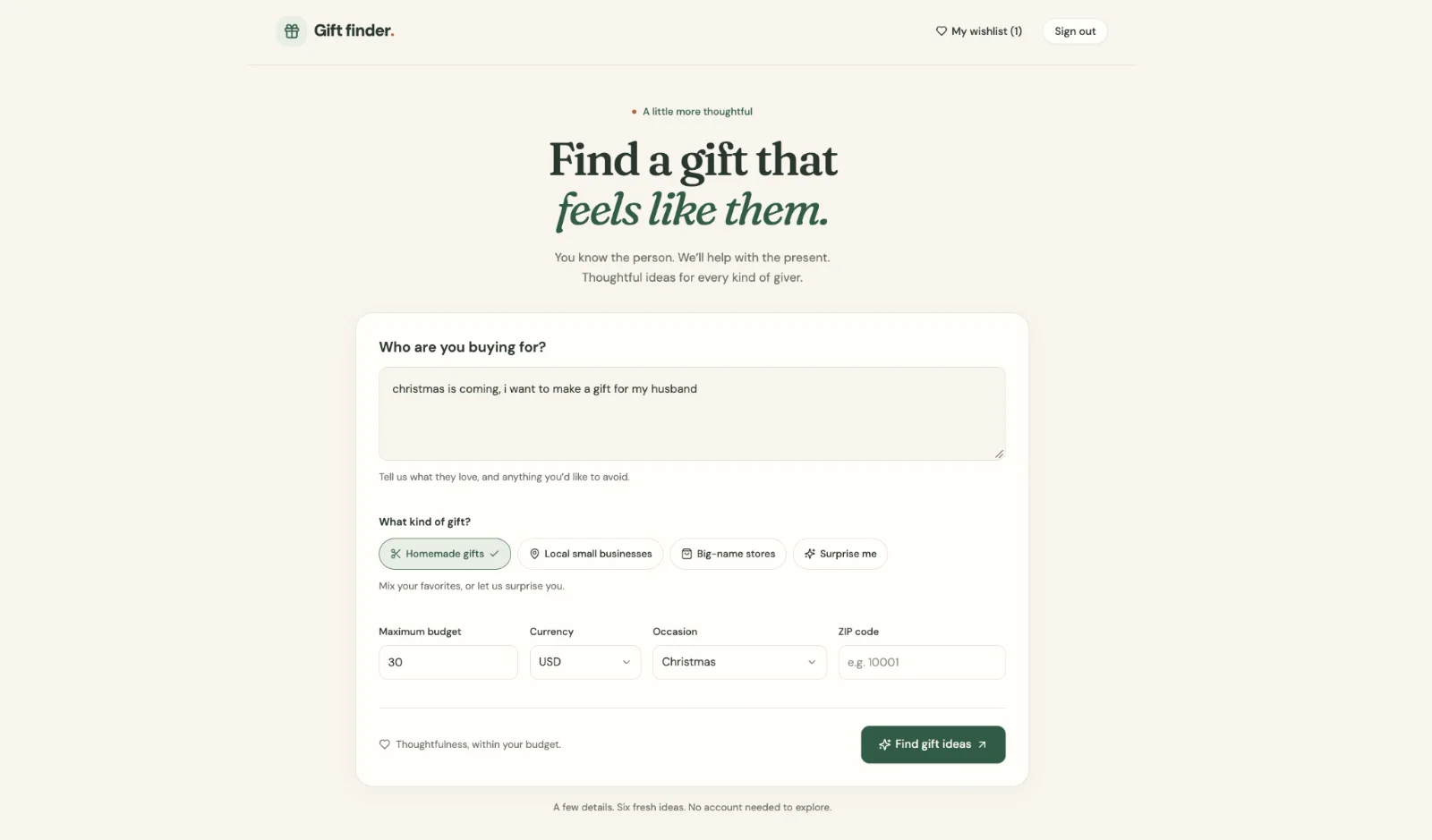
Figure 1 The basic gift-finder form with a description, categories, budget, occasion and postcode.
Try a search with a recipient description, a budget and an occasion. With a single prompt, you already have a working app you can test.
Basic gift card display
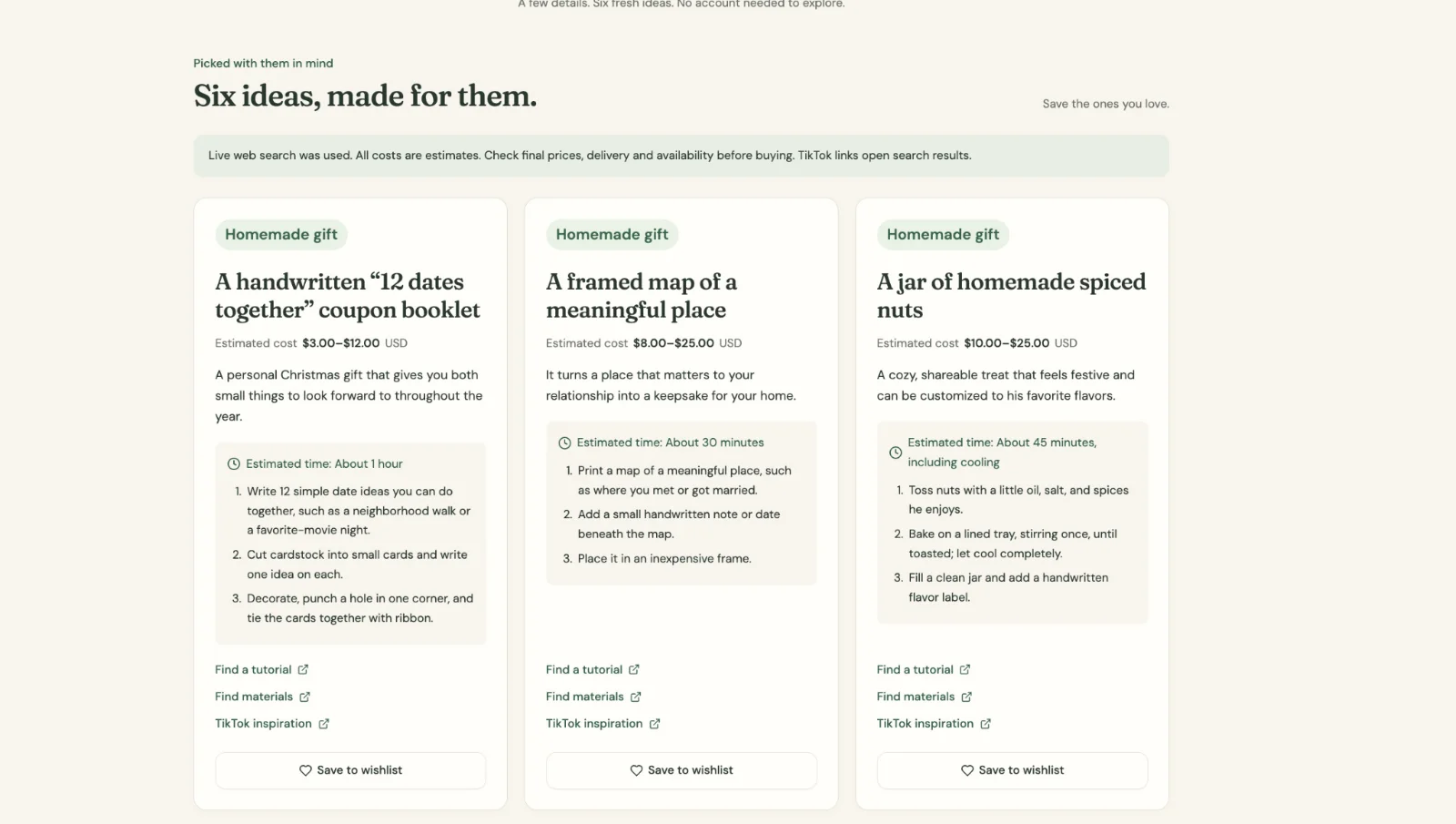
Figure 2 The starter version presents ideas as cards with an estimated cost, a reason, useful links and Save to wishlist.
2 Add six features for the iPhone experience
I wanted location, camera, sharing and notifications in the web app I built with Floot. I also wanted those features to work when I turned it into an iPhone app for the Apple App Store.
With Floot, you describe the feature in the same conversation, and the agent identifies the native components and permissions it needs. You do not need to learn a new framework or rebuild the app for iOS.
We’ll add each feature one at a time. Paste a prompt, let the agent finish, then test the parts available in the browser before moving on. Feature 6 is the exception: you will read about it here, but you set it up in section 4, once your Apple account is connected. Later, we’ll test how those features work on an iPhone through TestFlight.
If you’ve already built a web app with Floot and are happy with it, you can turn it into an iOS app too. Open your project in Floot, click Publish and switch on Publish mobile app.
Below are six features showing how they work in the web app and what you can expect in the installed iPhone app.
| Feature | In the web app | In the installed iPhone app |
|---|---|---|
| Current location | Browser permission fills the postcode. | iOS location permission fills the postcode. |
| Photos | A file input offers available photo sources. | Take a photo or use the system photo picker. |
| Share a gift or wishlist | Browser sharing, with Copy link as a fallback. | The native iPhone share sheet. |
| Remind me | Download a calendar event. | Schedule a local device notification. |
| Premium plan | Upgrade through Stripe and manage the subscription. | Signed-in website subscribers receive ten ideas. Upgrade links are hidden. |
| Universal Links | A shared link opens the website. | A configured, installed build can open the exact wishlist inside the app. |
Feature 1 Use current location
Imagine Christmas is tomorrow and you need a gift from a small business nearby. Instead of typing a postcode, tap Use my current location and let the app fill it in. Keep manual entry available for people who decline permission or want to shop somewhere else.
Ask your assistant:
When users select “Local small businesses”, show a “Use my current location” button next to the ZIP/postcode field.

Only ask for location permission when they tap the button. Never on page load.

After permission is granted, get their approximate location and convert it into a ZIP/postcode using Photon at https://photon.komoot.io/reverse. Do the lookup on the server and send a User-Agent header with the app name. Read the postcode from the “postcode” property or from “name” when “osm_value” is “postcode”. Enable the lookup so it works immediately.

Fill the ZIP/postcode field with the result and show a short confirmation such as “Postcode filled in”. Users can edit the field to search somewhere else.

If permission is denied, or location is unavailable, or no postcode is found, show a friendly message and let users enter their ZIP/postcode manually.

Use the location to find nearby gift shops and explain why each suggestion fits their request.

Credit OpenStreetMap when location data is shown.

Support both the website and the installed iOS app. On iOS, request location only while the app is in use with the permission message “We use your location to find gift shops near you.”
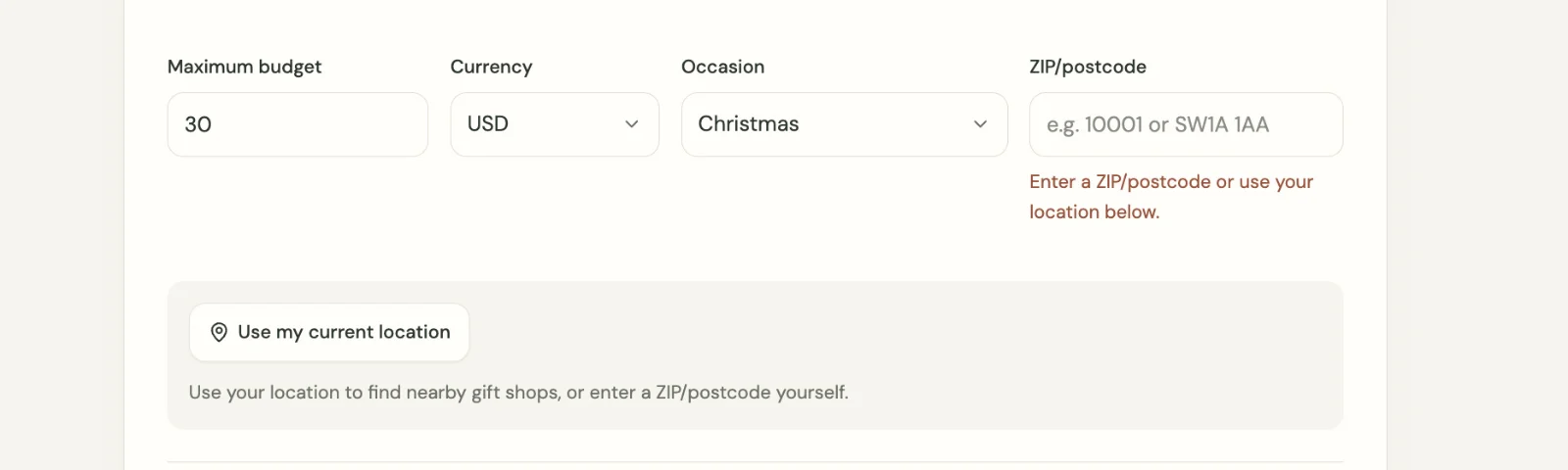
Figure 3 The location feature in the web app.
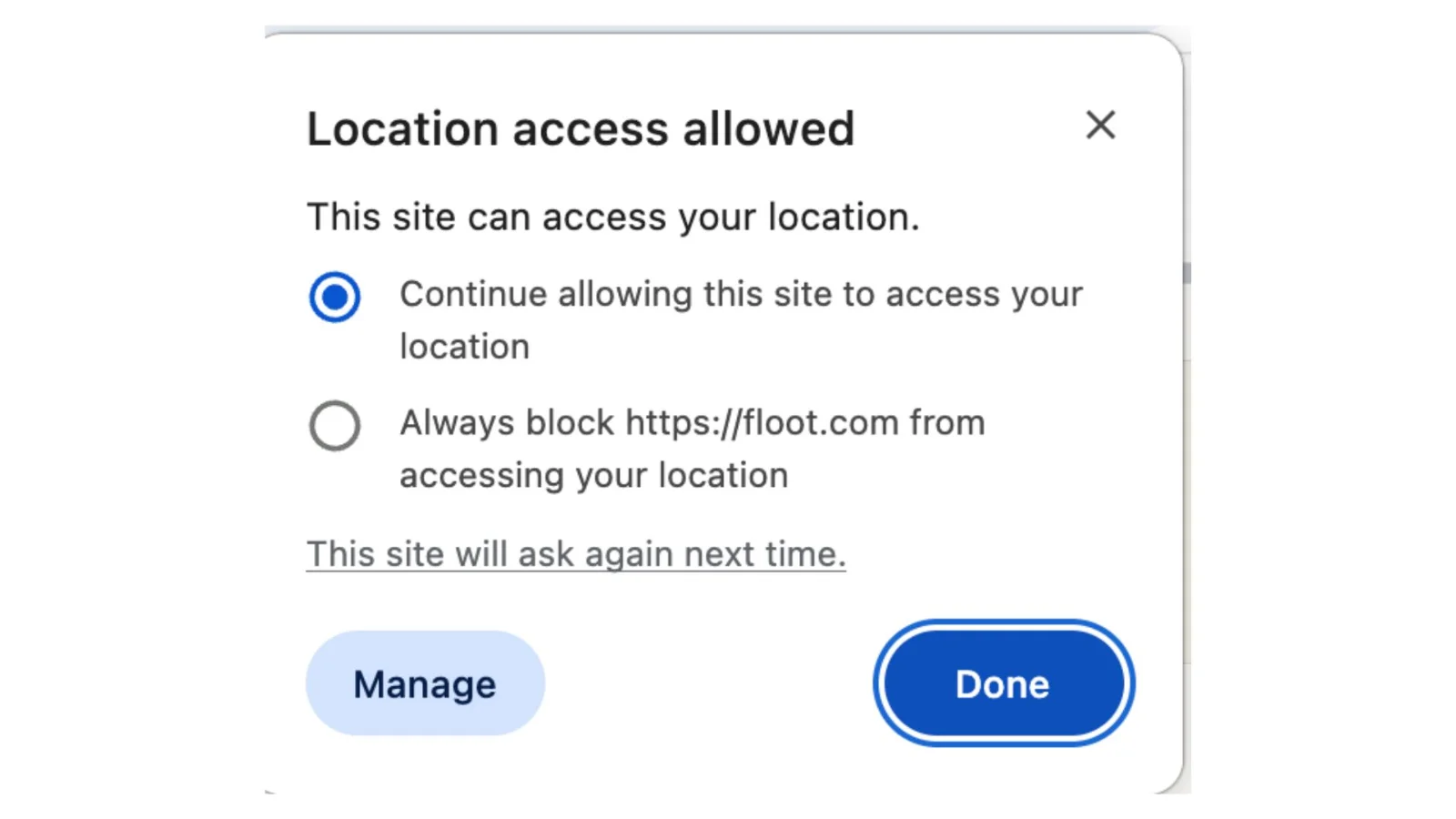
Figure 4 The location feature in the browser.
In the browser, check that the permission request appears only after a tap, that the postcode fills correctly and that it remains editable. The iPhone permission screen comes later, after installation. The same prompt also defines the iOS permission wording, which Floot includes in the native build.
Feature 2 Add a photo for inspiration
A description is useful, but a photo can give the app more context. Photograph a coffee setup, a favourite running accessory or something the recipient already owns, then ask for gifts that go with it.
Ask your assistant:
Add an optional "Add a photo" button below the "Who are you buying for?" textarea. Users can take a photo or choose an existing one, for example something the recipient likes or already owns.

Show a preview of the chosen photo with "Replace" and "Remove" options.

Before upload, resize the photo to a maximum of 1600px on the longest side and convert it to JPEG, so large phone photos and iPhone HEIC images work. Reject non-image files with a friendly message.

Send the photo to the gift generation endpoint along with the description, selected categories, budget and occasion, and pass it to the AI as an image input so it can actually see it. Use a vision-capable model.

Ask the AI to suggest gifts that are similar to or go well with what's in the photo, and for each suggestion add one line explaining how it relates to the photo. If the photo is unclear or unrelated, say so briefly and base suggestions on the description instead.

Only use the photo to generate this set of suggestions. Don't save it to the database, file storage or session storage.

The app must work exactly as before when no photo is added.

Support both the website and the installed iOS app. On the web, use a standard file input that offers camera or photo library on phones. On iOS, ask for camera permission only when the user chooses "Take photo", and use the system photo picker for existing photos so no full photo-library access is requested. Camera permission wording: "We use your camera so you can add a photo that helps us suggest relevant gifts."
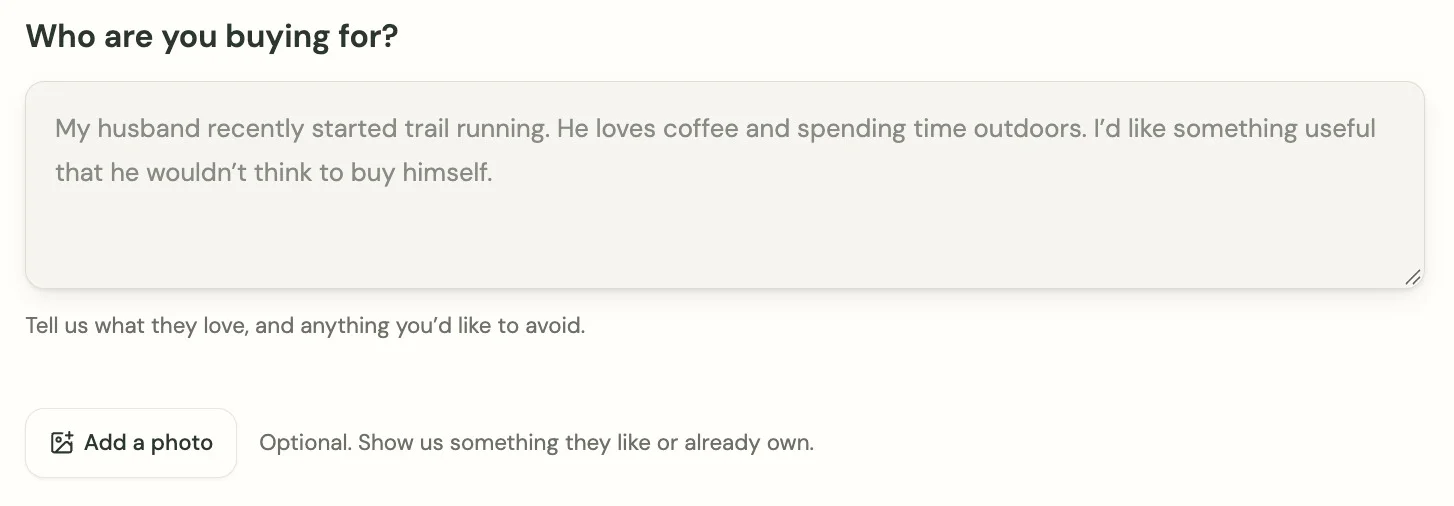
Figure 5 Add a photo appears below the recipient description in the web app.
In the website preview, add an image and check the preview. Generate ideas and read whether the suggestions actually relate to the photo. This single prompt adds camera access, image handling and a vision model to the app.
Feature 3 Share a gift or wishlist
Finding the gift is only half the job. You may want a second opinion, or you may want to send someone a list of ideas. This feature adds sharing to individual cards and to the wishlist.
Ask your assistant:
Add sharing so users can send a gift idea or their wishlist to a friend.

Add a "Share" button on each gift card and a "Share wishlist" button on the wishlist page.

Sharing a gift sends the gift name, a one-line reason it fits, and a link to it.

Sharing the wishlist creates a read-only public link with an unguessable token (e.g. /shared/abc123x9...). Anyone with the link can view the gifts without signing in, but cannot edit them. The owner's wishlist stays private otherwise, and they can turn the link off with a "Stop sharing" button.

On the website, use the Web Share API to open the phone's share sheet (WhatsApp, Messages, etc.). If it's not supported, for example on desktop Firefox, show a "Copy link" button and confirm with "Link copied".

On the installed iOS app, use the Capacitor Share plugin to open the native share sheet.

All shared links must use the published app's domain, never a preview or sandbox URL.
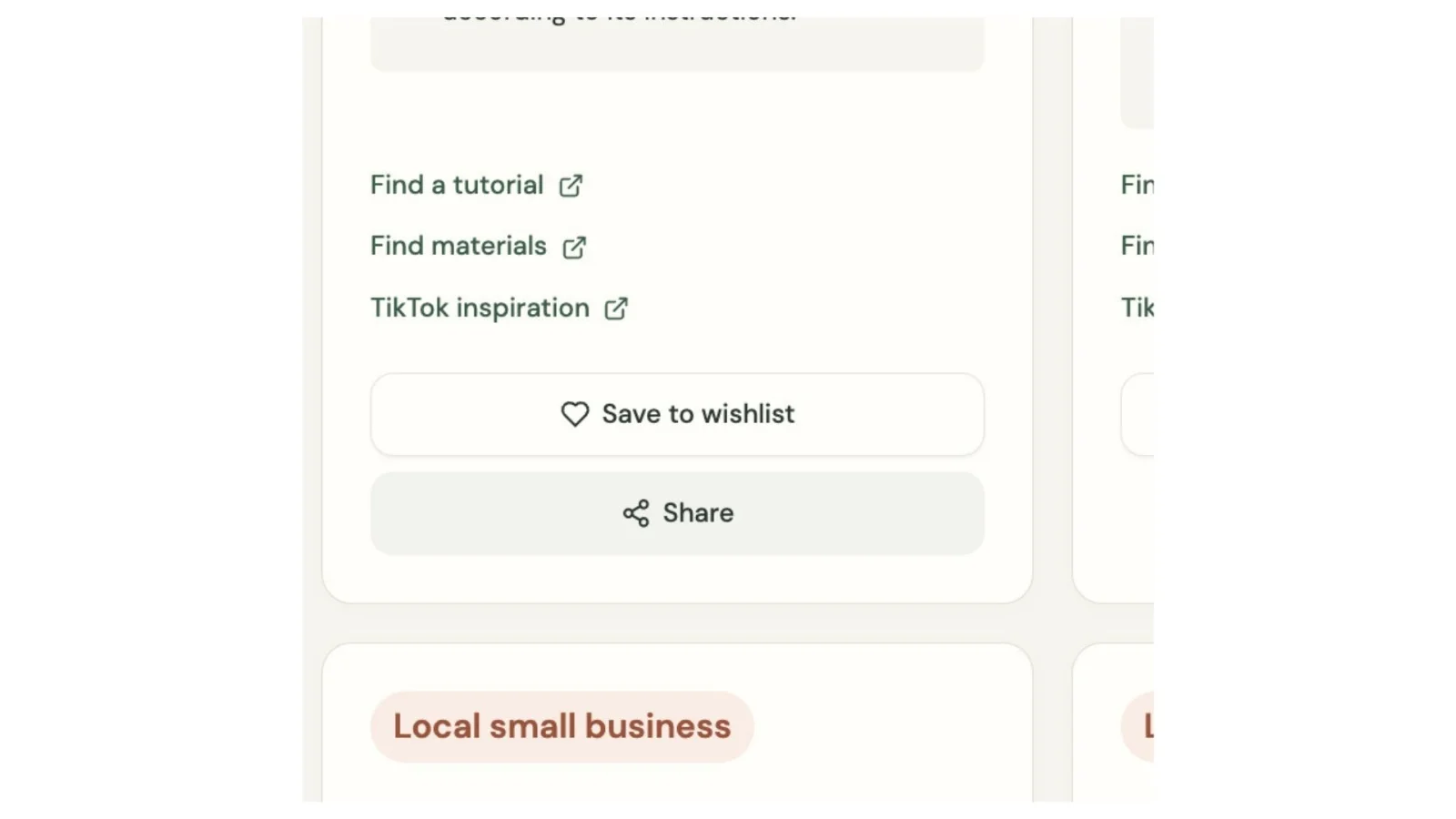
Figure 6 Share is available on each gift card.
On the website, try Share or Copy link, then open the shared page in another browser session. Once the site is public, a recipient can view an active shared link without a gift-finder account. During internal publishing, Floot’s private access gate still applies.
Feature 4 Remind me to buy it later
You have found a good idea, but the birthday is still a few weeks away. Remind me lets you choose a date and time. The website and iPhone versions handle that request differently: the website downloads a calendar event, while the installed app schedules a notification on the device. One prompt covers both behaviours, and Floot keeps the two versions consistent.
Ask your assistant:
Add reminders so users can get a notification on a date they choose, scheduled on the device with no server.

Add a "Remind me" button on each gift card and wishlist item. It opens a small dialog with the reminder text pre-filled (e.g. "Buy: Trail running headlamp"), a date picker and a time picker defaulting to 9:00am. Quick options: "Tomorrow", "This Friday", "In 1 week".

Next to the Occasion field, add "Set an occasion reminder". It opens the same dialog with a text field for who it's for (e.g. "Mum's birthday"), the occasion date, and how early to remind them: 1 day, 1 week or 2 weeks before.

Don't allow dates or times in the past. Use the user's local time zone.

On the installed iOS app, schedule the reminder with the Capacitor Local Notifications plugin. Ask for notification permission only when the user taps "Set reminder" for the first time, never on launch. Use a whole number under 2,000,000,000 as each notification's ID.

If permission is denied, explain that reminders need notifications and show how to turn them on in iPhone Settings, without blocking the rest of the app.

Tapping a reminder opens the app on the wishlist, or on the gift finder for occasion reminders.

Save the user's reminders on the device and show them in a simple "Reminders" list where each one can be deleted, which also cancels its scheduled notification.

On the website, don't schedule notifications. Instead, the same dialog shows an "Add to calendar" button that downloads an .ics calendar event for the chosen date and time with the reminder text, so it works in Apple, Google and Outlook calendars.
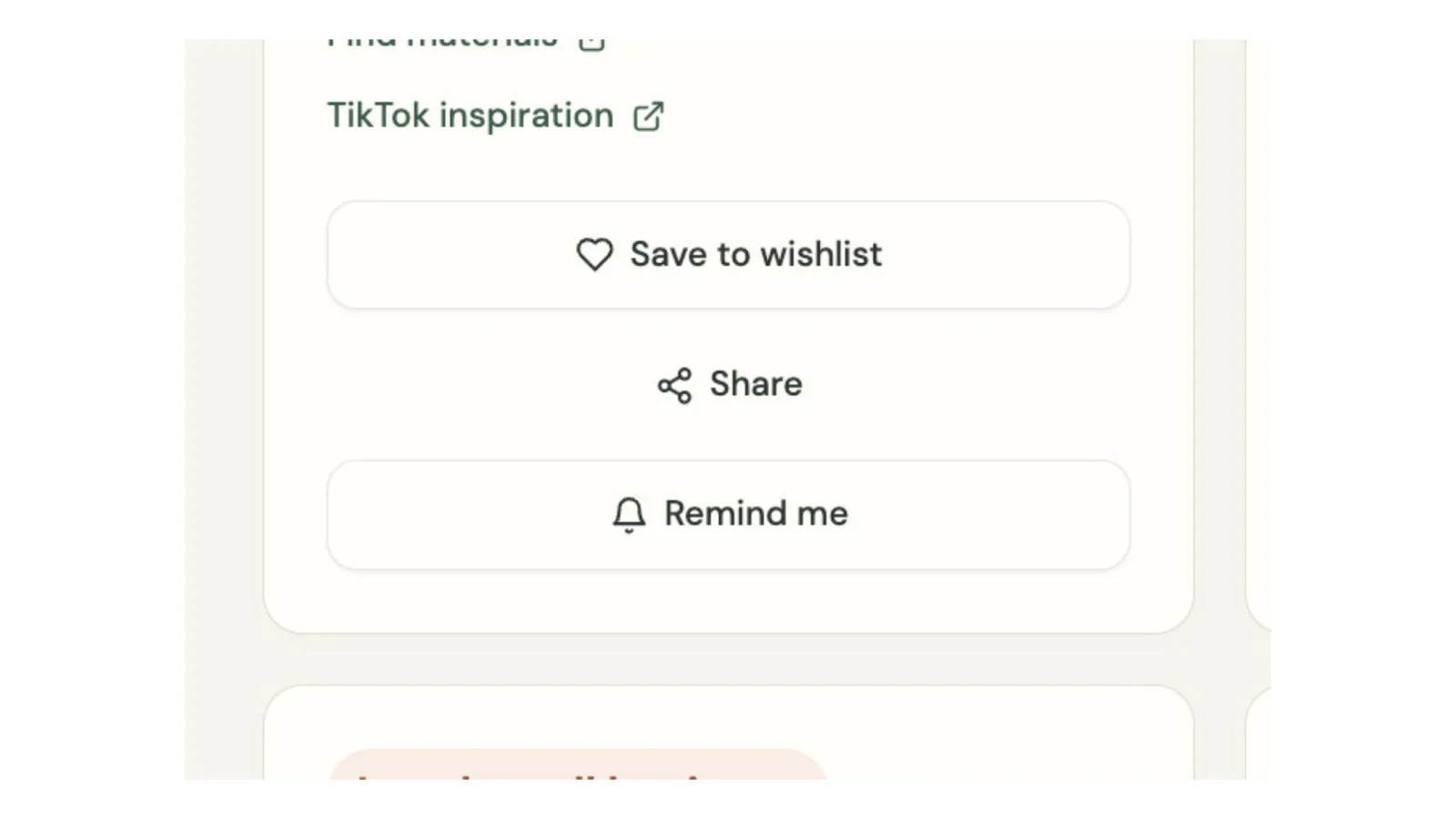
Figure 7 Remind me joins the other actions on a gift card.
In the browser, open the reminder dialog and use Add to calendar. Native notification permission and delivery are tested on the iPhone later.
Feature 5 Add the Premium plan
The starter app gives everyone six gift ideas per search. This prompt changes the allowance to three ideas per search for free users and ten for Premium subscribers, with a website subscription priced at $4.99 a month. Floot’s built-in Stripe integration makes the payment setup straightforward, so you can test the subscription flow without setting up a separate billing system.
Ask your assistant:
Add a Premium plan. Free users get 3 gift suggestions per search; Premium users get 10.

Premium is a monthly subscription at $4.99, paid through Floot payments (Stripe Checkout). Users must be signed in to upgrade, so Premium is tied to their account.

Enforce the limit on the server: the gift generation endpoint checks the signed-in user's plan and asks the AI for exactly 3 or 10 ideas. Never rely on the browser to hide extra results.

Mark a user as Premium only when the payment event endpoint receives a successful subscription payment, and remove Premium when the subscription is canceled or a renewal payment fails. Don't grant Premium from the return page alone.

Replace every place that assumes 6 ideas (headings like "Six ideas, made for them", the loading skeleton count, footnote text and any validation limits) so it reflects 3 or 10.

Below free results, show a short "Get 10 ideas with Premium" card with an Upgrade button. Signed-out users who tap it are asked to sign in first, then continue to checkout.

After a successful upgrade, show "You're Premium. Your next search will show 10 ideas." Premium users see a "Manage subscription" link that opens the Stripe billing portal so they can cancel.

In the installed iOS app, don't show the Upgrade button or any payment links. Users who subscribed on the website still get 10 ideas in the app when signed in.
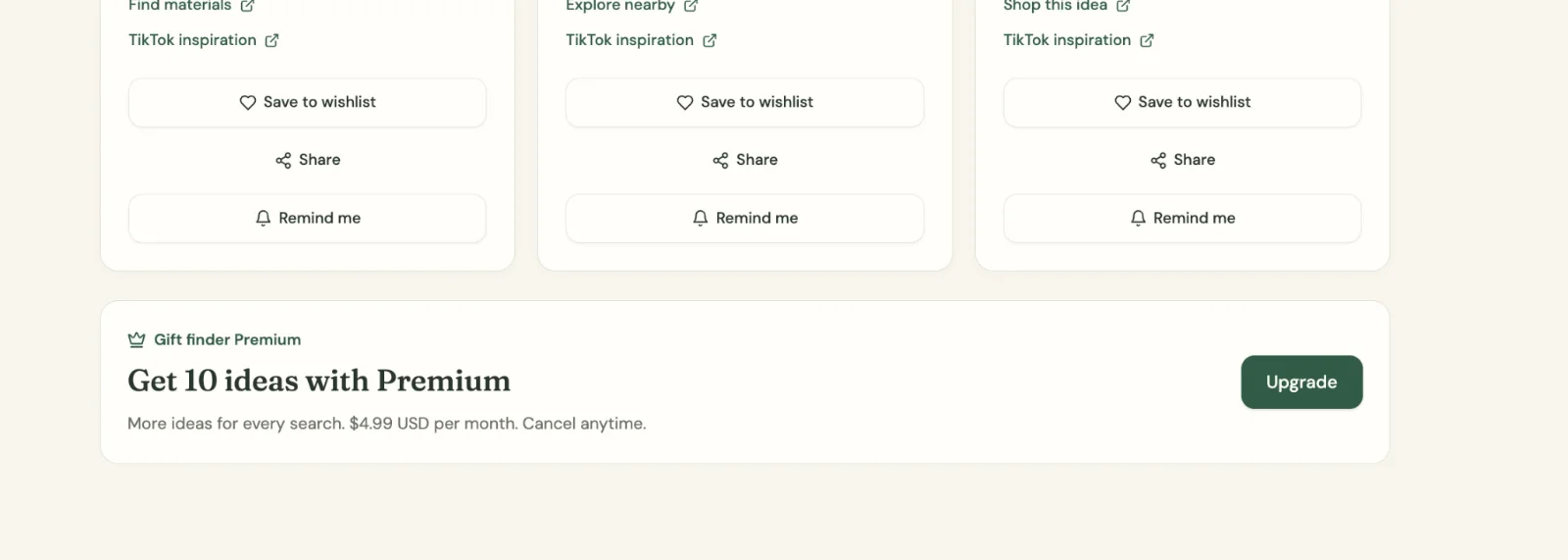
Figure 8 The website Premium offer introduces ten ideas per search.
This is website billing through Floot payments. In the preview, Floot provides Stripe test payments. For real website subscriptions, complete Set up Stripe under Services → Payments or on the Publish screen. Published payments use live mode and require an eligible Floot plan.
The iPhone app uses the same account’s plan, but this prompt deliberately hides Upgrade and payment links there. It does not implement Apple In-App Purchase. Before public App Store submission, check this subscription model against Apple’s current payment rules for your app and storefronts.
Feature 6 Open shared wishlist links in the app
You send a wishlist link to a friend. If they have the app installed, tapping that link can take them straight to the same wishlist inside it. If they do not have the app, the link opens the website. Apple calls this Universal Links. Universal Links make the app feel native, and they normally require several configuration steps.
3 Get your app ready before the first mobile build
Before turning your web app into an iPhone app, there are a few things worth preparing.
Floot’s Free plan includes 2 mobile builds per month, Pro includes 12, and Power offers unlimited builds.
Understand how mobile builds work (very important)
When you open Publish in Floot, you'll see a switch labelled Publish mobile app.
Here's the difference:
-
Publish mobile app OFF: Clicking Publish or Publish update updates your website only. No mobile build is used.
-
Publish mobile app ON: Clicking Publish or Publish update publishes your website and starts a mobile build. Floot generates the mobile app for iOS and Android, and sends it to any connected app stores you've selected.

Figure 9 Mobile publishing settings showing the “Publish mobile app” switch turned on.
Simply turning the switch on does not use a mobile build. The build starts when you click Publish or Publish update.
For example, if you're on the Free plan and publish your web app ten times with Publish mobile app OFF, you haven't used any mobile builds. But if you publish twice with the switch on, you've used both monthly builds, assuming both complete and count.
A failed build doesn't count towards the allowance. Floot also doesn't count a build if every connected store rejects it.
The best way to avoid unnecessary mobile builds is to prepare what you can and review your app carefully before building. If you follow this tutorial in order, all six features go into your first build, so on the Free plan your second build is left for fixes.
What requires a mobile build?
A new mobile build is required whenever you want changes to your app's interface, styling, navigation, app icon, splash screen, native status bar, permissions, or native features to appear in the installed app.
However, you can preview and refine most UI changes in Floot's iPhone preview without generating a mobile build. You only need to build when you're ready to install those changes on your phone.
App Store listing changes, including screenshots, promotional artwork, descriptions, keywords and pricing, do not require a mobile build. They're managed separately in App Store Connect.
Some finishing touches before your first mobile build
This is one feature of Floot I find particularly useful.
In Floot's preview, click the device selector at the top and choose iPhone. Floot displays your app inside an iPhone-sized screen, so you can directly see how the interface looks on a phone.
You can adjust the spacing, colours, typography, buttons, headers and navigation while checking the results in the iPhone preview. You can even interact with the app to test whether buttons and navigation work as expected.
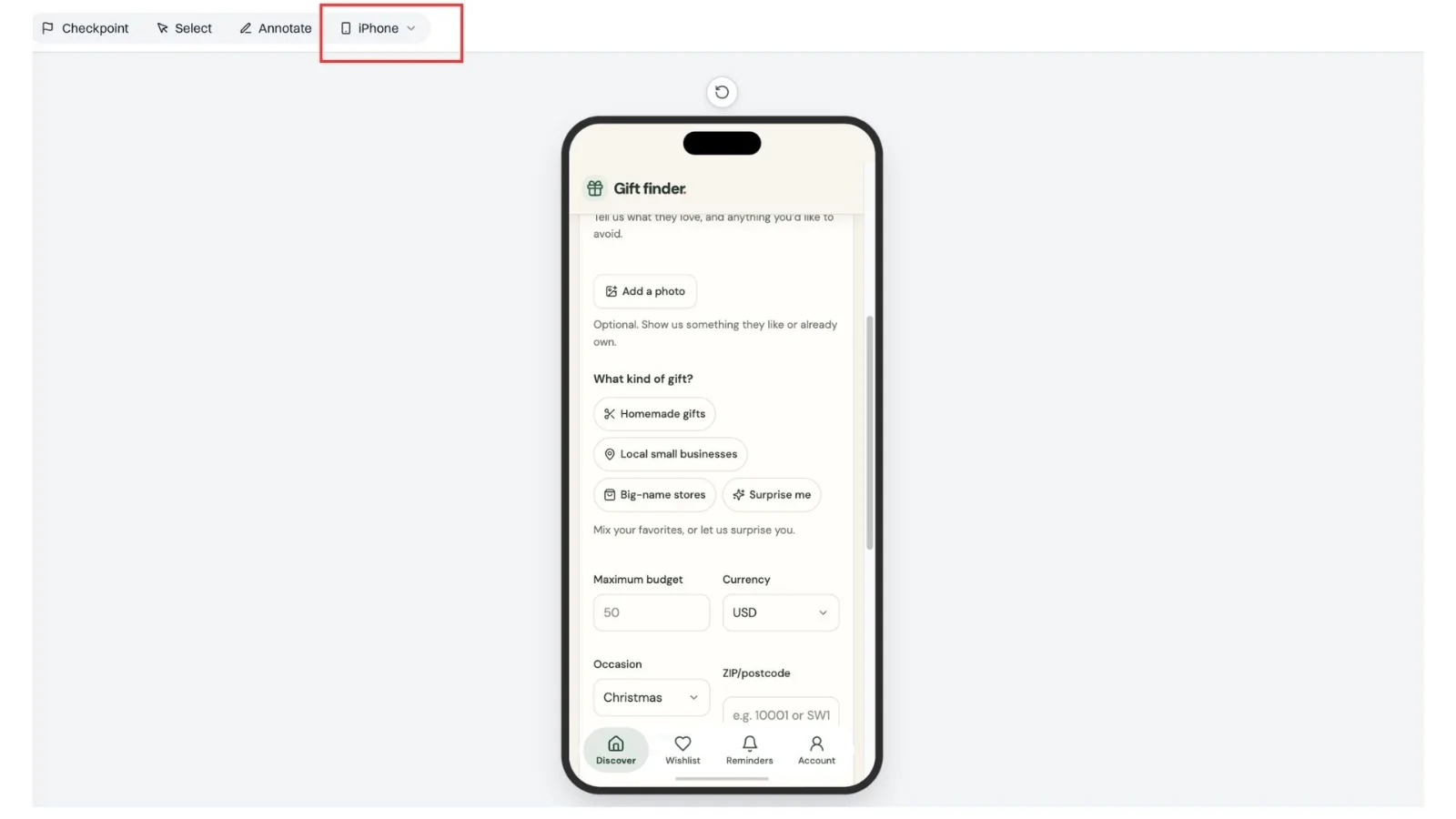
Figure 10 iPhone preview in Floot for checking the mobile layout and testing navigation.
Finishing touch 1 Create your app icon
Ask your assistant:
Create a custom app icon for my app.

Requirements: 1024 × 1024 PNG. No transparency or pre-rounded corners. Use my app's existing colours and visual style. Create a simple, recognisable symbol that communicates the app's main purpose. Keep the design clear and readable at small sizes.

Generate the icon and show it to me for approval first. Once I approve it, set it as the app icon in Floot's project settings. Do not publish the app or trigger a mobile build. Wait for my next instruction.
Finishing touch 2 Create your splash screen
A splash screen is the first image users see when they open your app, before the main interface appears.
You cannot preview it directly in Floot, but you can describe how you want it to look and ask your assistant to create a visual mockup for you to review. If you are happy with the result, ask your assistant to set it as your splash screen. The next time you create a mobile build, the new splash screen will be included in the app.
Ask your assistant:
Create a custom splash screen for my app.

Requirements: 2732 × 2732 PNG. Use my app's existing colours and visual style. Place my app's logo or main symbol in the centre. Use a simple background that matches the app. Leave plenty of empty space around the logo so it remains visible when cropped for different phone screens.

Generate the splash screen and show it to me for approval first. Once I approve it, set it as the splash screen in Floot's project settings. Do not publish the app or trigger a mobile build. Wait for my next instruction.
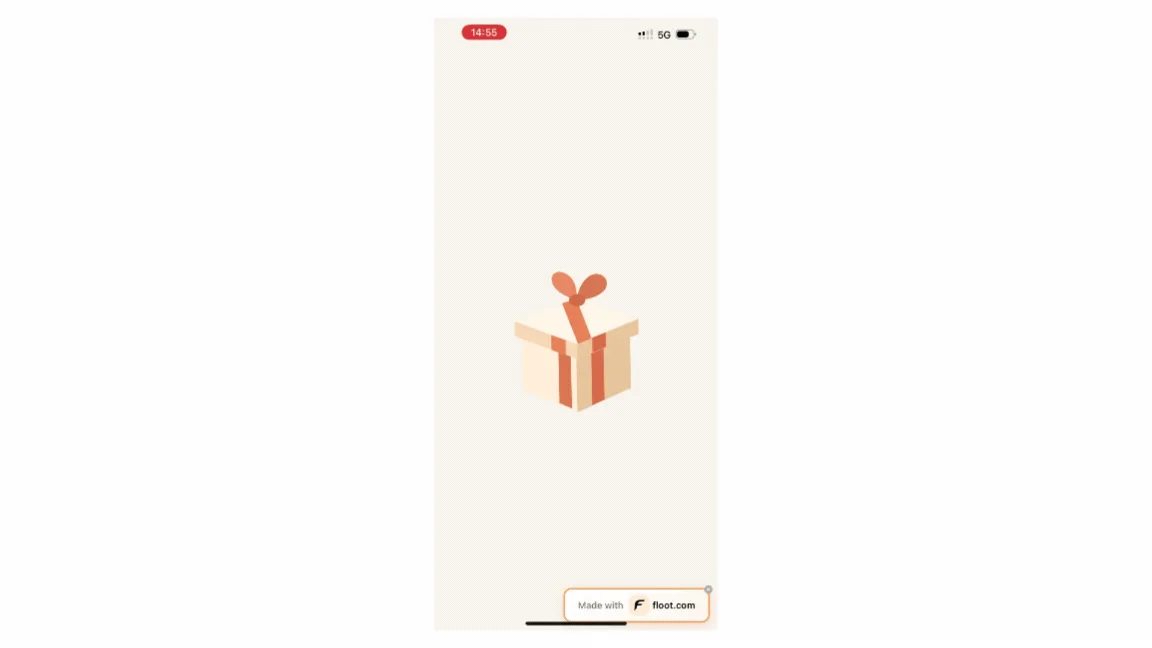
Figure 11 Splash screen displayed on a real iPhone when launching the app.
Finishing touch 3 Match your status bar colour
The status bar is the area at the top of your phone that shows the time, signal, Wi-Fi and battery. You can ask Floot to match the status bar colour to your app's header or background.
Ask your assistant:
Make the native status bar match my app's header or background colour.

Requirements: Inspect my app's existing colours and choose the colour that best matches the top of the interface. Use light or dark status bar icons so the time, battery and signal remain readable. Keep the status bar in inset mode so the app's content doesn't overlap the system controls. Do not change my app's existing layout or other styling.

Update Floot's native system bar settings accordingly. Do not publish the app or trigger a mobile build. Wait for my next instruction.
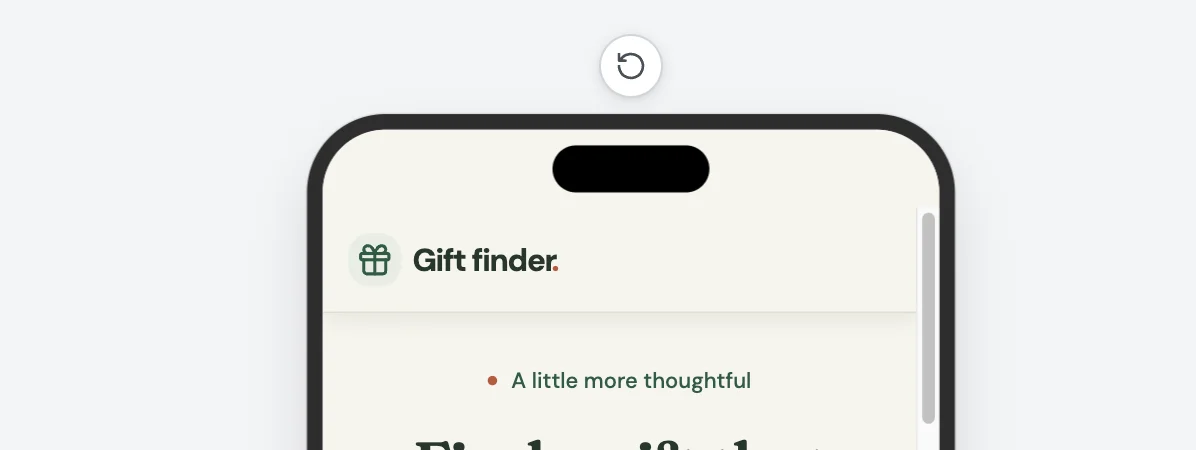
Figure 12 Mobile preview showing the app header and layout on an iPhone screen.
Finishing touch 4 Add a floating mobile navigation bar
A navigation bar at the bottom of the phone makes frequently used features easier to reach. I particularly liked the floating, frosted-glass navigation style used by some mobile apps, with rounded corners and a highlighted active tab.
Ask your assistant:
Add a floating bottom navigation bar to the mobile version of my app.

Requirements: Use a floating, pill-shaped navigation bar with rounded corners, a translucent frosted-glass background and a subtle drop shadow. Use my app's existing colours and visual style. Inspect the existing app and choose appropriate destinations and labels. Each item should have a clear icon and readable text label. Highlight the currently selected item with a softly tinted background. Make every navigation item functional by connecting it to the corresponding existing page, screen or feature. Keep the navigation fixed near the bottom while users scroll. Respect the iPhone safe area so the bar doesn't overlap the Home Indicator. Add enough bottom spacing so the navigation doesn't cover content or buttons. Keep the existing desktop navigation unchanged. Avoid duplicating navigation controls unnecessarily on small screens.

After I approve the design, implement it and let me test the navigation in the web preview.

Do not publish the app or trigger a mobile build. Wait for my next instruction.
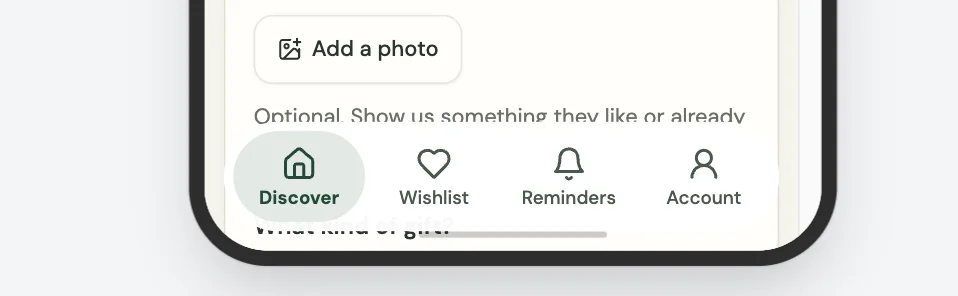
Figure 13 Floating navigation bar with four destinations.
After Floot makes the changes, select iPhone in the preview and try switching between the different destinations. Check that the selected tab changes correctly, including when you tap the same tab more than once, and that the navigation bar doesn't cover any content.
You can make further adjustments and see the updated design in the iPhone preview without generating another mobile build.
Now that the app's appearance and native settings are ready, let's connect Apple, switch on mobile publishing and generate the first build for TestFlight.
4 Build the mobile app and prepare for TestFlight
Shipping an iOS app usually involves certificates, provisioning profiles, Xcode archives and manual uploads. With Floot, the process comes down to three steps: turn on mobile publishing, connect your Apple account and publish.
Get the Apple developer account ready
For Floot to upload to TestFlight, you need an active Apple Developer Program membership. A normal Apple Account or an enrollment still marked Pending is not enough. Enroll through Apple, complete its verification and payment steps, and wait for membership confirmation before connecting it to Floot. The annual fee is $99, with local pricing where available.
You can keep editing and testing the web app while Apple processes enrollment. Once the membership is active, continue below.
An iOS build is a packaged version of the app that can be installed on an iPhone. TestFlight is Apple’s service for distributing that build to testers. Uploading a build there does not publicly release it on the App Store.
Understand the mobile publishing settings further
Open Publish in your Floot project. You will see a switch labelled Publish mobile app. Keep it turned Off when publishing or updating your website. This allows you to publish web changes without using any of your mobile build allowance.
We will turn on mobile publishing later when connecting Apple and preparing our first iPhone build. Simply turning on the switch does not start a build. A build only starts when you click Publish or Publish update with mobile publishing enabled.
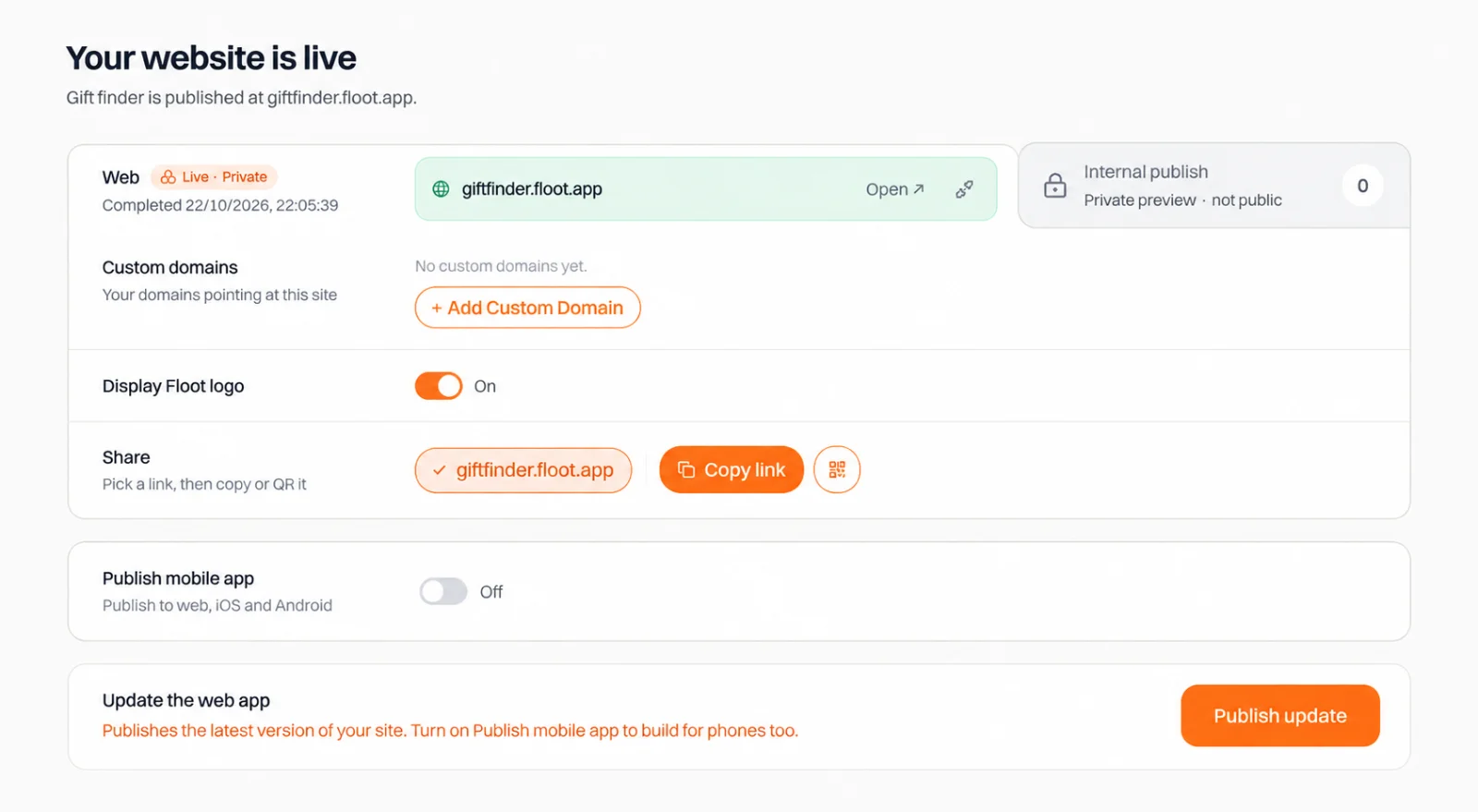
Figure 14 The Publish mobile app switch starts off.
Live mode
Turn on Publish mobile app, click Advanced, choose Live mode. This connects the mobile app to your published website. Test mode uses Floot's preview server, but the app stops working four hours after publishing.

Figure 15 Choose Live mode under Advanced.
Connect to the Apple App Store
You cannot access the Apple App Store connection settings while Publish mobile app is turned Off (Figure 16). You need to turn it On to connect your Apple developer account (Figure 17).
Simply turning on the switch does not trigger a mobile build or use your build allowance. A build only starts when you click Publish or Publish update with mobile publishing enabled. For now, we are just connecting Apple, so do not click Publish yet.
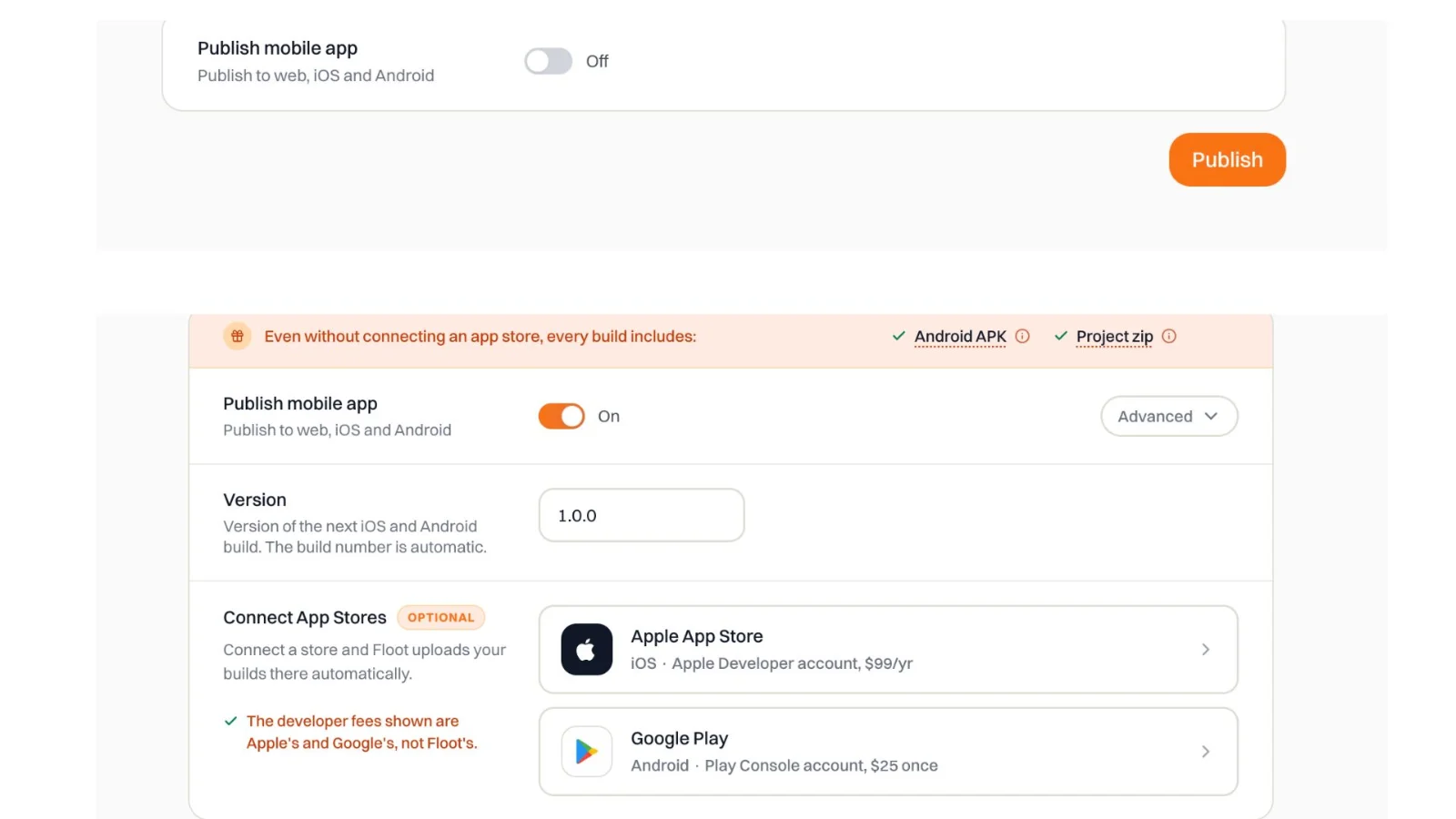
Figure 16 With Publish mobile app turned Off, the Apple App Store connection settings are hidden. Figure 17 Turning on Publish mobile app reveals the Apple App Store connection settings.
Under App stores, click Apple App Store. Sign in through Floot’s Apple connection screen and complete Apple’s verification code. Floot checks the membership and account access. If Apple offers more than one team, choose the team you plan to publish with.
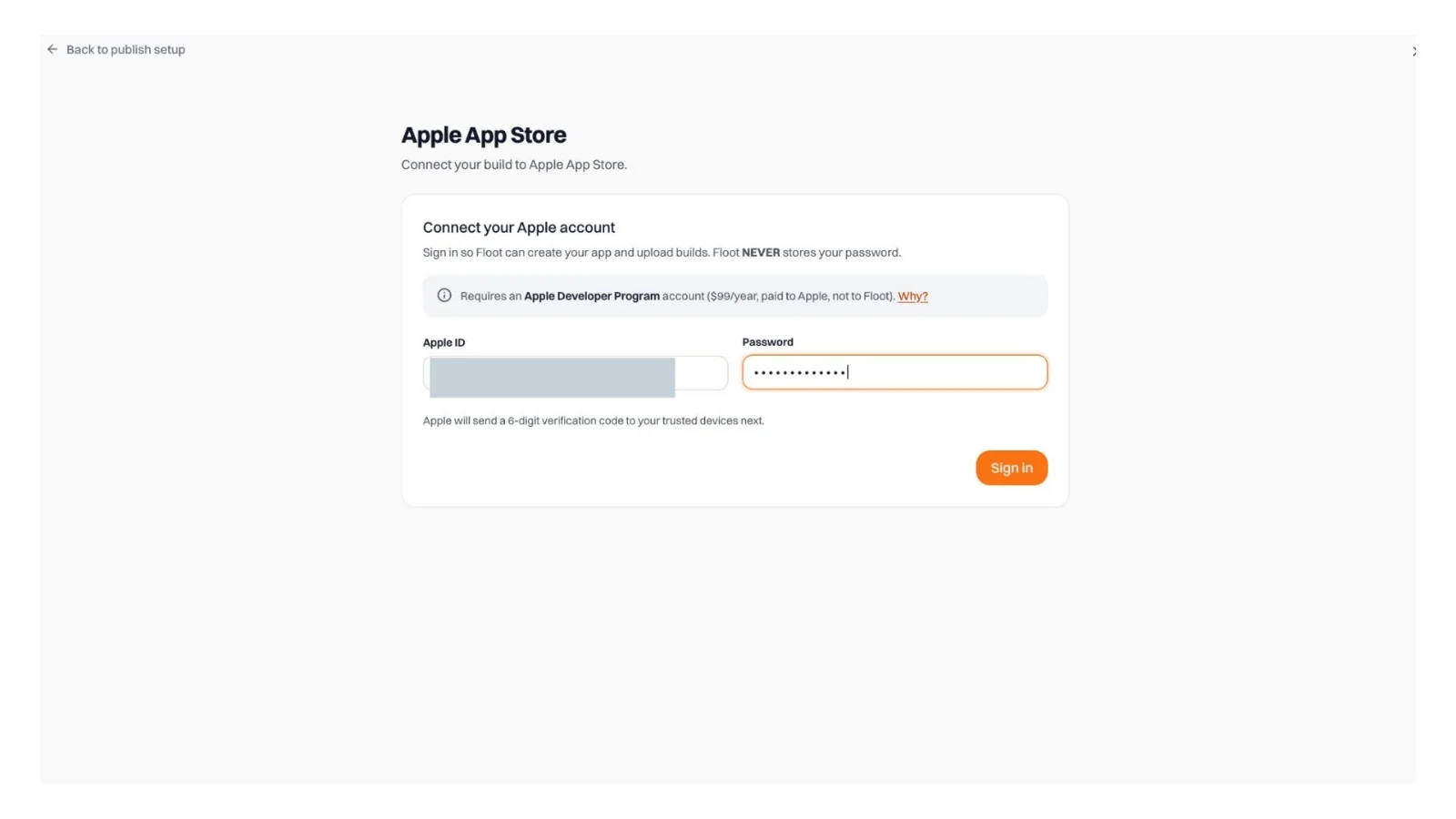
Figure 18 Connect your active Apple developer account through Floot.
Choose your app name and validate availability.
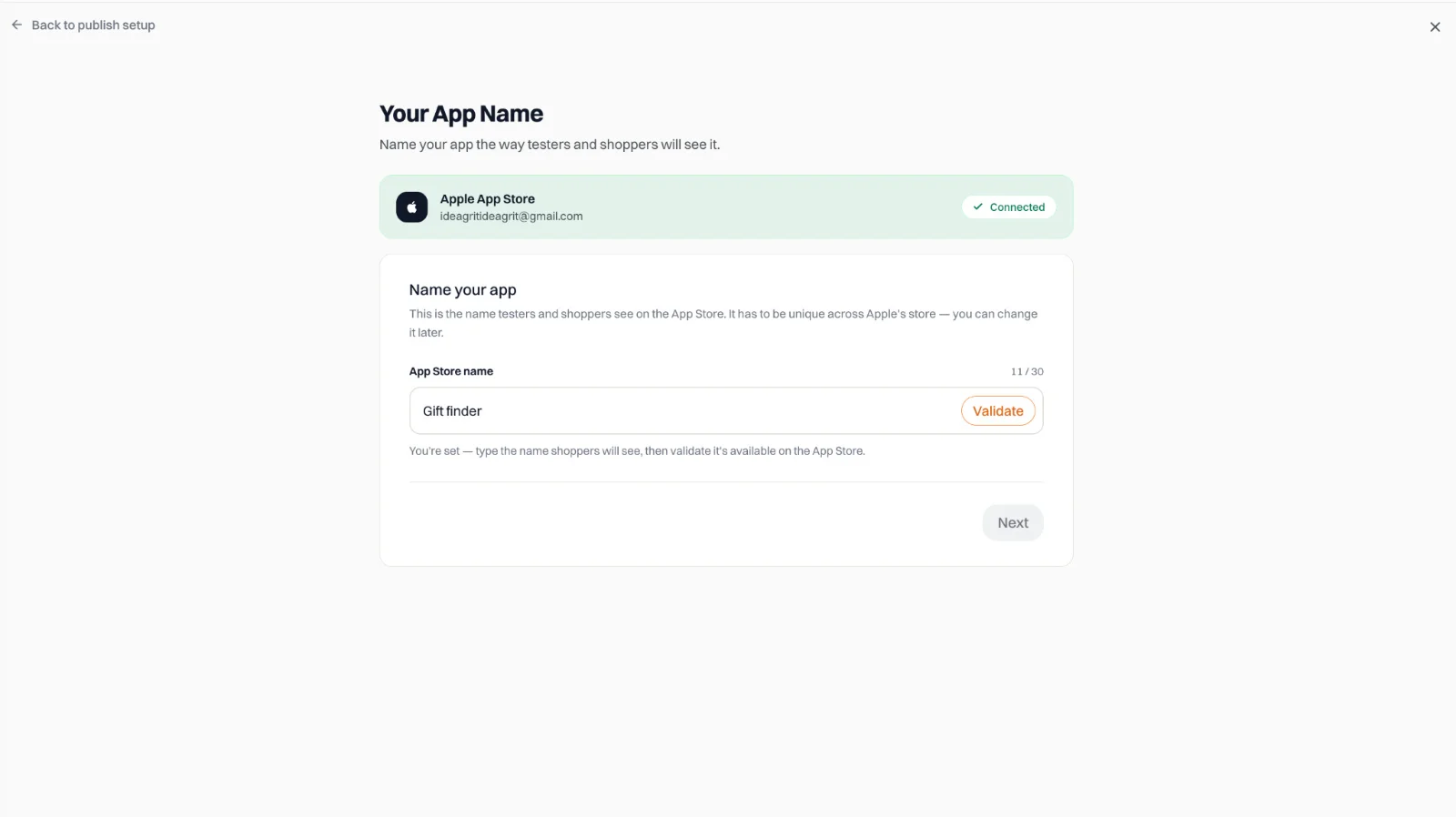
Figure 19 Choose the app name and check availability.
Click Confirm to finish connecting the Apple account, then return to Publish. Turn Publish mobile app Off again. We still need to configure Universal Links before generating our first mobile build.
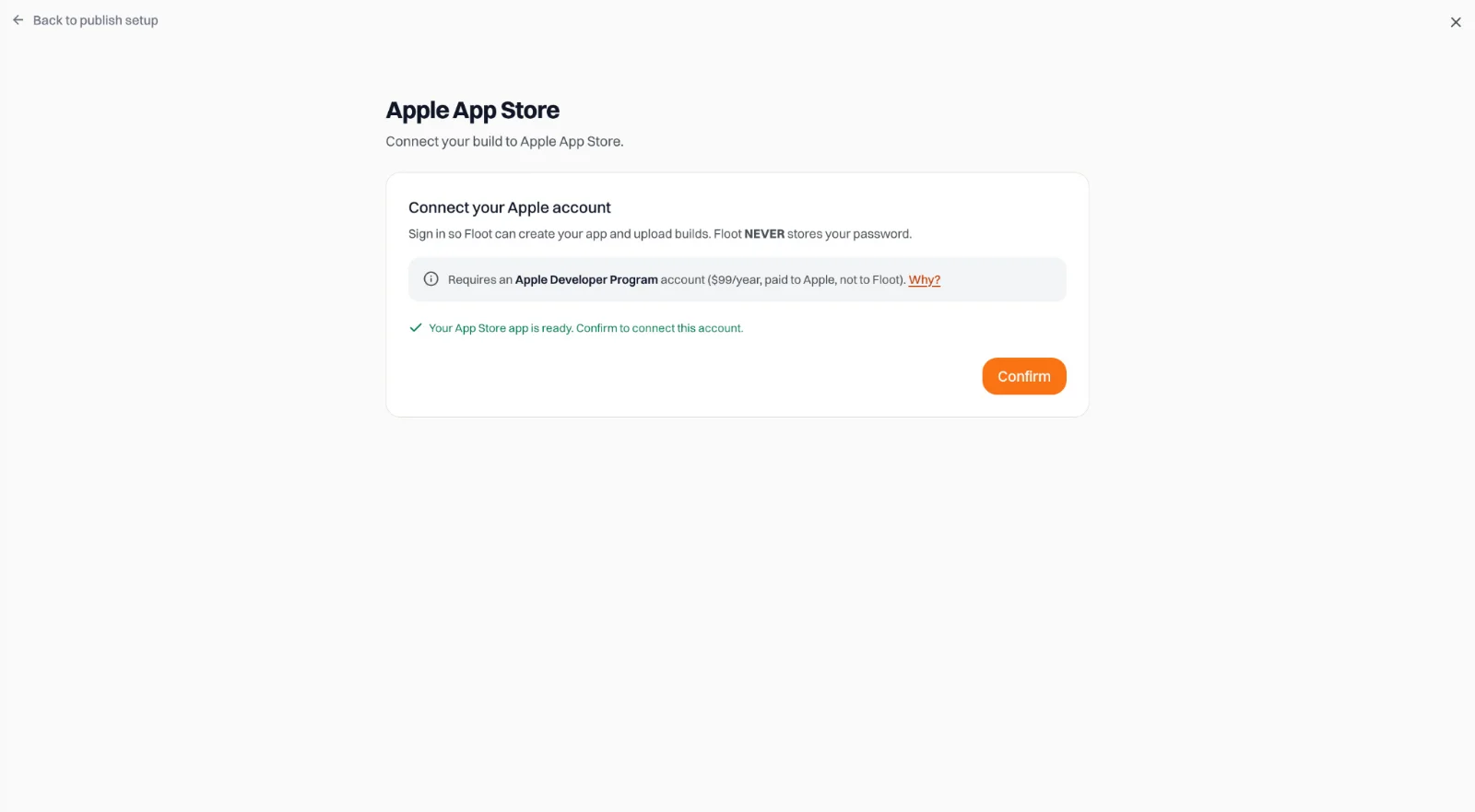
Figure 20 Click Confirm to finish connecting the Apple account to the project.
Set up Universal Links (Feature 6)
Now that your Apple developer account is connected, Floot can look up your Team ID and bundle ID. We can use those details to set up Universal Links before generating our first mobile build.
First, make sure your website has a public domain. If you have not published it yet, go to Publish, select the Web tab, keep Publish mobile app turned Off, and publish the website. This does not use a mobile build.
Once you have your published domain, ask Floot to configure Universal Links.
Ask your assistant
Set up iOS Universal Links so shared wishlist links using /shared/* open the corresponding wishlist inside my installed iPhone app. If the app is not installed, the same link should open the public website.

Look up my Apple Team ID and bundle ID from the connected Apple account. If either is unavailable, ask me rather than guessing.

Create static/__dev/native/ios-entitlements.plist with the Associated Domains entitlement, using applinks: followed by my published domain without https://.

Configure the website to serve an apple-app-site-association file at https://<published-domain>/.well-known/apple-app-site-association. Use the real Team ID and bundle ID, and match only /shared/* paths. The file must have no extension, return valid JSON with the correct content type, and be accessible publicly without redirects.

Use the Capacitor App plugin to handle incoming shared links, including when the app is already open and when it launches from a closed state. Navigate to the correct shared wishlist. Keep the existing message for invalid or disabled links.

Read Floot's ios-entitlements guide before modifying native configuration.

Do not publish the website or trigger a mobile build yet. Let me review the changes first.
Publish the website without starting a mobile build
We need to make the association file available on the public website before testing it.
Open Publish and select the Web tab. Keep Publish mobile app turned Off, then click Publish or Publish update.
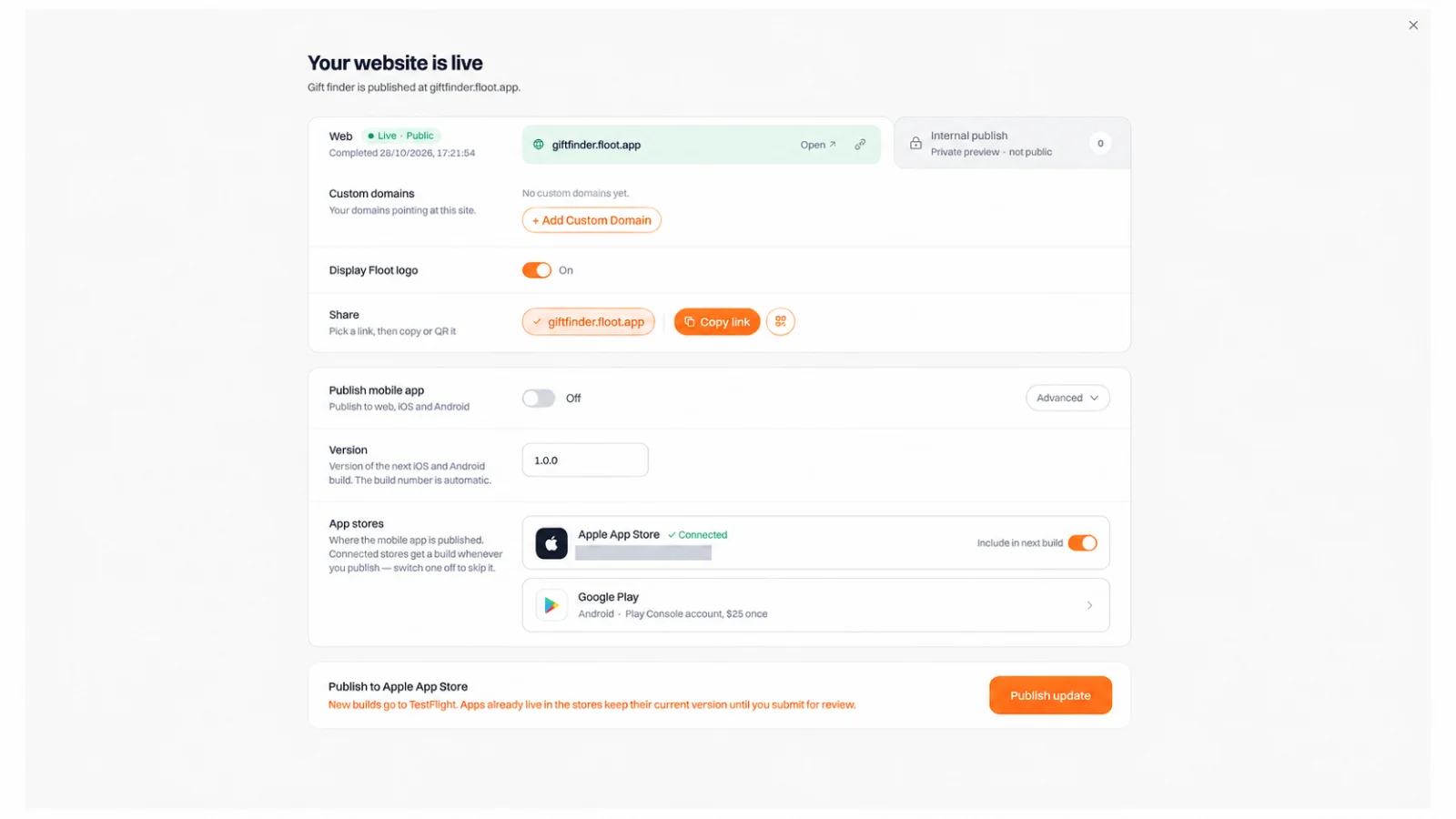
Figure 21 The Web tab is selected, the mobile switch is off and Apple is included.
This publishes the latest website changes, including the Universal Links association file, without generating an iPhone build.
Make sure your website is publicly accessible, rather than restricted by Floot's private access settings. Once the website is live, we can check that the Universal Links association file is working correctly before starting our first iPhone build.
Verify Universal Links before the first build
Now let's check that the association file is publicly accessible and contains the correct information.
Ask your assistant
Check the published website's /.well-known/apple-app-site-association endpoint. Verify that it returns HTTP 200, valid JSON, Content-Type application/json, and no redirects.

Confirm that the file contains the correct Apple Team ID, bundle ID, and /shared/* path matching. Also confirm that the iOS entitlements file contains the corresponding Associated Domains entry.

If anything is incorrect, fix it and tell me what needs to be republished. Do not trigger a mobile build.

If Floot needs to correct the association file, publish the website again with Publish mobile app turned Off, then repeat the verification.
Start your first mobile build
Once the website association file is correct, we are ready to build the iPhone app.
Open Publish, turn Publish mobile app On, select Live mode, and make sure Apple App Store is connected.
Click Publish update. Floot now generates the iPhone app and uploads the build to TestFlight.
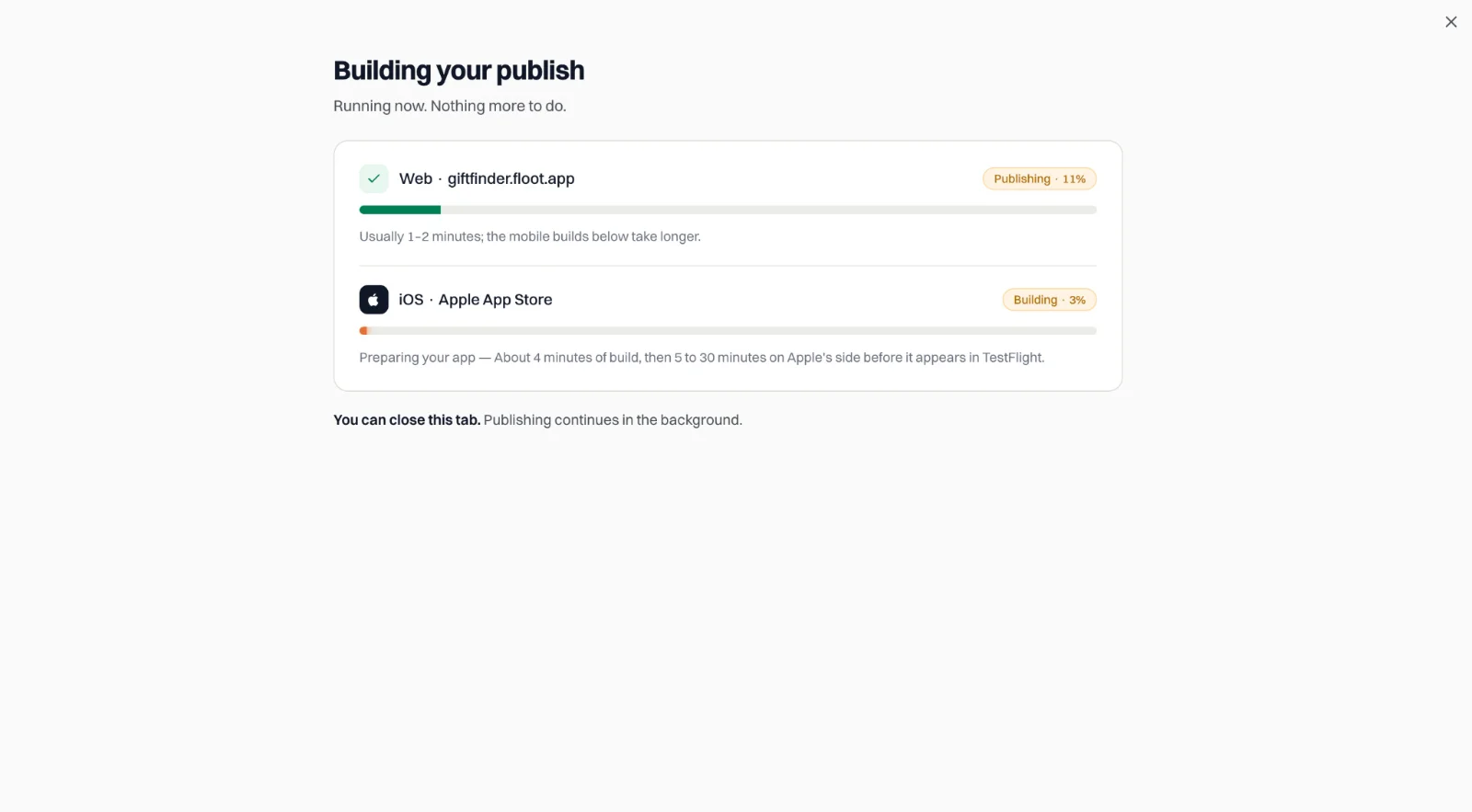
Figure 22 Floot publishes the website and builds the iOS app.
Because Universal Links were configured before this build, the native configuration is already included. There is no need to generate a second build just to add Universal Links.
Wait for both the website publish and the iOS build to complete. Floot handles signing and the TestFlight upload through the connected Apple account. A successful website publish alone does not confirm that the mobile build finished. No action is needed during this step. Floot builds the app, signs it and uploads it to Apple.
Once the mobile build is complete
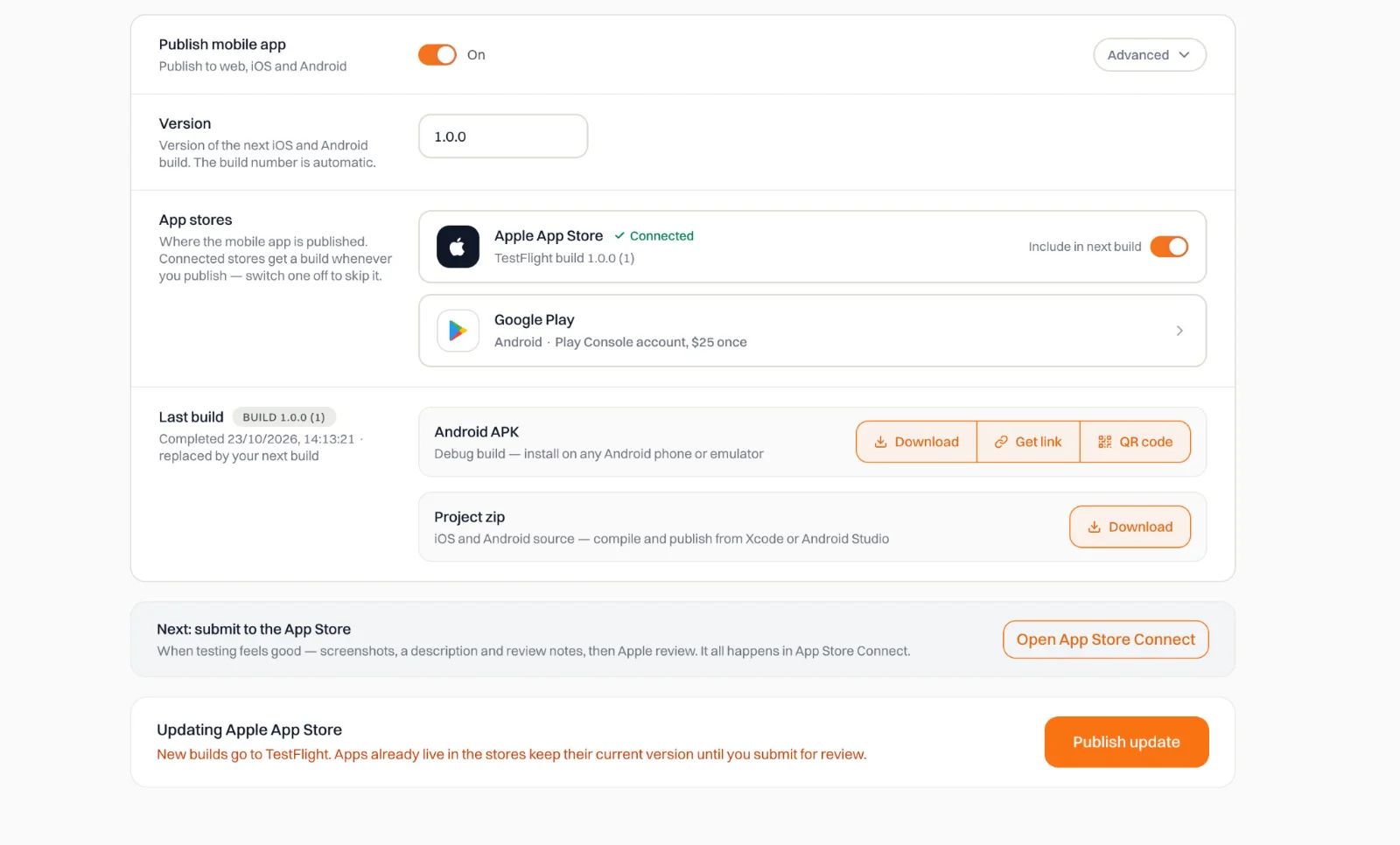
Figure 23 After the build finishes, use Open App Store Connect to continue.
5 Install it through TestFlight
Invite friends to beta test your app
Click “Open App Store Connect” and open your app. Select the TestFlight tab and wait for Apple to finish processing the build. Answer any required export compliance questions. Once the build is ready you can invite friends to test your app.
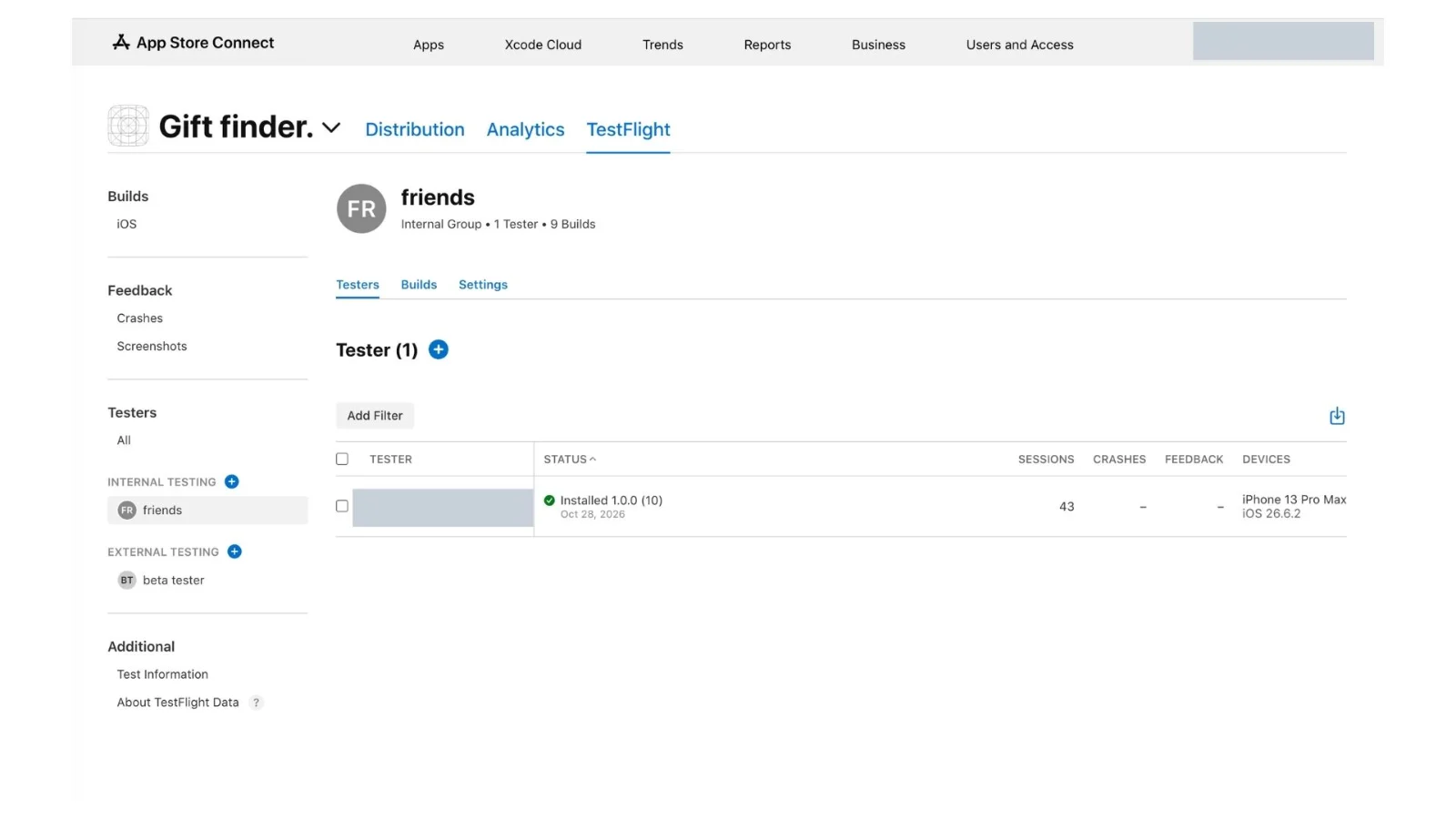
Figure 24 The internal tester is listed as Invited.
Accept the invitation on your iPhone
Install Apple’s TestFlight app from the App Store. On your iPhone, open the invitation email and tap View in TestFlight. Use the Apple Account invited to test.
Accept the invitation and tap Install for the app. If you already have an older build, use TestFlight to install or update to the latest one. You do not need to delete TestFlight.
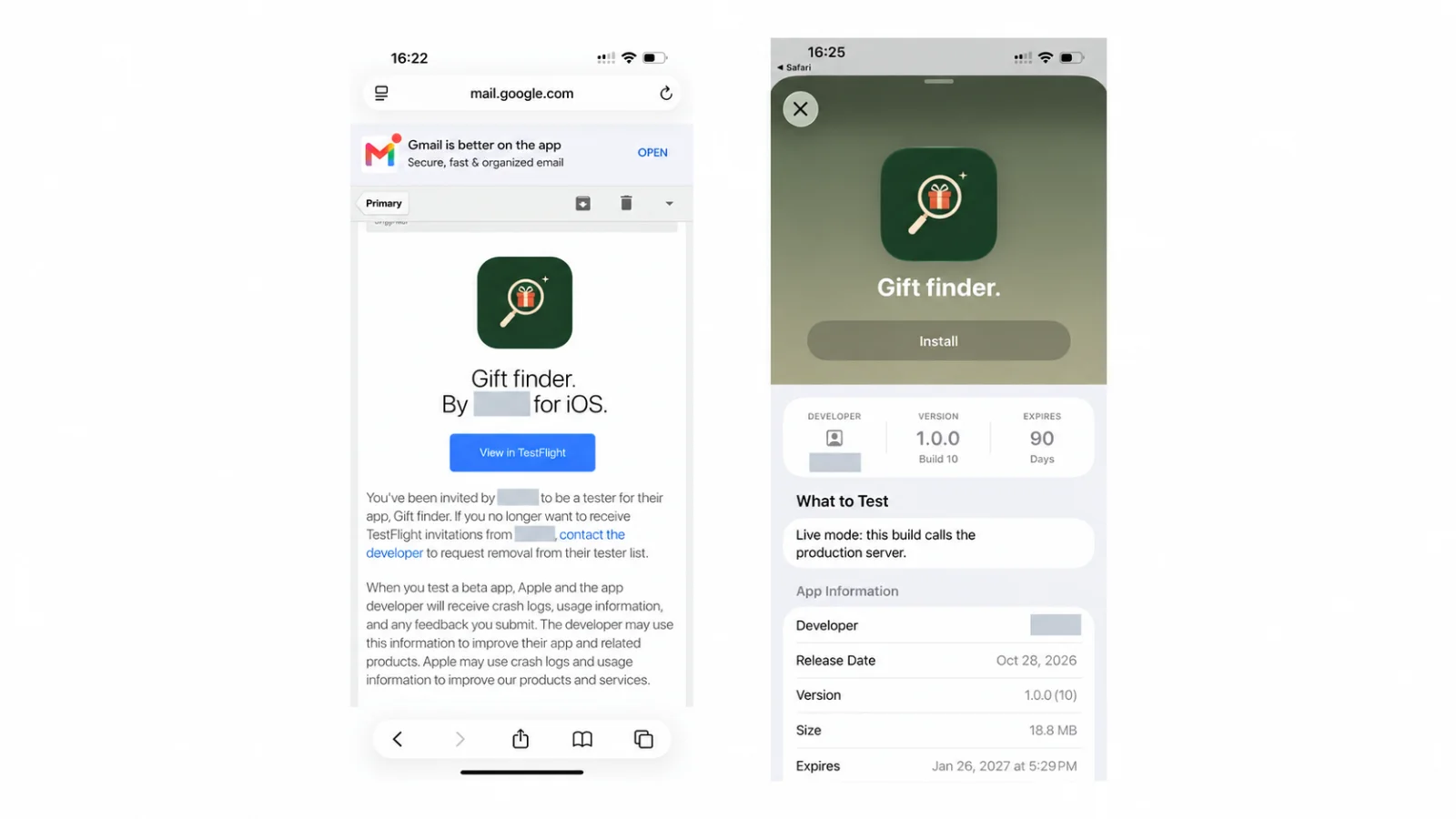
Figure 25 Open the invitation email on your iPhone and tap “View in TestFlight.” Figure 26 Install the app from its TestFlight page on your iPhone.
6 Check the features on your iPhone
Open the app installed through TestFlight and sign in to your gift-finder account. Check the version and build number so you know which implementation you are testing. The screens below show the iPhone checks, in screenshot order.
Share a gift or wishlist
Generate ideas, tap Share and choose Messages. Check that the message includes the gift name, a short reason and a working published link.
Open sharing again and check the iPhone’s native share sheet. Try a second destination, and try Copy link too. This is the same Share button from Feature 3, now using the native iOS share sheet with no additional work.
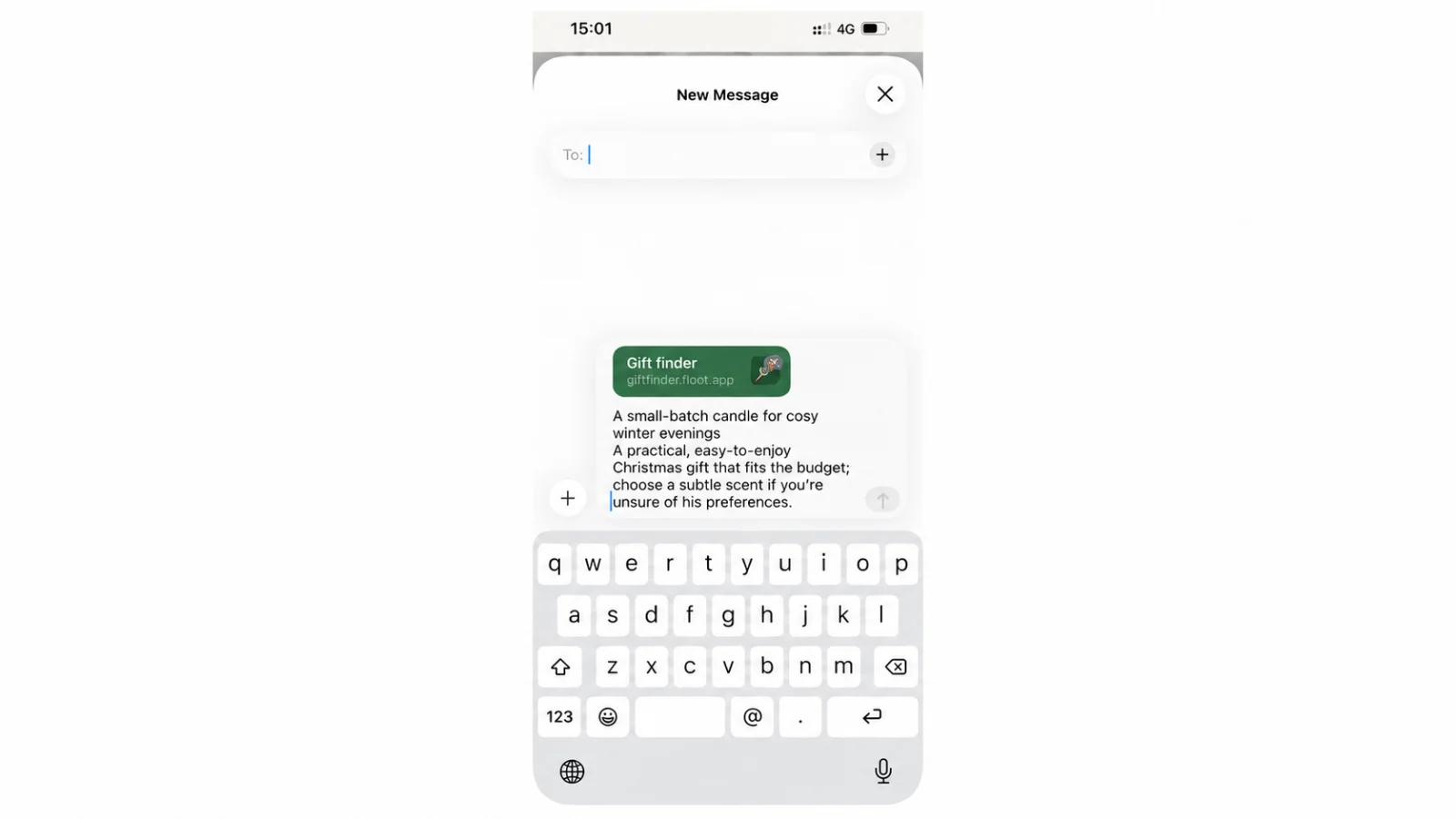
Figure 27 Messages contains the shared gift name, explanation and published link.
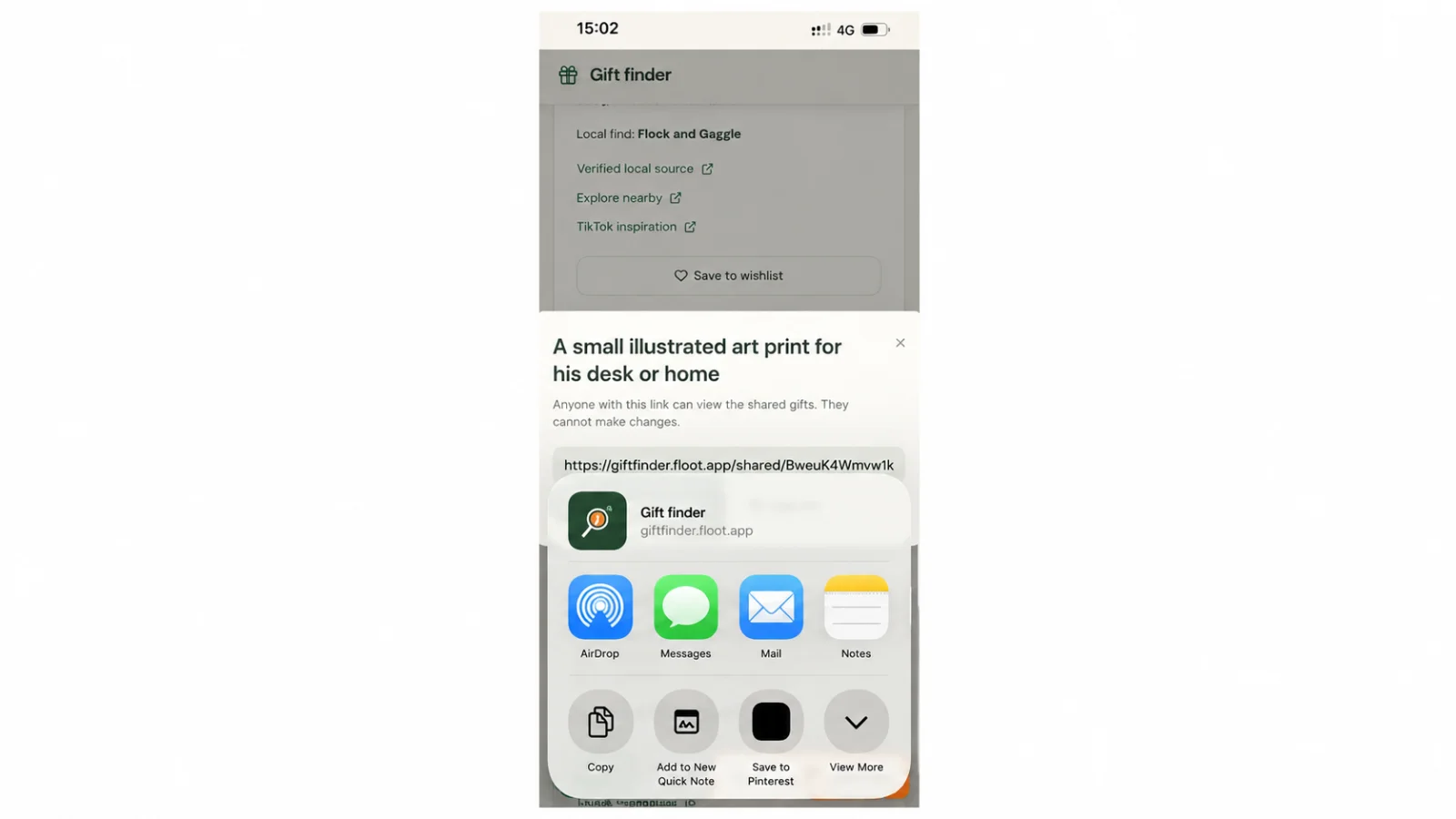
Figure 28 The iPhone native share sheet offers Messages, Mail and other destinations.
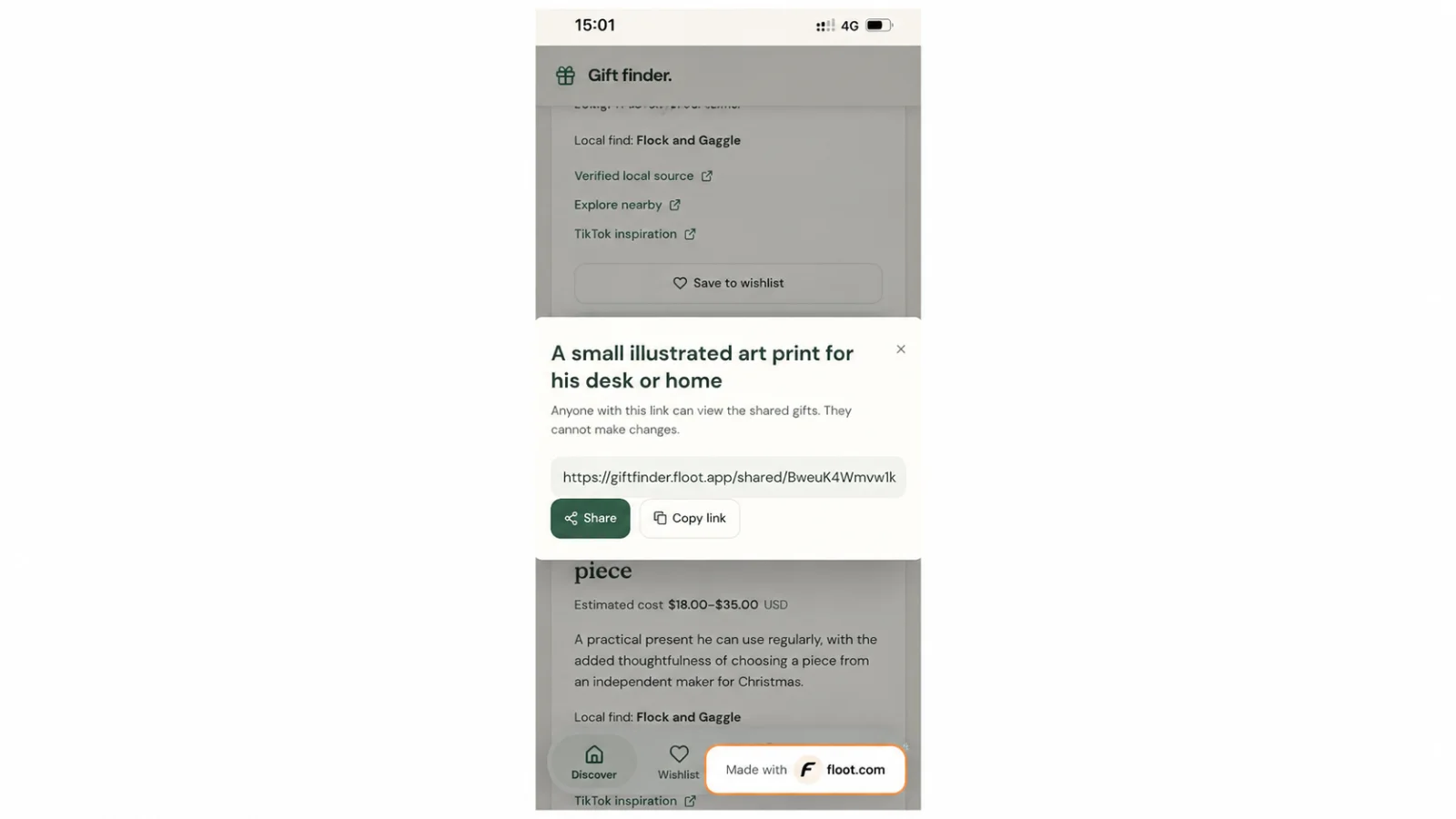
Figure 29 The app also offers Copy link from the sharing dialog.
Schedule a reminder
Tap Remind me, choose a time a few minutes ahead and tap Set reminder. On the first attempt, iOS asks for notification permission. Allow it for this test.
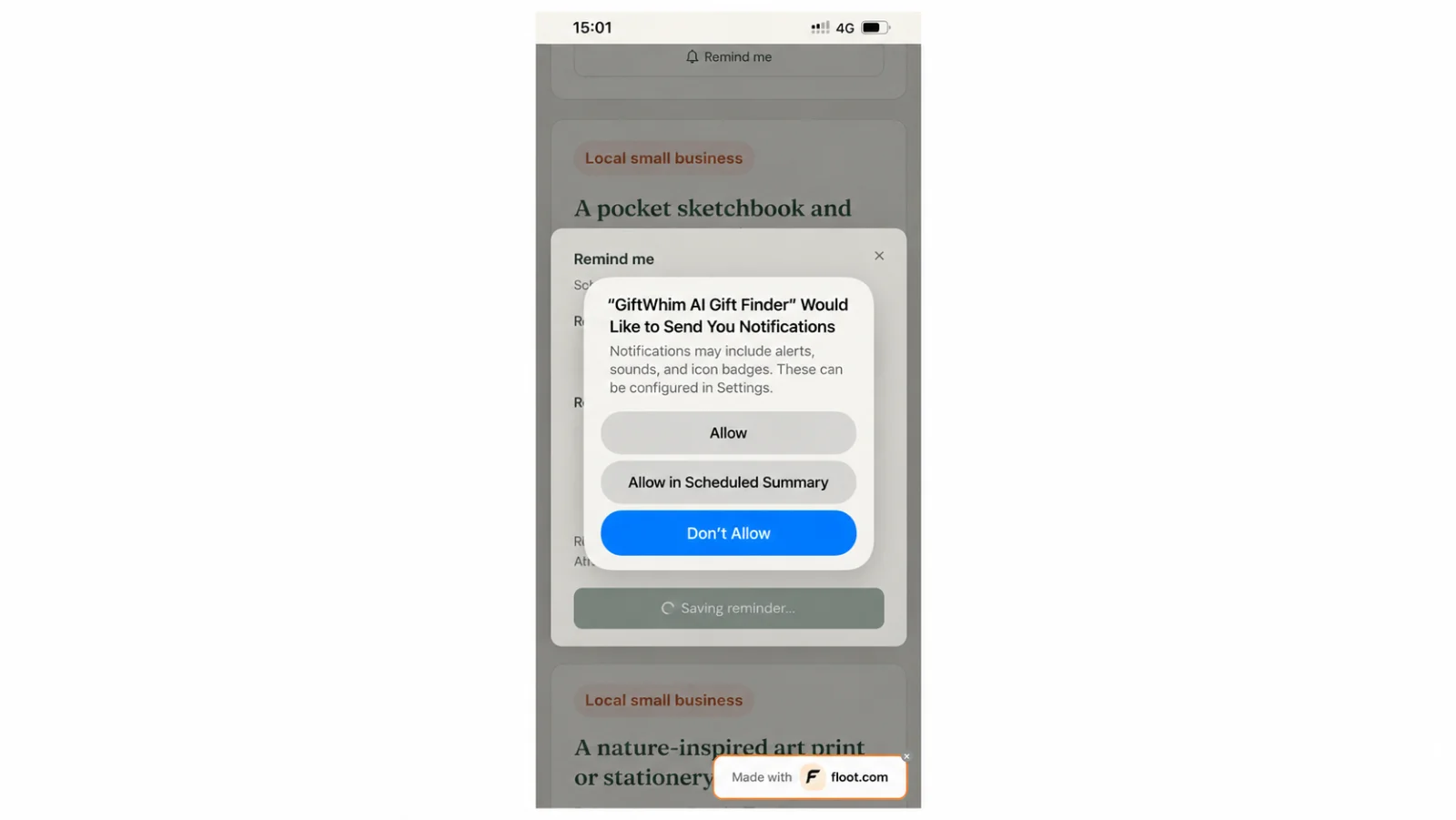
Figure 30 iOS requests notification permission when a reminder is first set.
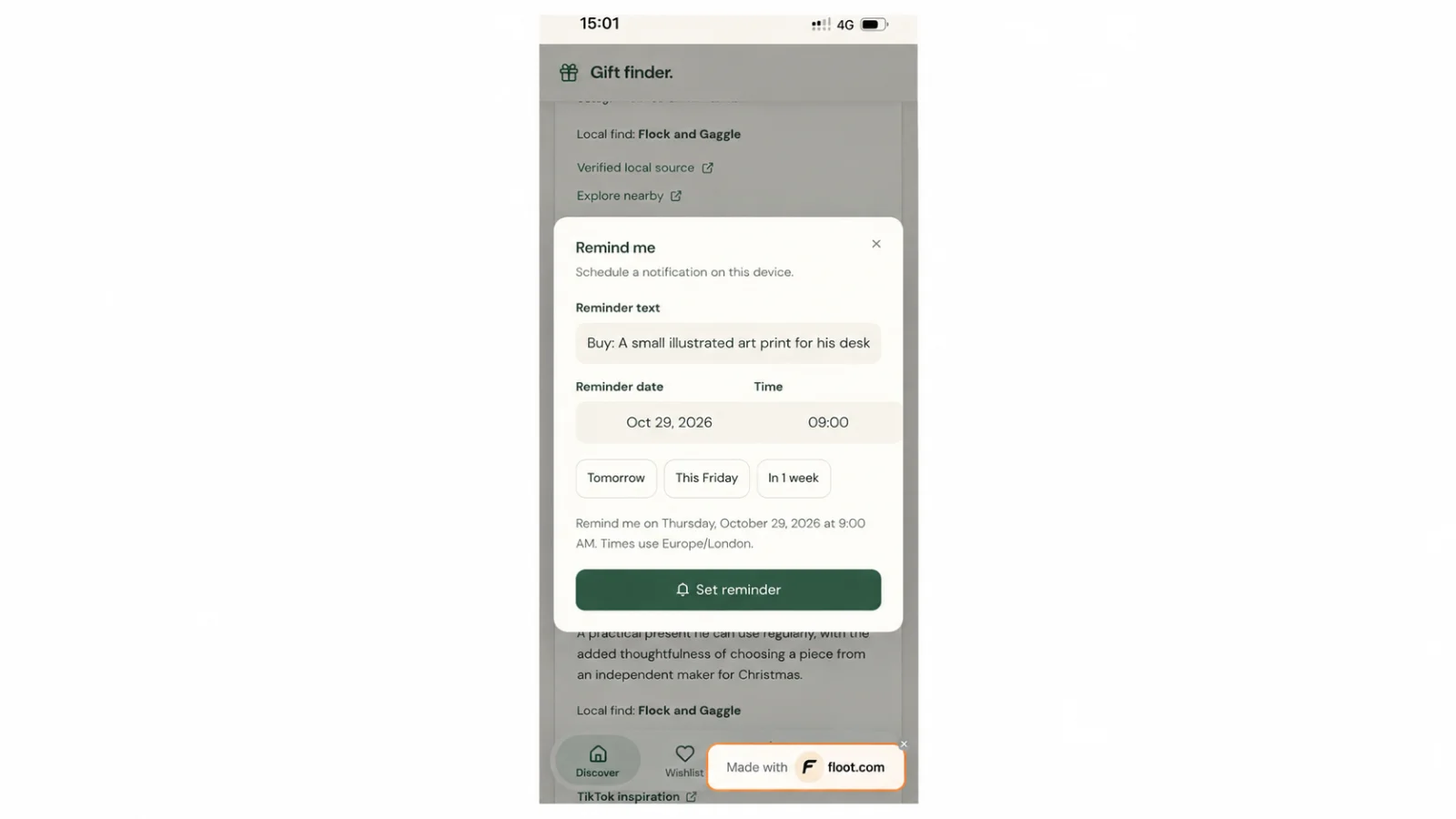
Figure 31 Choose a reminder date and time in the installed app.
Put the app in the background and wait for the chosen time. Confirm that the notification arrives and that tapping it opens the intended screen. Check deleting a reminder from the Reminders list too. The screenshots show the permission request and scheduling dialog. The notification is scheduled on the device by the Feature 4 prompt, with no server required.
Take or choose a photo
Tap Add a photo. Try both Take Photo and Photo Library, then generate suggestions using the image. Check that replacing or removing it works and that a search without a photo still works.
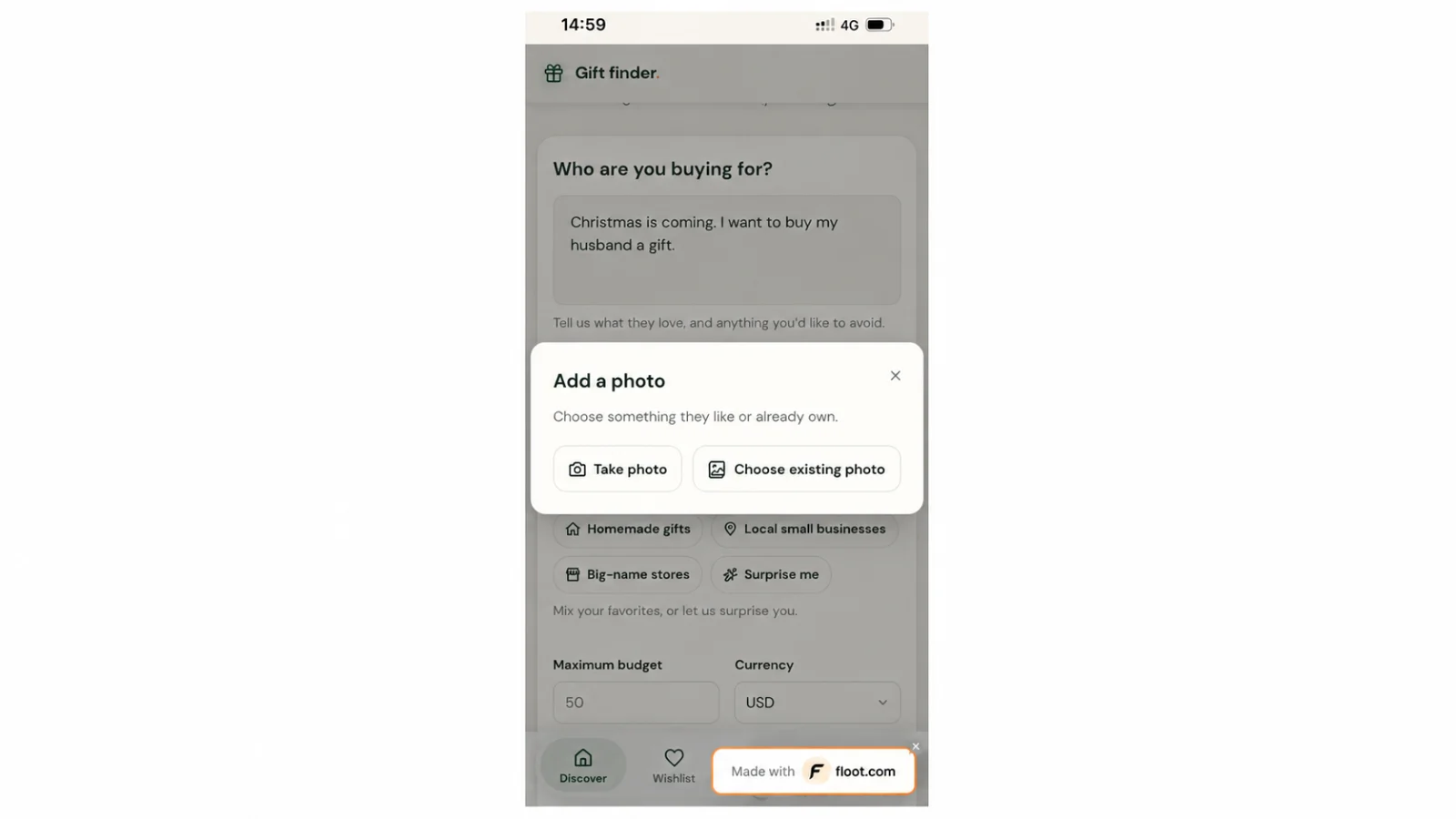
Figure 32 The iPhone offers Photo Library, Take Photo and Choose File.
Use current location
Choose Local small businesses and tap Use my current location beside the postcode. iOS asks for location access when you use the feature. Choose Allow While Using App, then check that the postcode fills and remains editable. This permission message comes from the Feature 1 prompt, which Floot included in the native build.
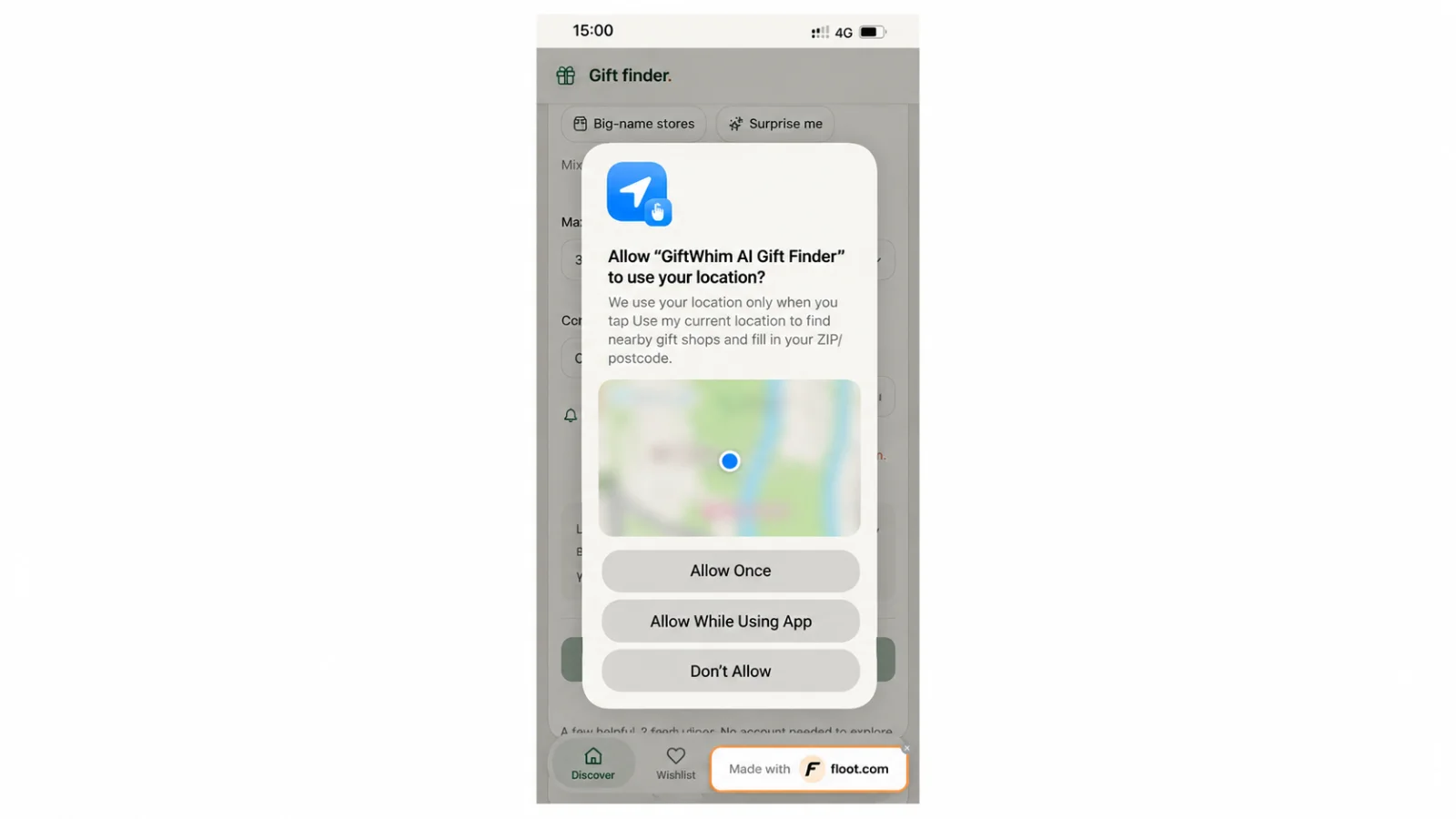
Figure 33 The location permission request appears after using the location control.
Try declining location permission as well and check that manual postcode entry still lets you search. Permission wording is part of the native build: after the first build, ask Floot to check it against the feature prompt and rebuild if it needs changing.
Open a shared wishlist inside the app
Use the build you installed in section 5, which already includes Universal Links. Then send an active shared wishlist link to Messages or paste it into Notes and tap it there. Confirm that it opens that exact wishlist inside the app. Test an invalid or disabled link too.
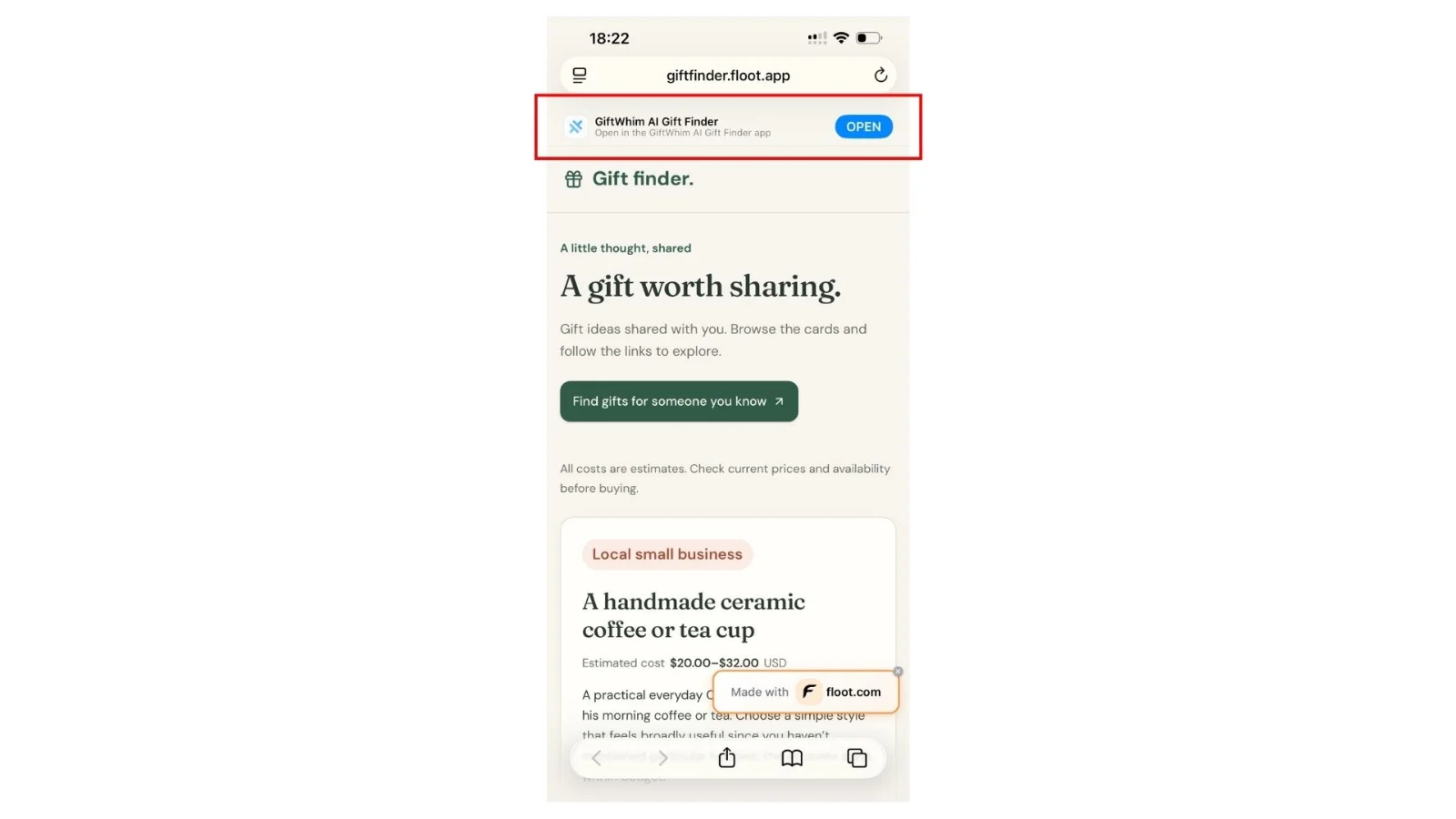
Figure 34 Safari recognises the installed app and offers Open. Test the direct wishlist handoff from Messages or Notes too.
On a phone without the app, the same link opens the public website. The recipient needs the configured build installed to open it in the app; TestFlight is how we install that build in this walkthrough.
Check Premium access and payments
Sign in with a free account and confirm that each search returns three suggestions. Then use an account with an active website subscription and confirm that it returns ten. For the website-only subscription setup used here, check that the installed iPhone app has no Upgrade button, Stripe checkout link or subscription-management link.
Apple’s In-App Purchase requires a separate integration in the app and subscription products configured in App Store Connect. Once that setup is complete, TestFlight supports testing Apple purchases without charging testers. This tutorial covers website subscriptions and Premium access, so it does not demonstrate Apple’s purchase flow.
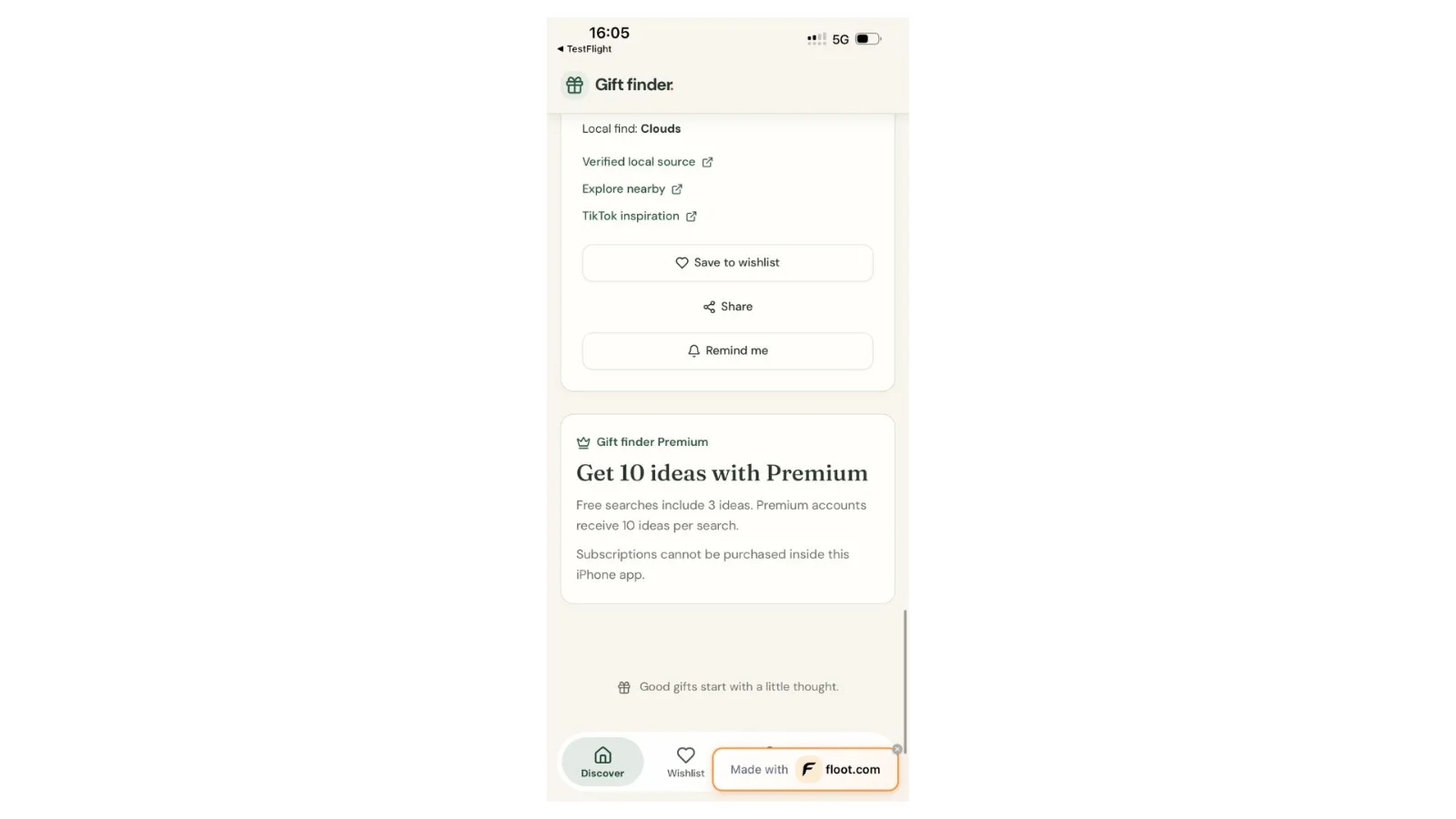
Figure 35 a Premium information card explaining the allowance, with a message that subscriptions cannot be purchased inside the app.
7 Closing remarks
When your app works reliably in TestFlight, open it in App Store Connect, complete the listing, screenshots, privacy details and review information, and select the build you tested. Click Add for Review, check the draft submission, then click Submit for Review. After Apple approves the app, it can go live according to your chosen release option.
Floot currently includes 2 mobile app builds per month on Free, 12 on Pro and unlimited builds on Power. The Publish mobile app switch shows how many builds you have left, so it helps to finish your browser checks before starting another build.
This tutorial focuses on iPhone, but Floot also builds Android apps from the same project. You can install the Android APK directly on a phone or connect your Google Play developer account to upload builds for internal testing. That connection requires a paid Floot plan, and you complete the store listing and public release in Play Console. An Android tutorial is on the way, where I’ll walk you through that process too.
You describe what you want your app to do, and Floot handles the technical setup. From the first web version to testing on your phone, you keep building on the same project in the same conversation.
Xian Li
Xian Li is a first-time founder building in public and the writer of In Silico, In Soul, a newsletter about the mistakes, lessons and breakthroughs that come with creating a product from scratch.