Payments
Take payments in your app through Stripe: test in the preview for free, then connect your own Stripe account to take real money.
Payments are built into Floot. Ask your assistant for a checkout, a shopping cart or a subscription and it is wired in, with no Stripe keys or webhooks to set up. You can try it in the preview without a Stripe account, and connect your own when you are ready to take real money.
Test payments and real payments
The preview and your published app take payments in different modes. Keep this in mind while you test:
| Preview | Published app | |
|---|---|---|
| Stripe mode | Test mode | Live mode |
| Stripe account | A test account Floot creates for you | Your own Stripe account |
| Card to pay with | 4242 4242 4242 4242 | A real card |
| Real money moves | No | Yes |
| Floot plan needed | Any, including Free | Pro or Power |
| Where payments show up | Ask your assistant | Your Stripe Dashboard |
Add payments
- 1
Ask your assistant
Describe what customers should be able to pay for. Start simple and add to it:
Add payments to my store.Add a shopping cart so customers can add multiple products, adjust quantities and check out securely. Show a payment confirmation when the charge succeeds. - 2
Test it in the preview
Check out in the preview with the Stripe test card 4242 4242 4242 4242, any future expiry date and any three-digit CVC. No money moves, and you do not need to publish first.
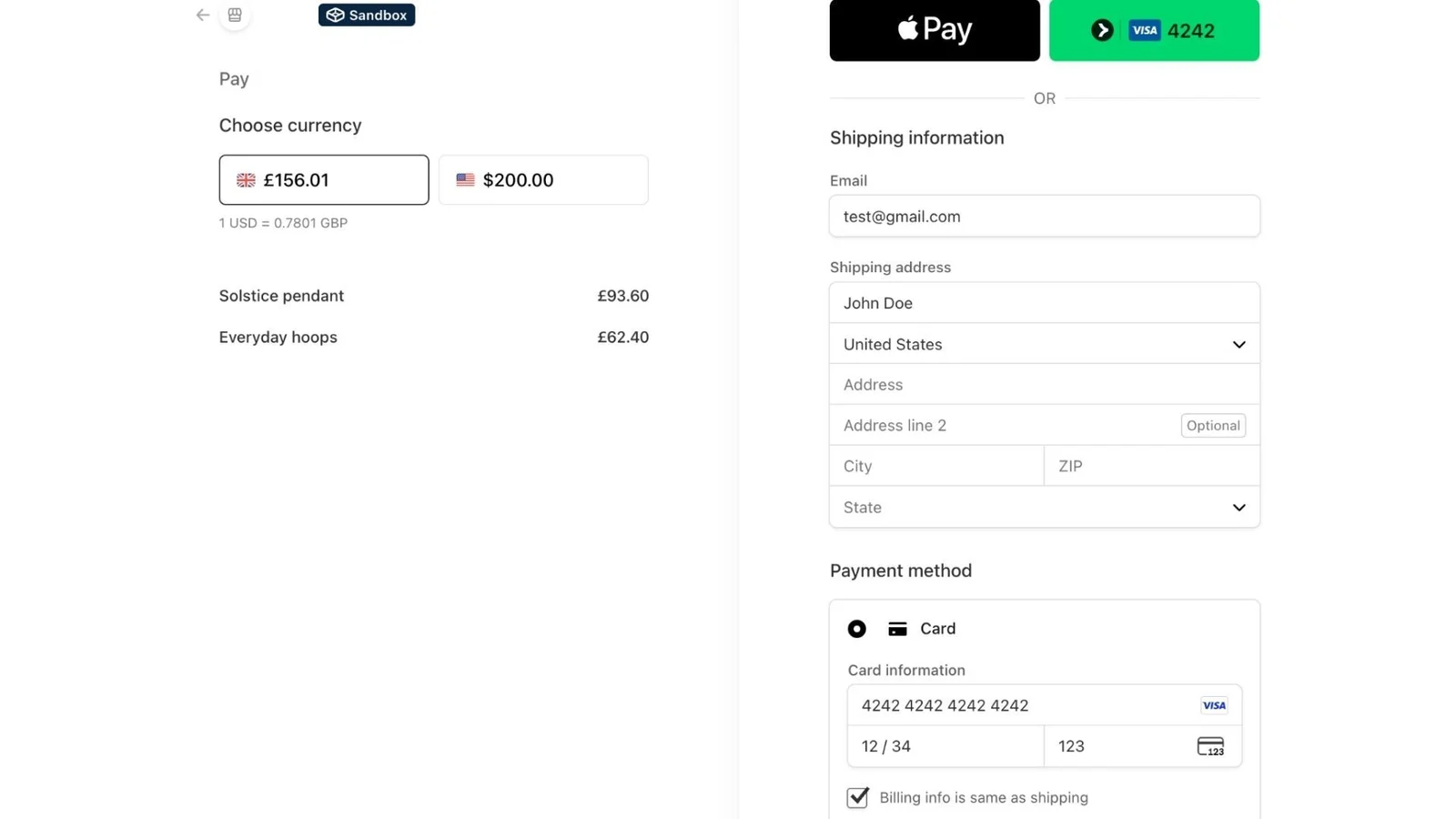
Stripe Checkout in the preview, in test mode. - 3
Check your test payments
Test payments do not appear in any Stripe Dashboard you can open. To see them, ask your assistant:
Show me all successful test payments for this store.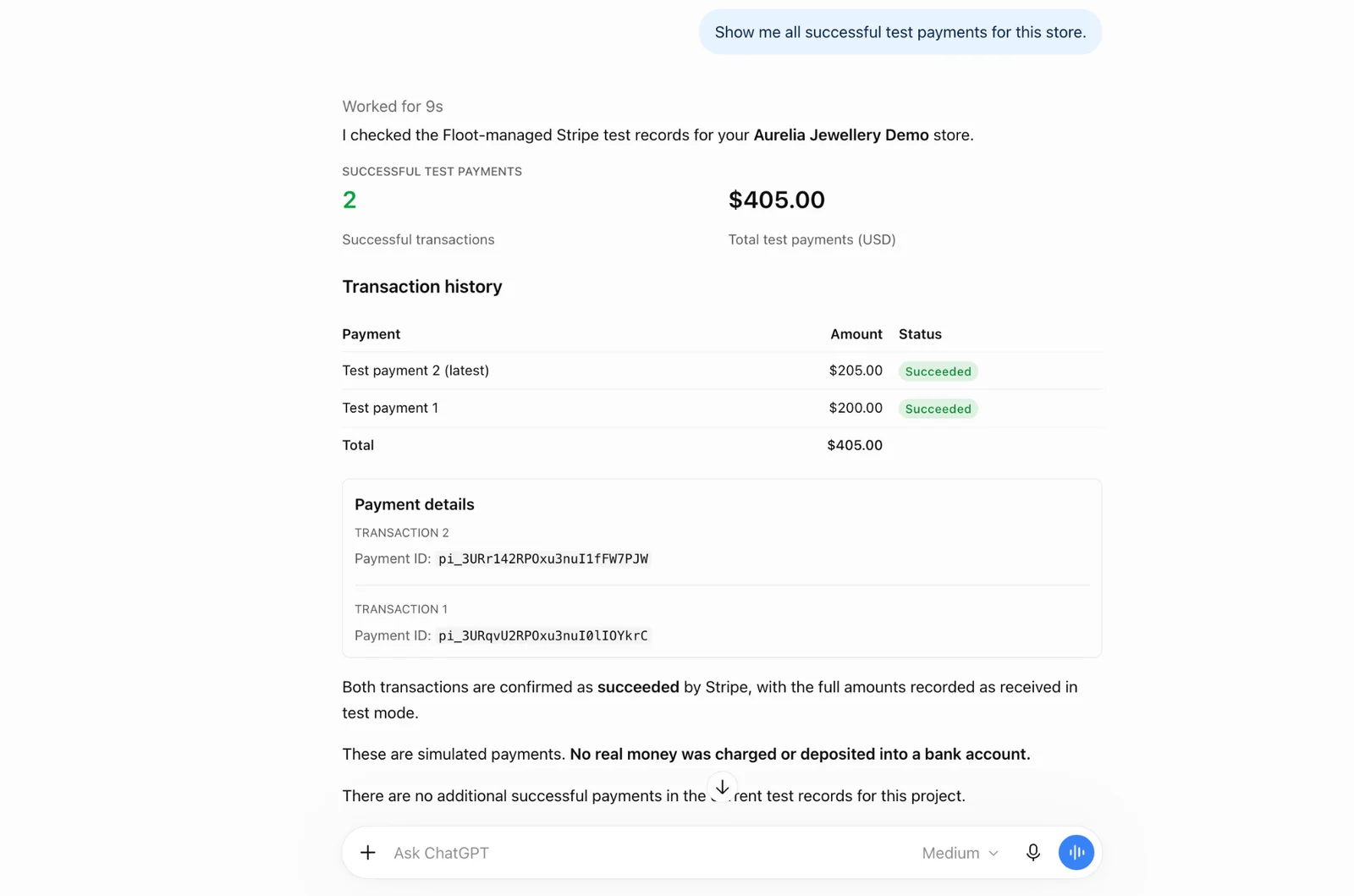
Test payments looked up by the assistant, here in ChatGPT. - 4
Set up Stripe
When you are ready for real payments, click Set up Stripe on the Publish screen or under Services → Payments in your project. Create a new Stripe account or connect one you already have, then give Stripe the details it asks for (your business and the bank account to pay out to).
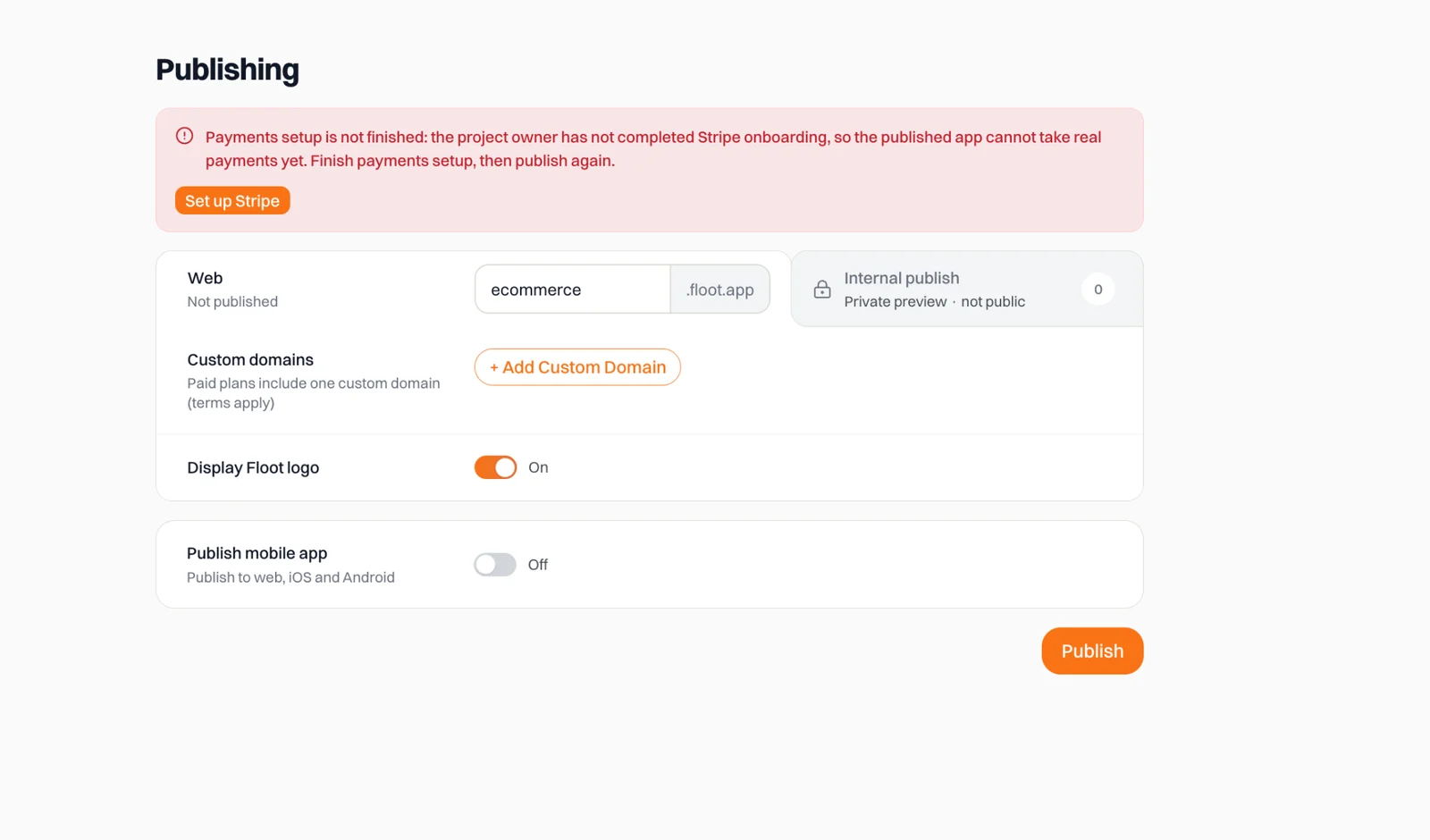
The Publish screen asks for Stripe setup before the app can take real payments. 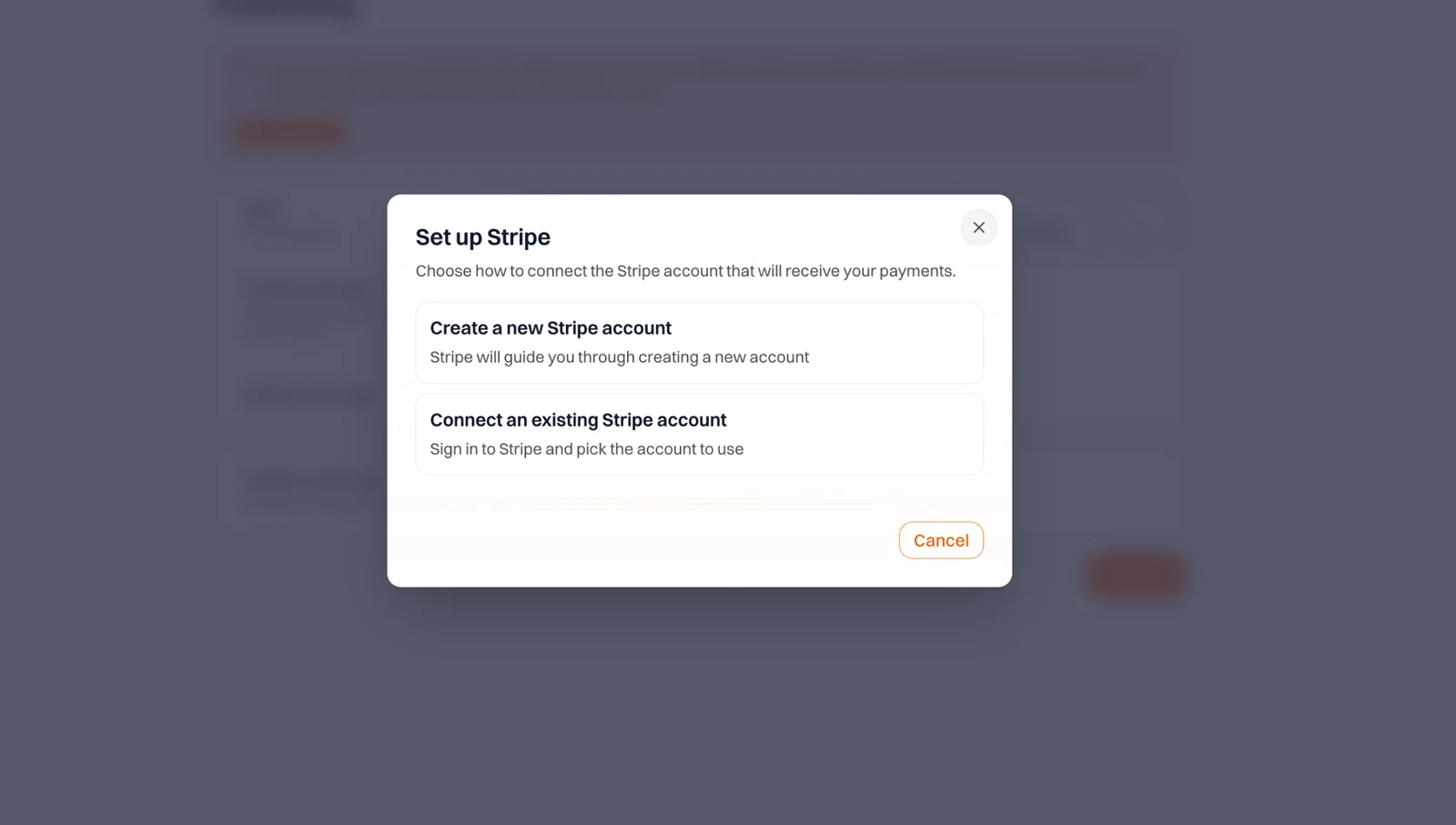
Create a new Stripe account or connect one you already have. - 5
Publish
Publish the app. From then on, customers pay with real cards, and each payment appears in your own Stripe Dashboard. You can publish once Stripe setup is finished and the project owner is on Pro or Power.
Plans and fees
| Plan | Test payments in the preview | Real payments | Floot's fee |
|---|---|---|---|
| Free | Yes | No | None |
| Pro | Yes | Yes | 1% of each payment |
| Power | Yes | Yes | 0% |
Stripe's own processing fees apply on every plan. Floot's fee is taken by Stripe at the time of the payment, so you never get a separate bill for it.
The fee on a subscription is set when the subscription starts. If you change plans later, existing subscriptions keep the fee they started with. If your paid plan ends, the published app stops taking real payments until you upgrade again; test mode in the preview keeps working.
What you can build
- One-time payments and carts: a product page, a shopping cart, a ticket or a deposit.
- Subscriptions: monthly or yearly plans, per-seat pricing and add-ons, with a billing page where customers update their card or cancel.
- Discounts: coupons and promotion codes.
- Refunds: ask your assistant to add a refund button for your admins.
A few prompts to start from:
Add a $25 ticket payment for my workshop. Limit registrations to 30 people.Create a pricing page with Starter, Growth and Scale plans. Each plan has monthly and yearly billing, a team-member counter and an optional priority support add-on. Show the total above the checkout button.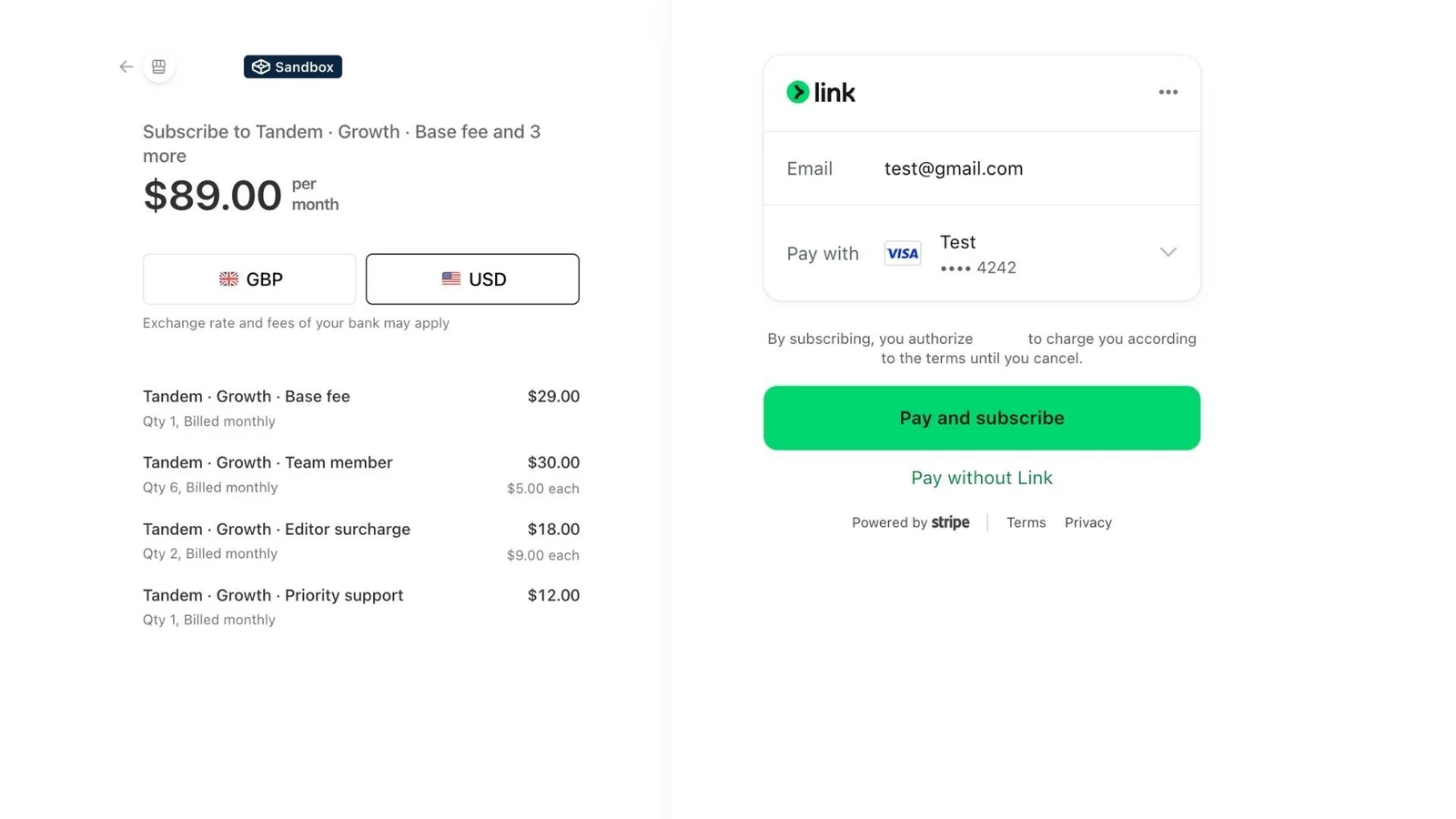
Require a $20 deposit to confirm a reservation. Record the deposit against the booking and show the remaining balance.Emailing your customers
Receipts and confirmations that your app sends itself go only to you until your workspace has a verified sending domain. See Email.
Your Stripe account
- One account for all your projects. Your Stripe account is connected to your Floot account, so every project you own takes real payments into the same Stripe account.
- Only the owner sets it up. Collaborators can build and test payments, but only the project owner can set up Stripe, and real payments go to the owner's Stripe account.
- Manage money in Stripe. Refunds, payouts, disputes and customers are in your Stripe Dashboard. Open it from Services → Payments → Open Stripe dashboard.
- Your assistant can look things up. Ask it about a payment, in the preview or the published app, instead of writing code to find out what happened.
Turning payments off
To publish without payments for now, open Services → Payments and click Turn off. Checkout stops working in the preview and the published app, and publishing no longer needs Stripe. Your Stripe setup is kept, so you can turn payments back on there at any time.
Already using your own Stripe keys?
Apps that connect to Stripe with their own secret key keep working that way. See Connecting external services.