Add your app to an iPhone or Android home screen
Install a Floot app on an iPhone or Android home screen straight from the browser — no App Store, no Play Store, no download.
Once your project is published, you or your users can add it straight to a phone or tablet home screen. No app store download required.
Instant Mobile App makes that shortcut look and feel native — it launches in its own window, with no browser toolbar in sight. It is optional, and the steps below work either way. How to turn it on is at the end of this page.
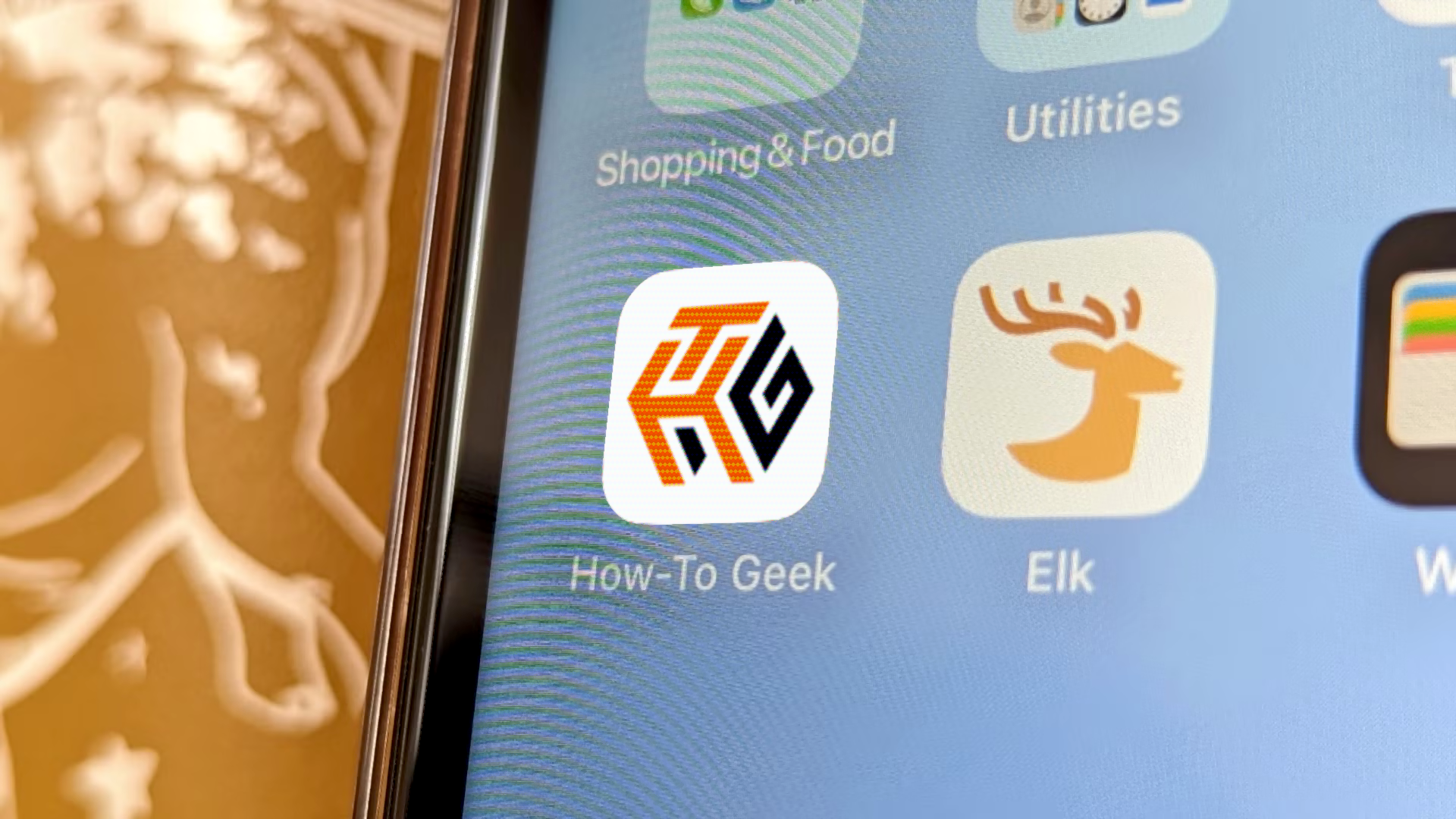
iPhone and iPad
On iOS the shortcut is created from the browser's share menu. Safari is the most reliable path and the one shown below, but Chrome and Edge for iOS also offer Add to Home Screen in their share menus, and the result is the same — every browser on iOS renders through WebKit.
- 1
Tap the Share button in Safari
Open your published project URL in Safari, then tap the share icon — the square with an upward arrow — at the bottom of the screen.
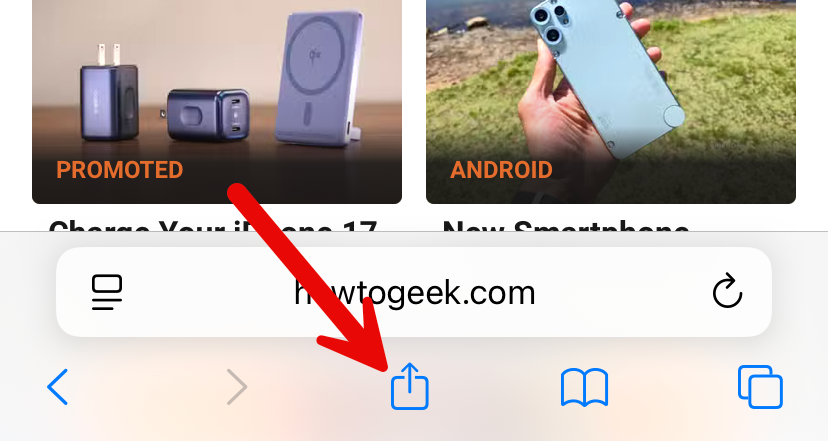
Tap the share button. - 2
Choose "Add to Home Screen"
In the share sheet, scroll down and tap Add to Home Screen. If it is not there, scroll to the bottom and tap Edit Actions to enable it.
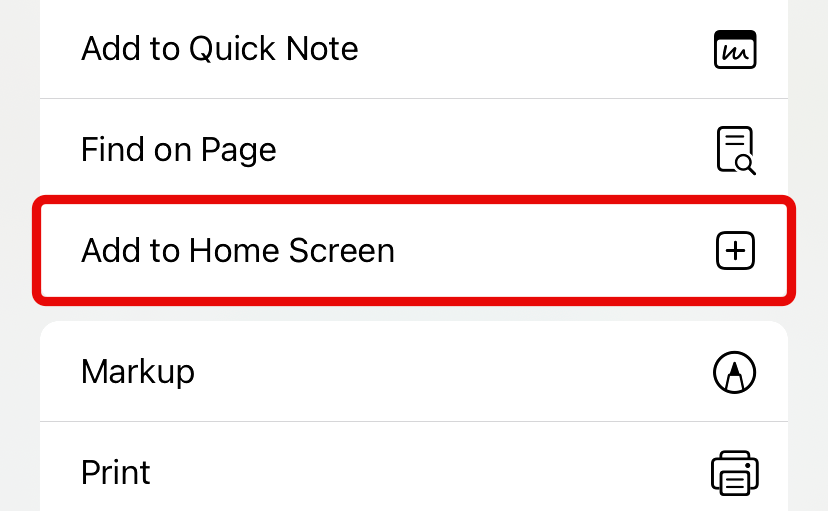
Tap "Add to Home Screen." - 3
Name the shortcut and confirm
Give it a name — or keep the default — then tap Add in the top-right corner.
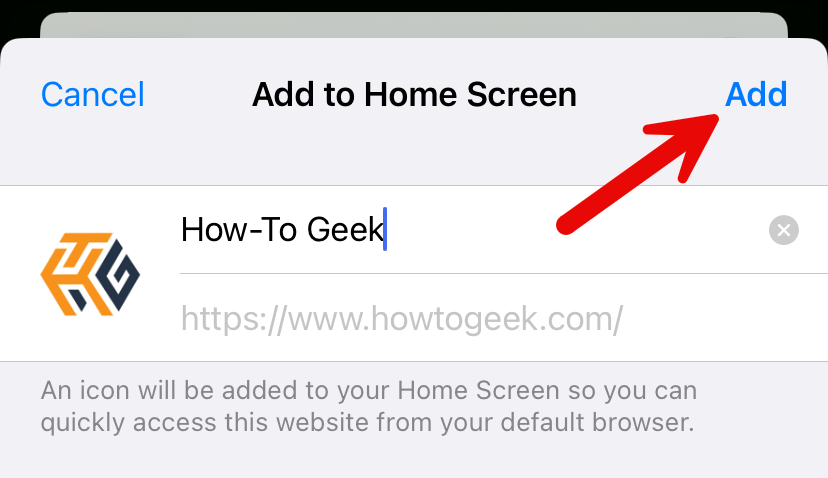
Edit the name and tap "Add."
Your project now sits on the home screen alongside regular apps. You can rearrange it or drop it into folders, though it will not show up in the App Library.
With Instant Mobile App enabled
The shortcut launches in its own standalone window — no browser toolbar or address bar — instead of opening as a Safari tab.
Android
Android is more flexible: several browsers support home screen shortcuts. Here are Chrome and Firefox.
Google Chrome
- 1
Open the browser menu
Navigate to your published project URL in Chrome, then tap the three-dot icon in the top-right corner.
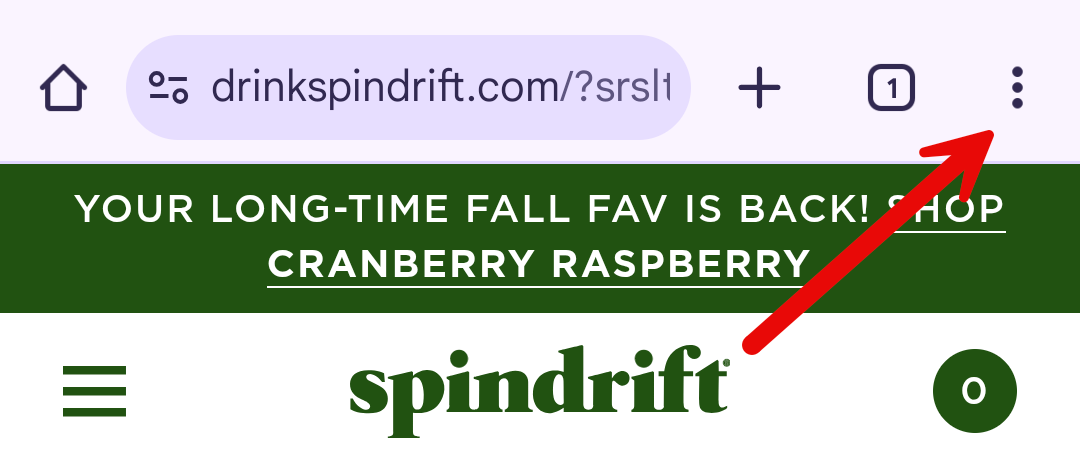
Tap the menu icon. - 2
Choose "Add to Home Screen"
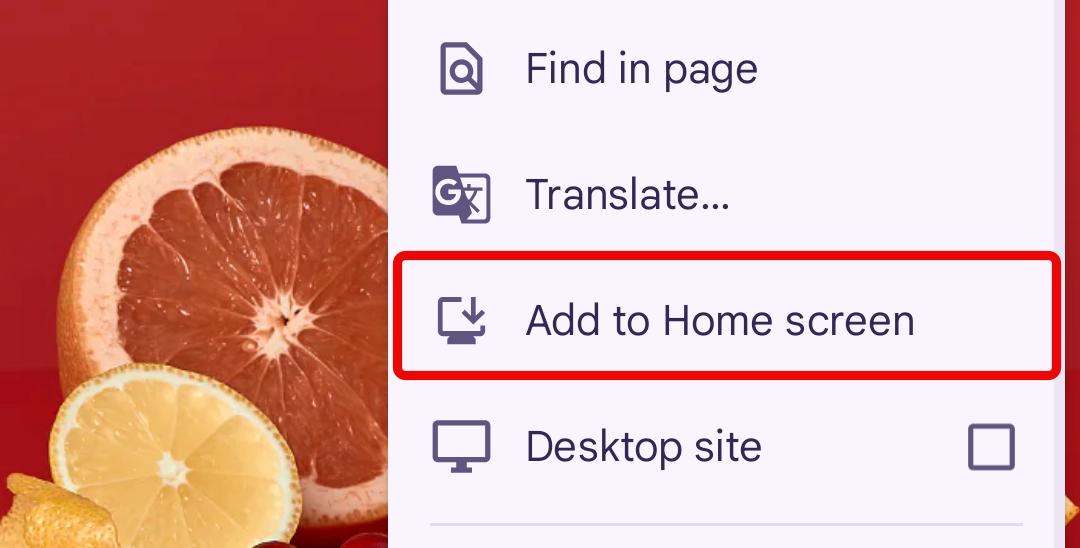
Select "Add to Home Screen." - 3
Name the shortcut and tap "Add"
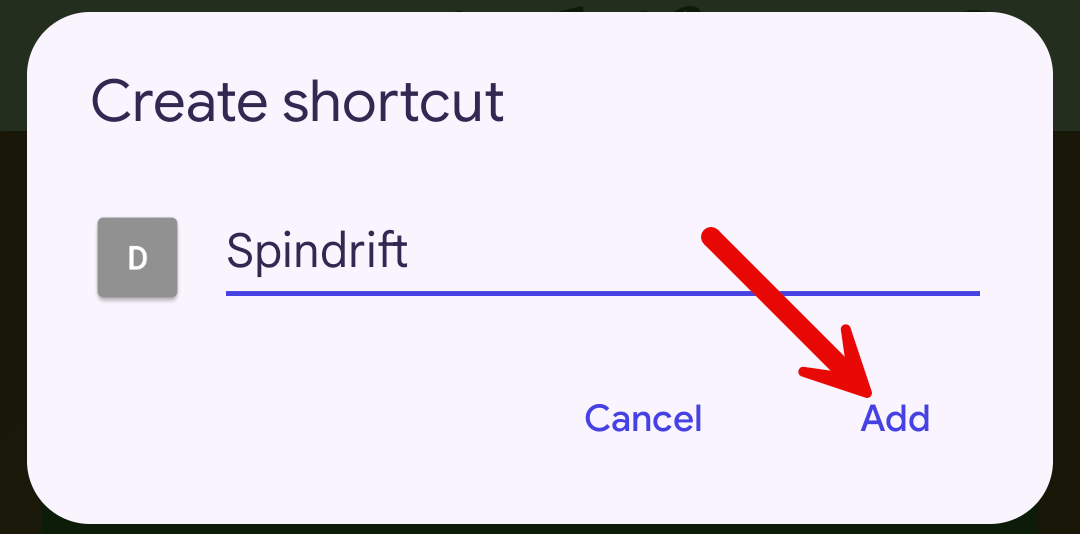
Edit the name and tap "Add." - 4
Place it on your home screen
Your launcher shows a confirmation. Either drag the icon where you want it, or tap Add to Home Screen to place it automatically.
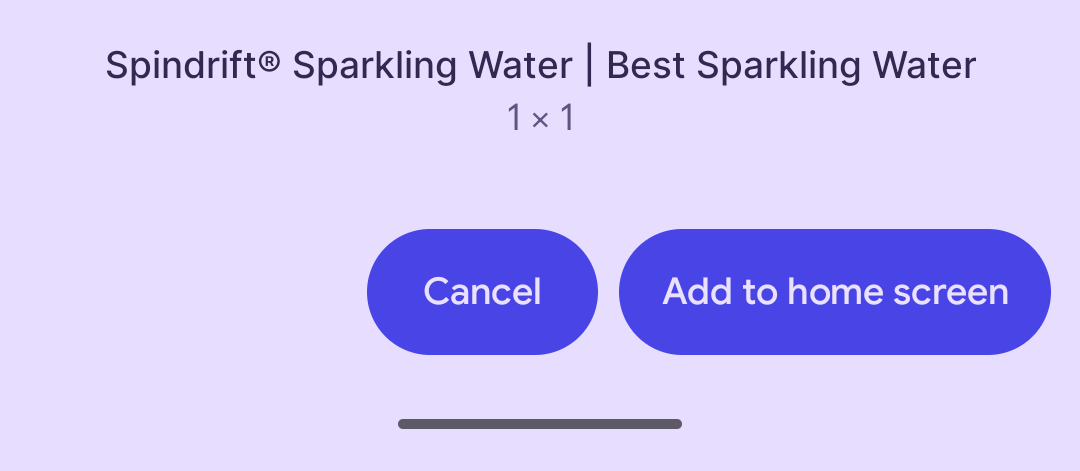
Tap "Add to Home Screen."
Mozilla Firefox
In Firefox, tap the three-dot menu, open the More section, then choose Add to Home Screen.
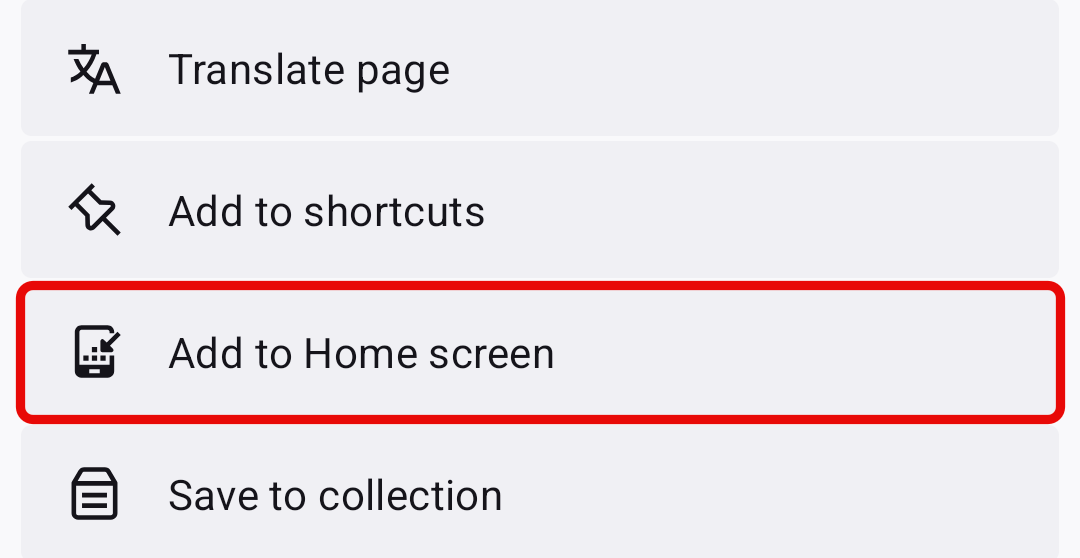
Just like Chrome, you can rearrange the shortcut or put it in a folder. It will not appear in the app drawer — only on the home screen.
Chrome may offer to install instead
With Instant Mobile App enabled, Chrome can prompt you to Install the app — it then runs in its own window and appears in the app drawer alongside your other apps. Firefox for Android can install it too, but without Chrome's WebAPK integration, so it stays a home screen shortcut rather than a proper app drawer entry.
Turn on Instant Mobile App
Instant Mobile App is not a hosting setting. It is a change to your project's code — a web app manifest and a service worker — and it reaches your users on the next publish.
So just ask your assistant for it: "Make this project a PWA." That sentence is word for word what the Instant Mobile App switch sends, so asking directly gets the same result without opening anything. Then have your assistant publish.
If you do flip that switch on the project view at /mcp-preview/<id>, it does not build anything itself — Floot copies the same request to your clipboard, with your project id attached, for you to paste to your assistant. Your assistant can also pull it with get_current_context instead of you pasting.
Want a real native app instead?
This is the lightweight option. For an app you can ship to the App Store or Google Play, see Creating mobile apps.