Examples: every state of your app
See the loading, empty, error and edge-case states of a page side by side while you build, without breaking anything to get there.
Your app is usually tested on the happy path: the data loads, the upload works, the screen is a laptop. Examples show you everything around it. Your assistant writes a set of example screens for a page (loading, empty, failed, an oversized upload, a long list) and you switch between them in the preview without having to make any of them happen for real.

Create examples for a page
- 1
Ask your assistant
In Claude, ChatGPT or any connected assistant, ask for them in plain words:
Create examples for the Home page.Or start from the preview: open the page picker in the middle of the top bar, find the page under Pages, click its ⋮ menu and choose Add example. Floot copies a prompt for you to paste into your assistant. The menu item is there only for pages that have no examples yet.
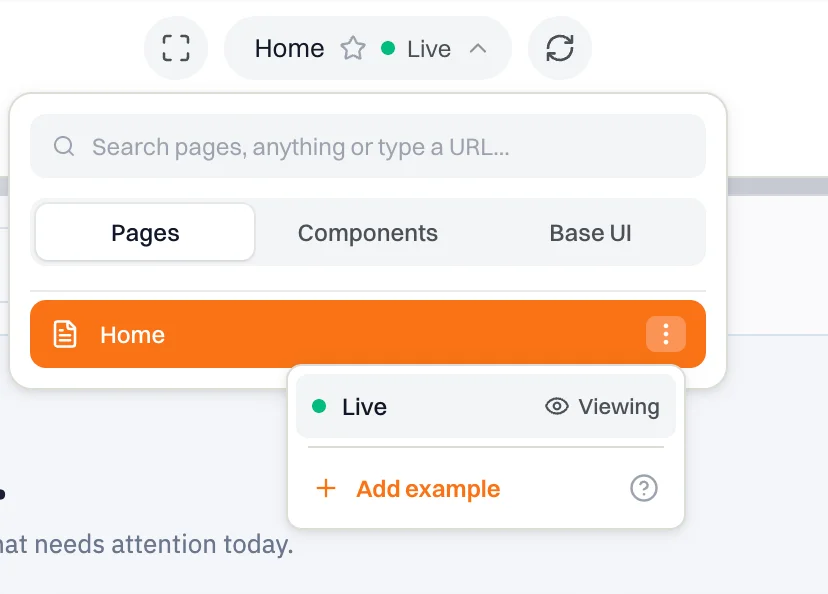
- 2
Switch to Example
Once a page has examples, the page picker gains a Live / Example switch. Flip it to Example to see the screens instead of the running app, and back to Live to return. Following a link or a redirect inside the app also takes that page back to Live.
- 3
Pick a screen
The sidebar on the left lists every screen with a thumbnail. Click one to open it full size.

- 4
Change one
The pencil on a screen card copies the start of a prompt about that screen, such as edit or remove the "Empty" example of the home page. Paste it into your assistant and finish the sentence. The + at the top of the sidebar does the same for a new screen. You can also just describe the change to your assistant.

What a screen is
An example screen is your real page, opened at a route, with staged answers in place of your backend. Every request the page makes is answered from the screen's own data, so you can look at a failed save or an empty account without touching your database or your users. A screen can also hold a request open forever (to show the loading state), answer with an error status (so the page runs its real error handling), or answer after a delay.
Examples never reach your users
Example files sit beside your pages and components (pages/dashboard.__example.tsx, components/Button.example.tsx) and are for development only. They are left out of the published app and the code download.
Components get examples too: ask for examples of a component, or jump to it from the page picker's Components tab (Cmd + K). A component with none shows a Copy prompt button.
Prompts worth trying
Find the states you did not think of
Show me the different states this page could have when real users are using it.You do not need to list them yourself. Your assistant works out what the page can go through — waiting, nothing to show, a request that fails — and turns each one into a screen.
Plan for unexpected input
A file that is too large, the wrong type, a name with 200 characters. Ask for the screen, look at it, then ask for the fix:
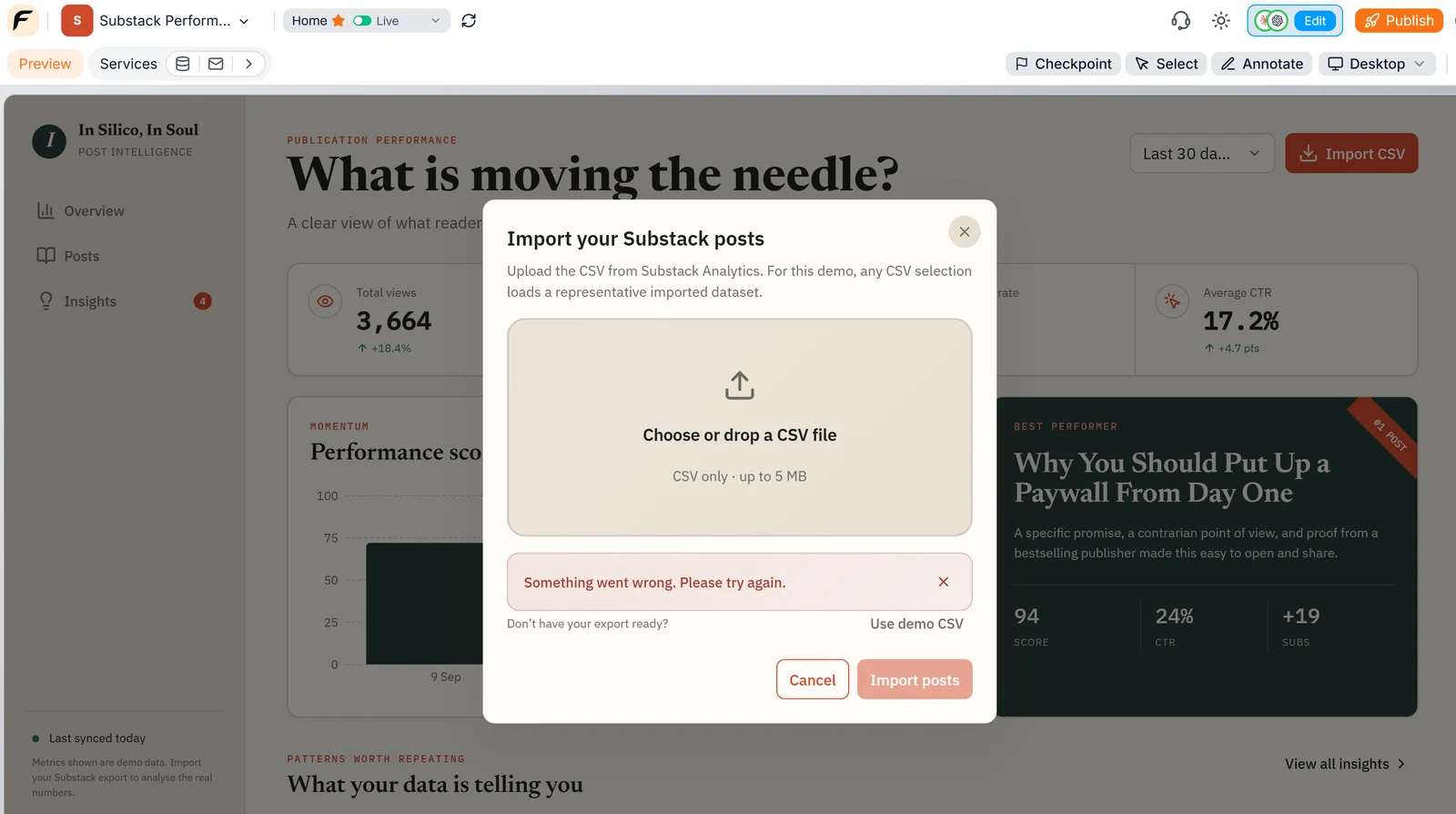
Make this error clearer. Tell users the maximum file size and what they can do next.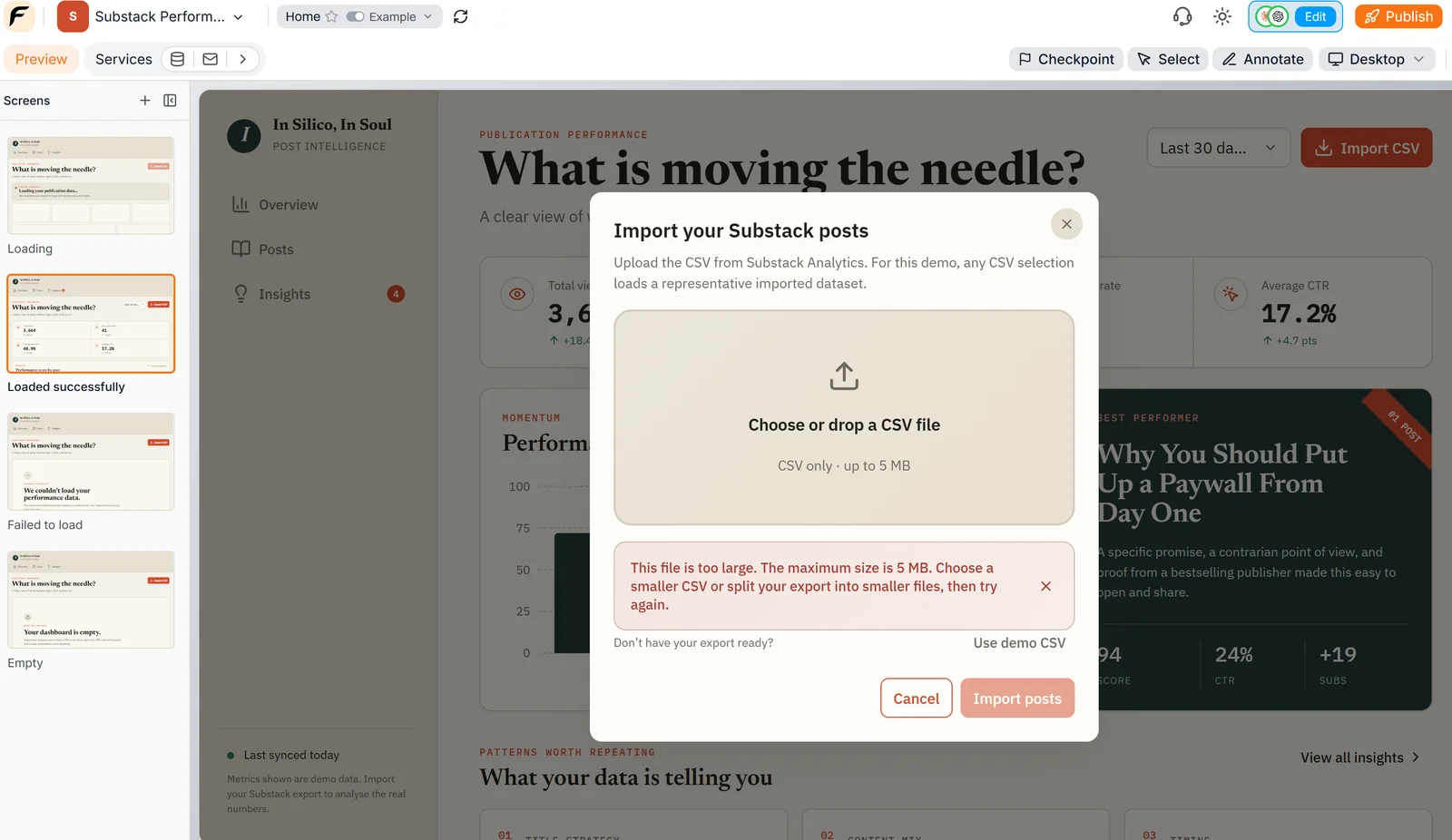
Check every state on a phone
The device picker at the right of the tab row works on example screens too, so you can open a failed state on iPhone, Pixel or iPad and see whether the message still fits.
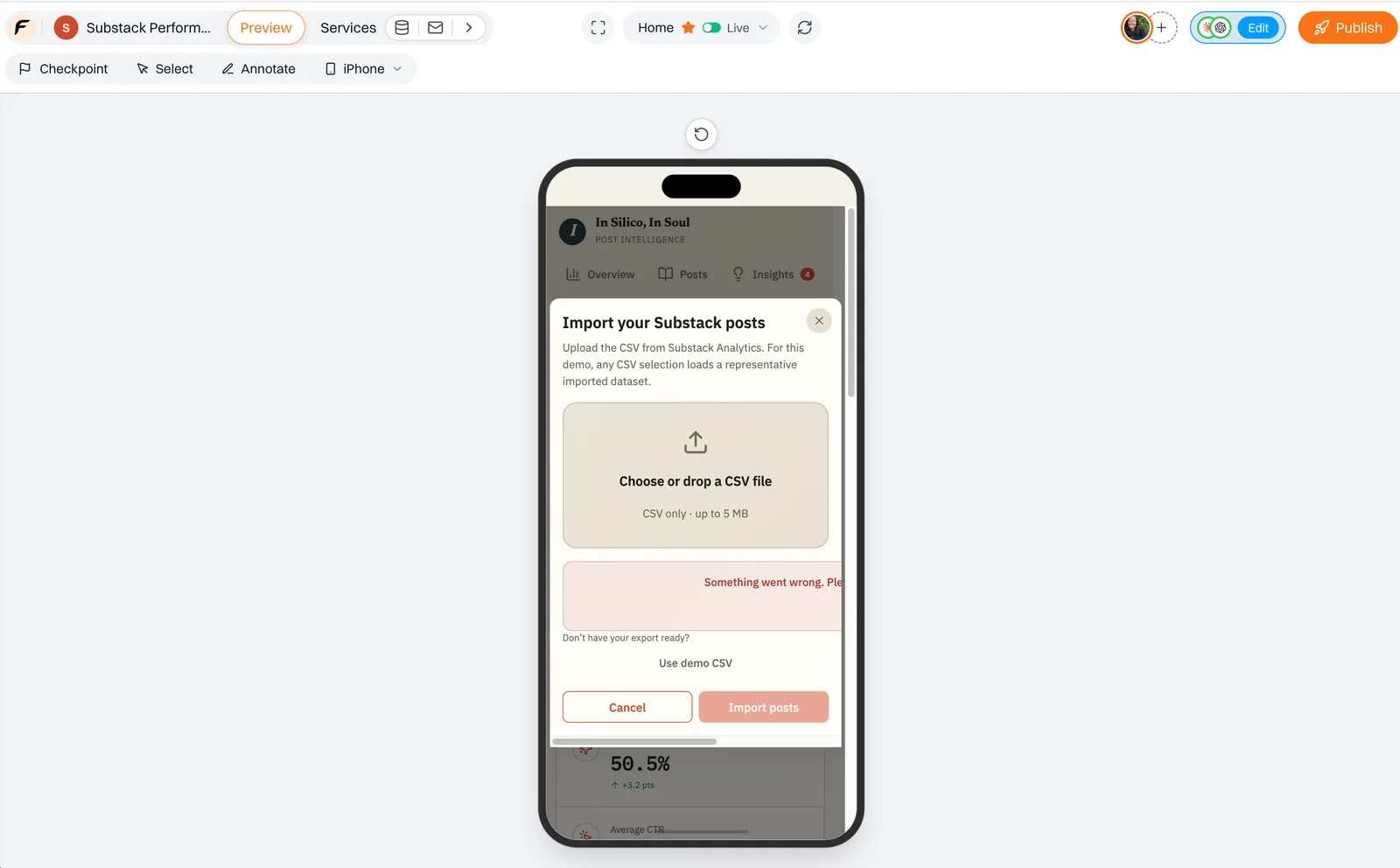
Make all pages and their different states responsive across mobile, tablet, laptop, and desktop.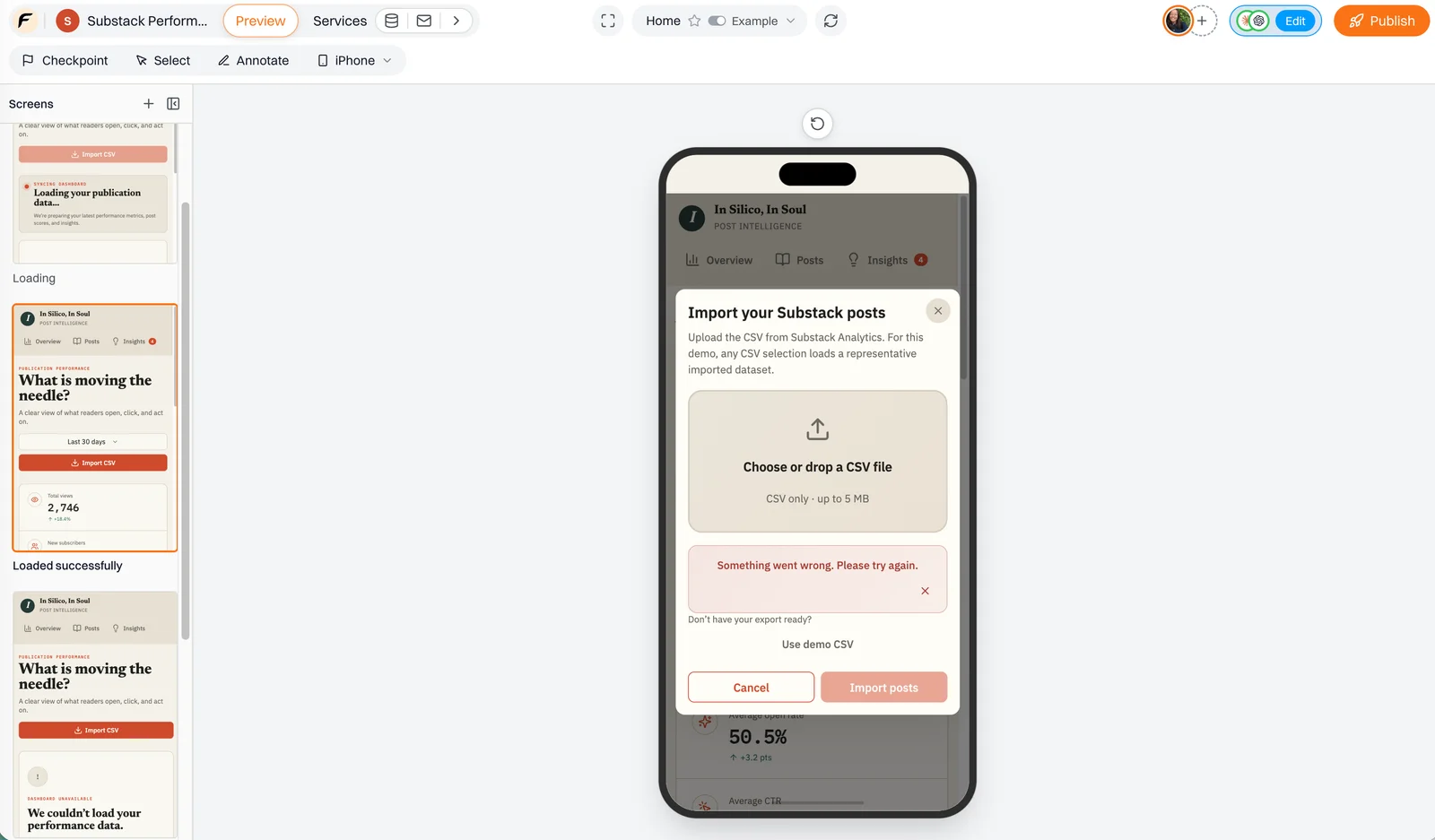
Map the whole journey

Create a simple user journey diagram for this Floot project.Examples can hold a diagram of states and the steps between them, so you see where a user can fail, retry and recover, not just each screen on its own.
Line up the visual pieces

Show me the design system already being used across this product.Your assistant gathers the colors, type, buttons, form fields and their states into one example document, which makes a button that does not match the others easy to spot.
Reviewing with someone else
Examples are files in the project, so collaborators see the same screens: "open the Failed upload example" replaces "try uploading a really big file and see what happens". See Sharing your projects for the ways to give someone access.