Design canvas: compare designs before you build
Put several versions of a page, a font pairing or a whole user journey side by side, pick the one you like, then have your assistant build it into the app.
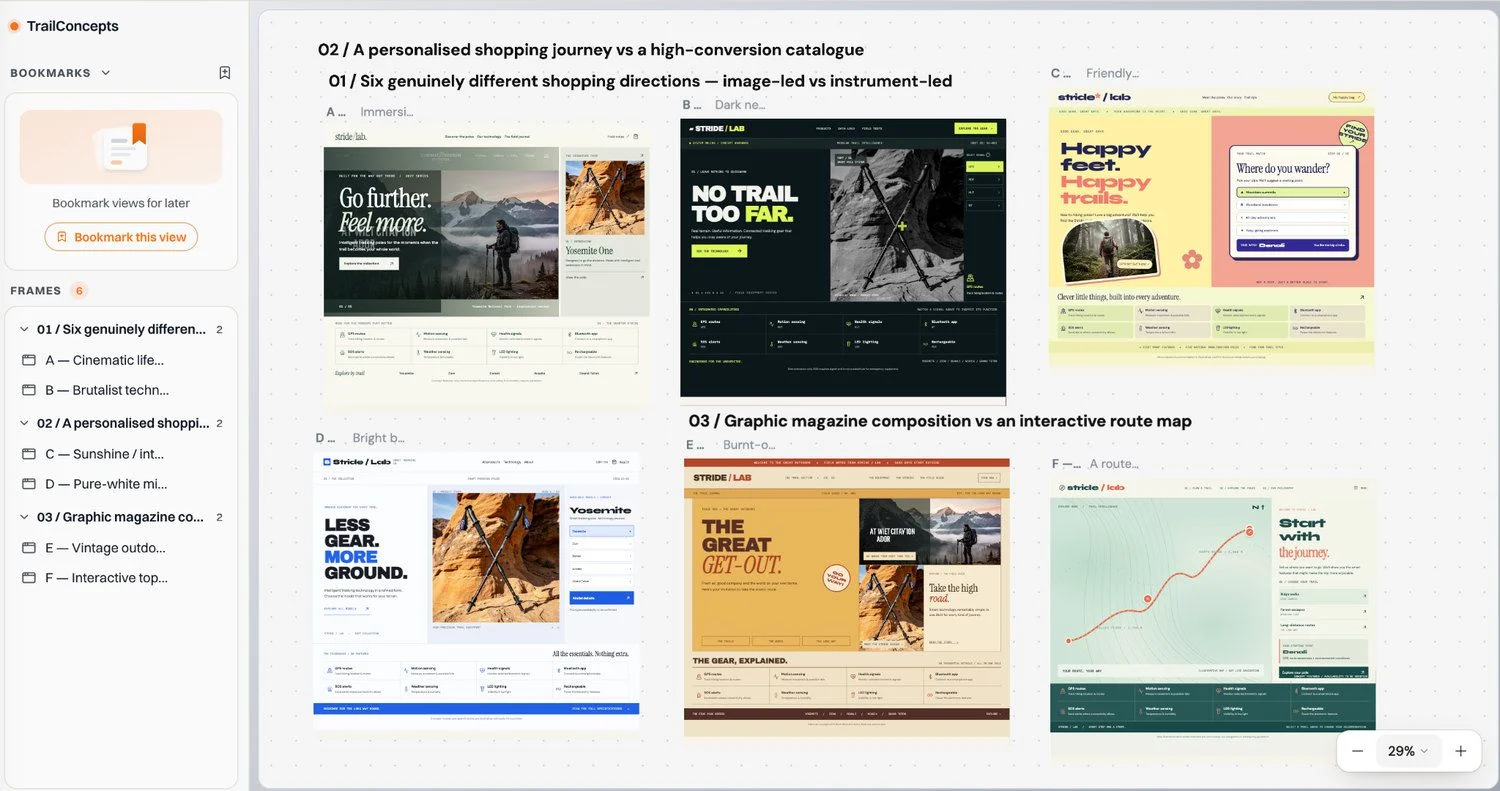
"Make it look good" is hard to judge. "Here are six directions, which one fits?" is easy. A canvas is a free space outside your pages where your assistant puts designs side by side, each in its own frame, so you can compare them, choose one and only then build it.
Canvases never reach your users
A canvas is a development-only file (designs/<Name>.tsx). Nothing on it is published until you ask your assistant to build it into a page or component. The frames are real React, so buttons, tabs and forms in them work.
Start a canvas
- 1
Ask your assistant
In Claude, ChatGPT or any connected assistant, ask for options on a canvas and say how different they should be:
I want to build an online store for my smart trekking poles. Use the Floot canvas to show me six options first. Make them completely different in style so I can compare clearly different approaches before deciding which one to build.Starting a new project? On the Floot dashboard, switch the build box from Build to Design before you hand your idea to your assistant, and it starts on a canvas instead of a page.
- 2
Or open one yourself
Open the page picker in the middle of the editor's top bar and choose the Canvas tab. Explore canvas opens a worked example the first time; New canvas starts an empty one. Each canvas's ⋮ menu renames, duplicates or deletes it.
- 3
Look around
Move with a two-finger scroll, and zoom with a pinch or
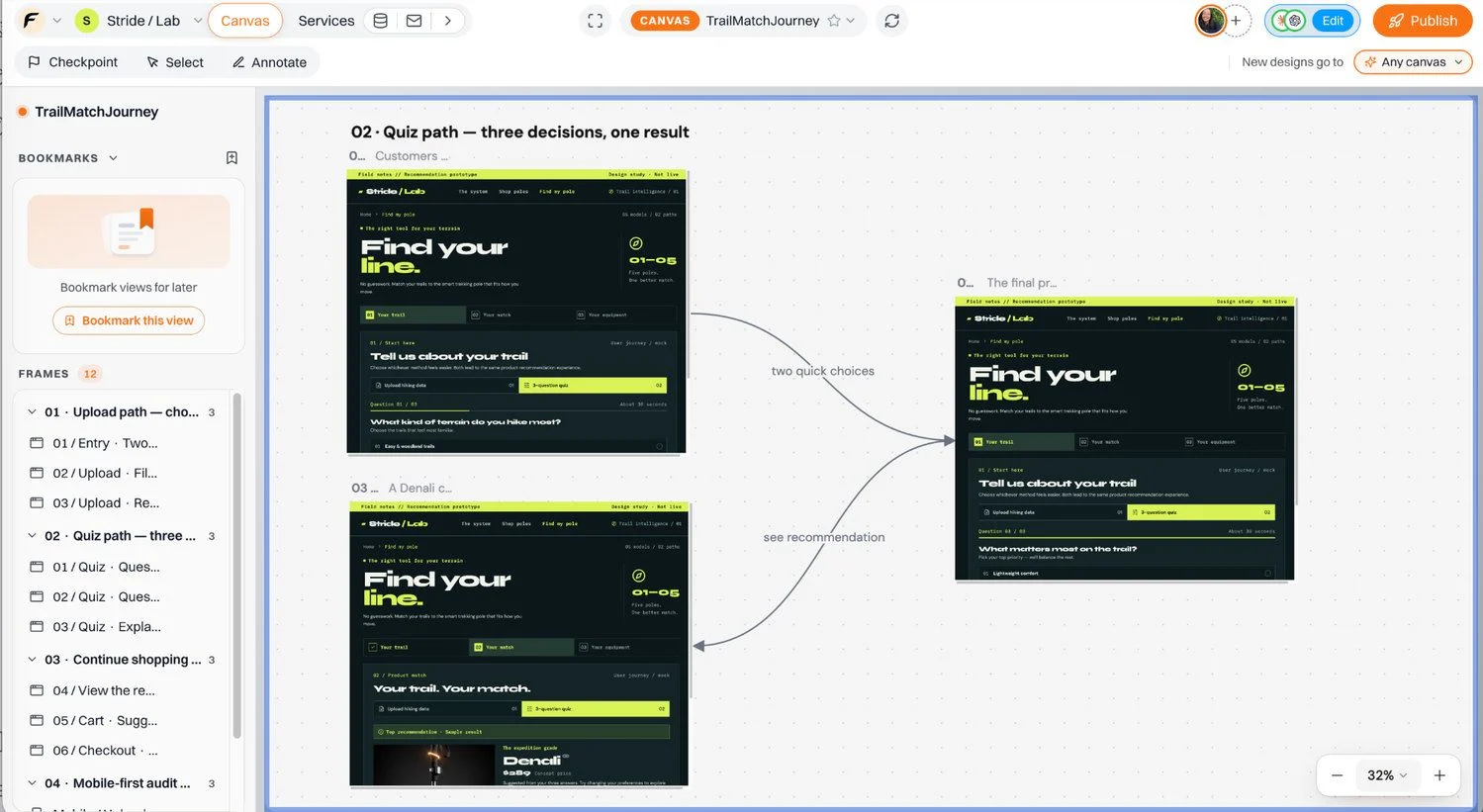
Cmd+ scroll (Ctrlon Windows). Drag a frame by its title to rearrange. The rail on the left lists every frame, grouped into sections, and lets you bookmark a view to come back to.
Choose where new designs go
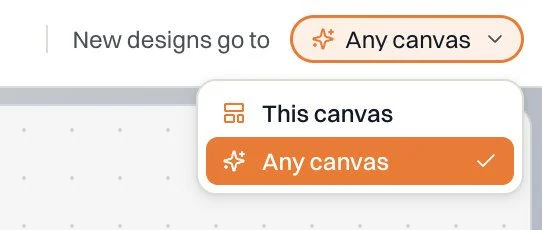
New designs go to, above the canvas, decides where your assistant may put designs:
- This canvas
- Every new design goes on the canvas you have open, even if your prompt asks for a new canvas. Use it to keep a round of work in one place.
- Any canvas
- Your assistant picks an existing canvas or makes a new one. Choose this when you ask for a brand-new canvas, for example to explore fonts apart from your first six directions.
Change one thing at a time
A canvas is most useful when every frame varies one thing. Once the layout is right, compare fonts without the rest of the page moving:
Create a new canvas with six frames of my home page hero: the current one, and five with different font pairings. Don't change the layout, colors, images, copy or spacing — only the typography. Label each frame with its fonts and recommend one, but don't apply it to the real site yet.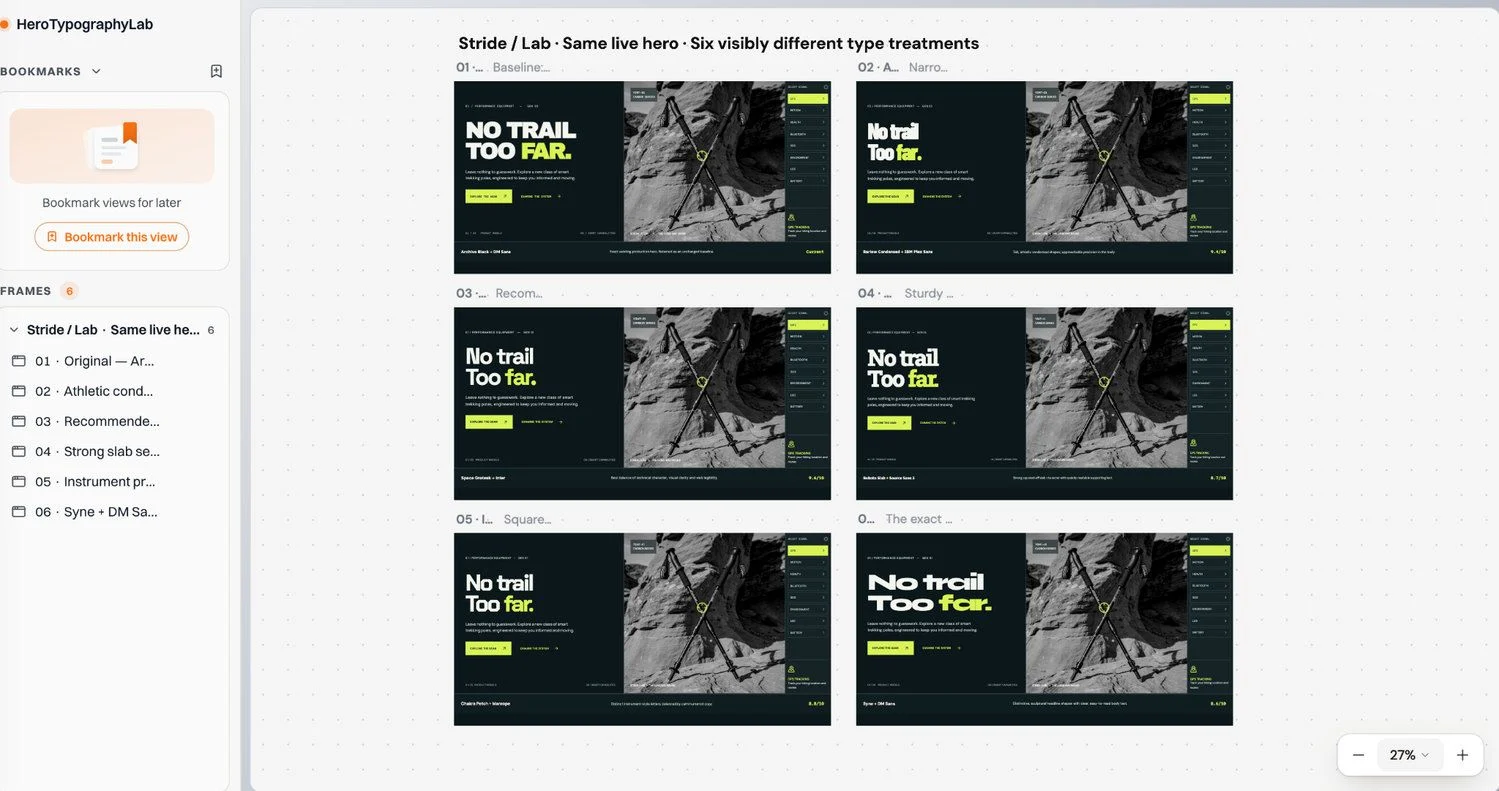
The same works for colors, a card layout, a pricing table or the wording of an error: keep everything else fixed and the differences are easy to see.
Design a whole journey
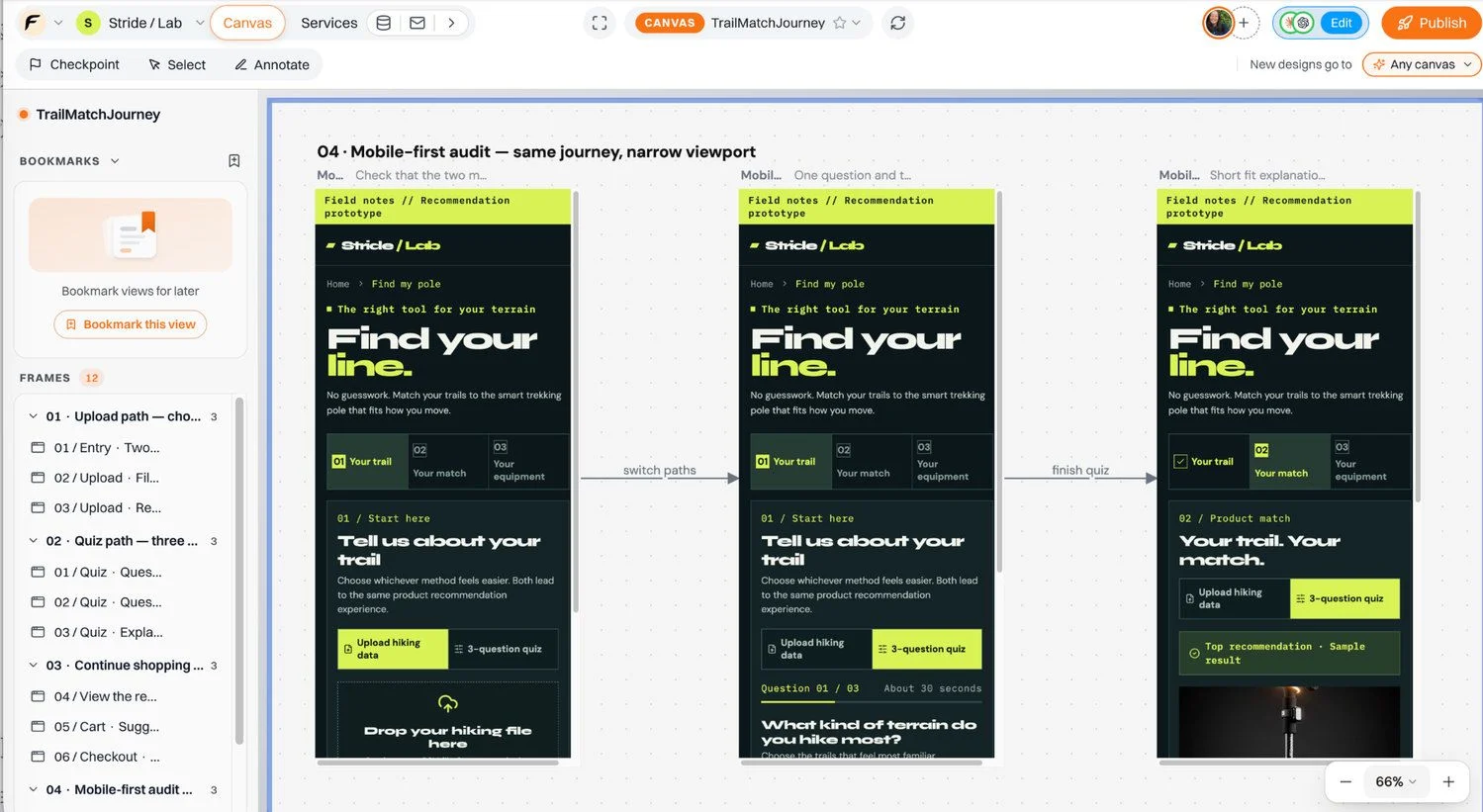
Frames can be the steps of a flow, not just alternatives. Ask for the journey from the way in to the result, and for the paths you are unsure between:
Create a new canvas for a "Find my pole" recommendation feature. Show two paths: uploading a hiking data file, and a three-question quiz. Both should end on a recommended product with buttons to view it or add it to the cart. Include mobile layouts. Don't change the real site yet.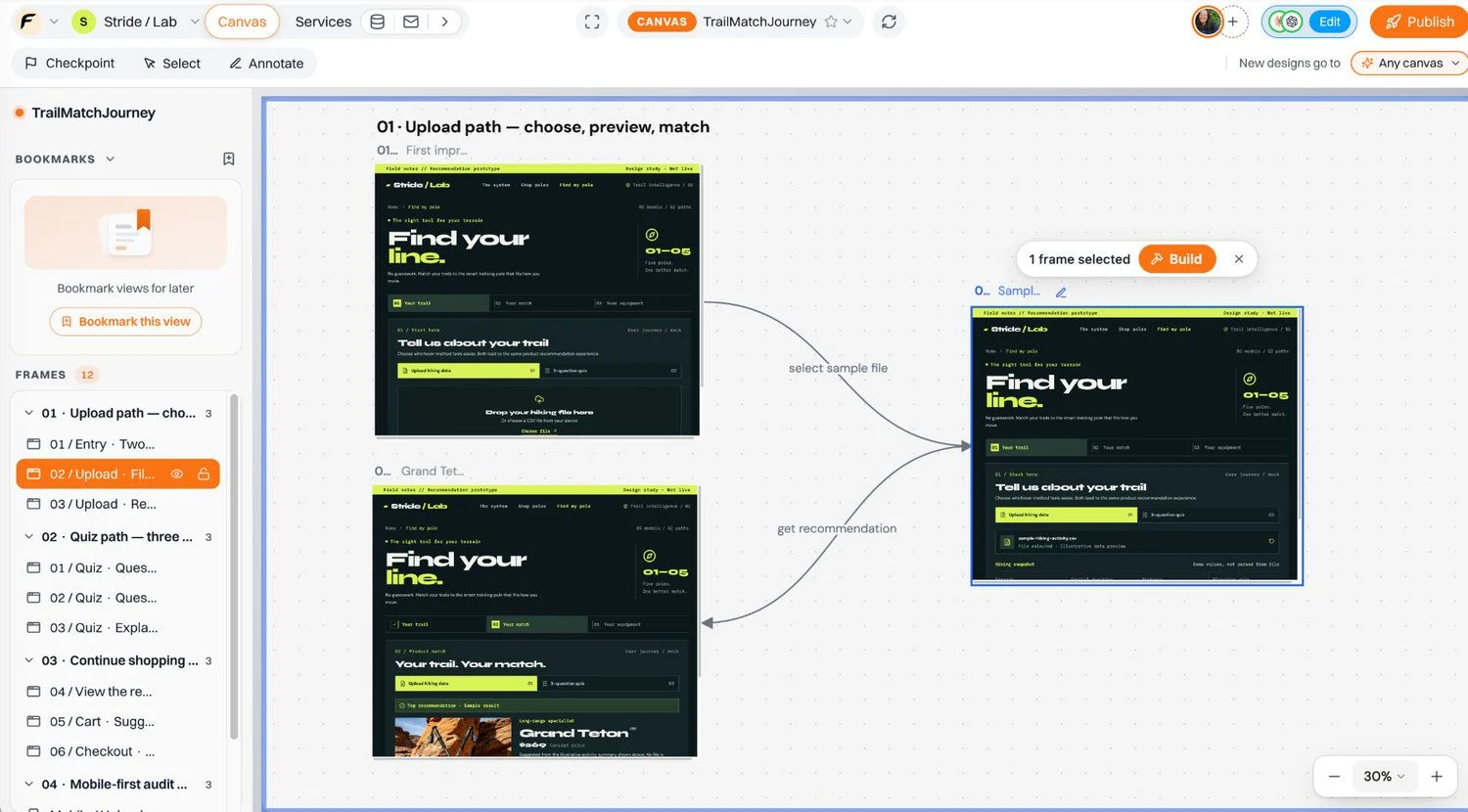
Use and refine a frame
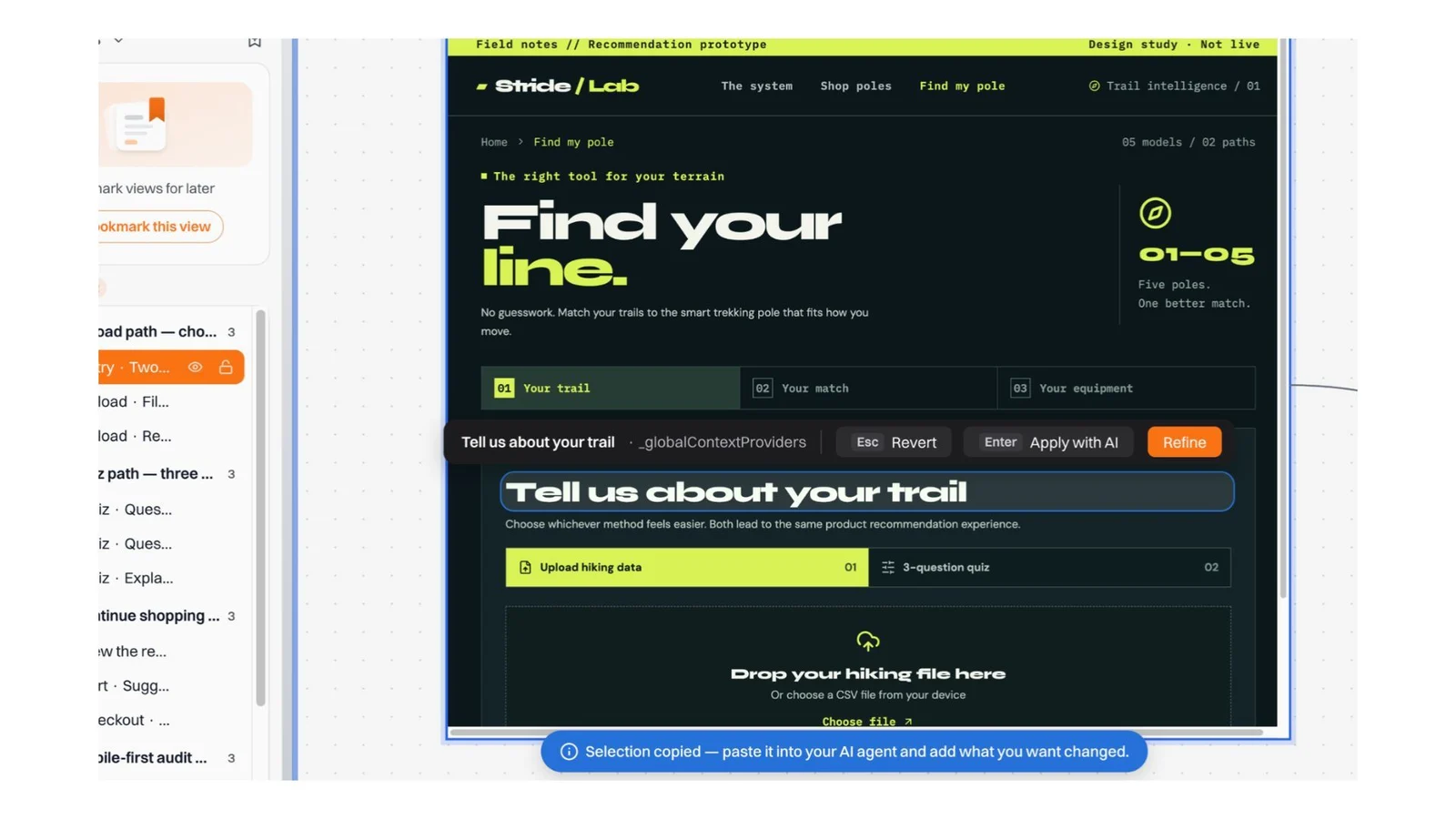
Double-click a frame to click, type and scroll inside it like the real page. Esc goes back to selecting frames.
To fix one part of a frame, turn on Select in the preview toolbar while you are interacting with it and click the element. Floot copies the selection; paste it into your assistant and say what to change, for example "make this heading easier to read, keep the rest of the frame unchanged".
Build the one you pick
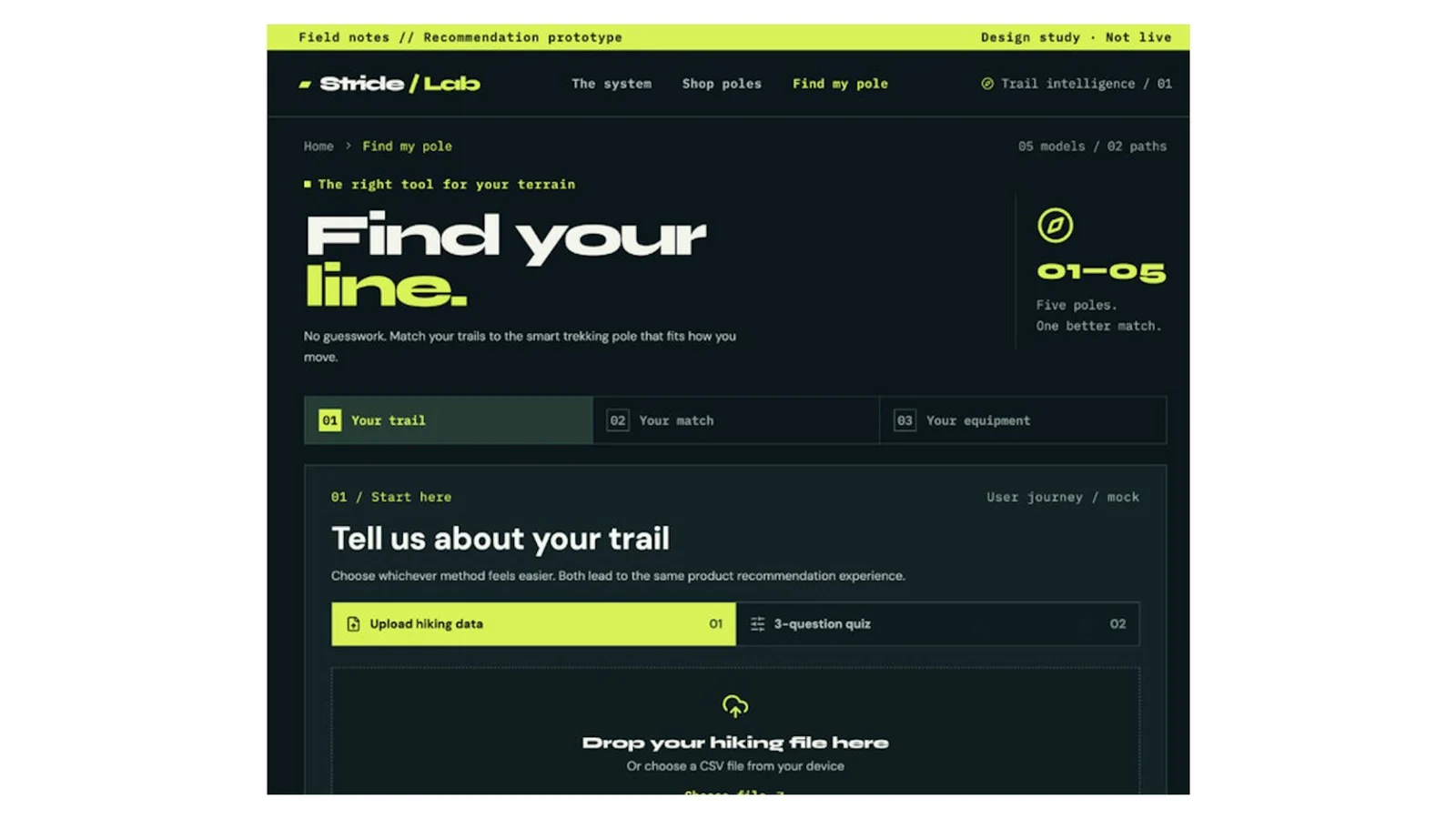
Click a frame to select it (Shift-click or drag a box for several), then click Build in the bar that appears. Floot copies a prompt naming those frames for you to paste into your assistant, and your assistant also sees the selection when it checks your Floot context. You can just say it too:
Build the Find my pole journey from the canvas into my store. Add Find my pole as a fourth item in the navigation without changing the others, and connect the result to the real products, cart and checkout.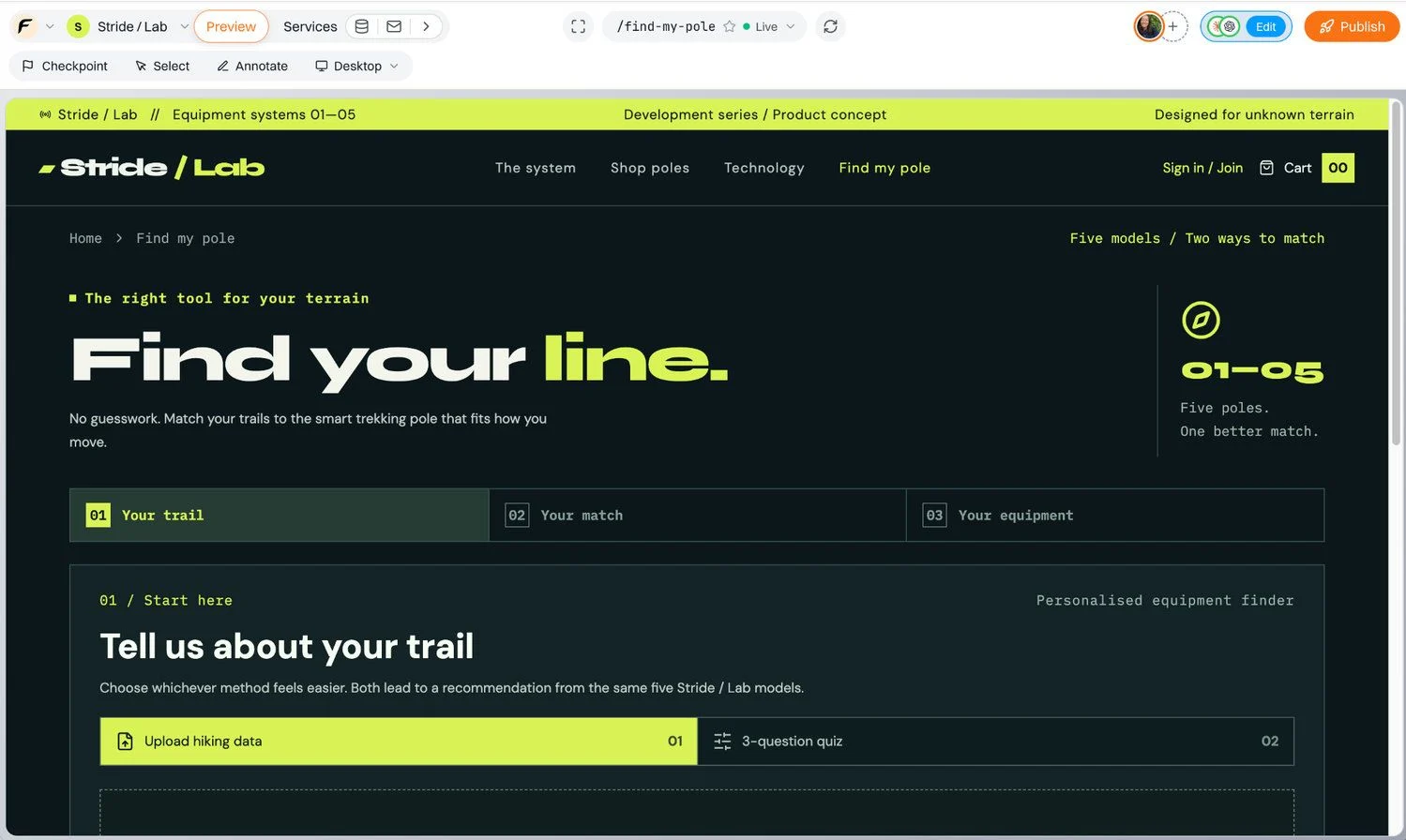
Once it is built, ask for examples of the new page to check its loading, empty and error states.
Tips
- Ask for options that are "completely different" when you are exploring, and for "only change X" when you are refining. Most weak canvases come from asking for both at once.
- Say "don't change the real site yet" while you are exploring, so your assistant puts designs on the canvas and leaves your pages alone.
- Ask for your assistant's recommendation and its reasons in each frame's label. It is easier to disagree with a reason than with a picture.
- Canvases are files in the project, so collaborators see the same frames. See Sharing your projects.